Using IDIOM Decision Manager to Perform the Production Release |
  
|
Using IDIOM Decision Manager to Perform the Production Release |
|
Once you have set up your Production Release generation settings in the Production Release Settings dialog box, you can open your repository in the Decision Manager to perform the Production Release.
You can release an individual decision model or the whole repository.
STEPS
1. |
Import the Vehicle Insurance Demo Repository. (See Importing a Repository). |
2. |
Log on as an Administrator and click on File | System Administration | Vehicle Insurance Demo to open the Vehicle Insurance Demo Repository. |
3. |
Click on Repository | Release > Release pane. |
4. |
Click on the Production Release button and select 'Perform a Server Production Release'. |
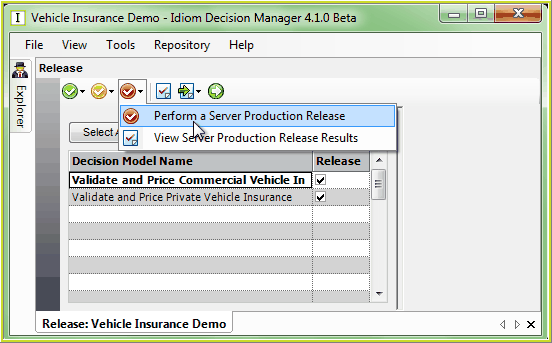
Figure 7-38(a): Perform a Production Release.
IDIOM will display a dialog box that allows the User to select a Build Configuration and specify additional release version information pertaining to the production release.
5. |
Select a Build Configuration from the list and tick the check box and enter the details in to the Production Release Version field. |
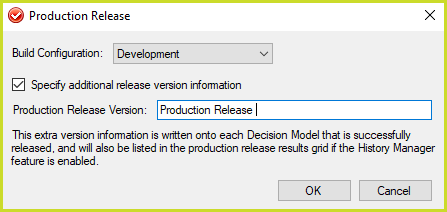
Figure 7-38(b): Enter Production Release Version Details
The selected Build Configuration value is assigned to the <buildConfig> and <buildConfiguration> path variables, see Production release settings for documentation on the path variables. The available Build Configuration values are configured in the BuildConfiguration setting of the appsettings.json file, see Reconfiguring IDIOM
The Production Release Version string entered is set per decision model that is successfully released and is viewable:
•at repository level in the 'Repository | Administration' form using the latest successfully released decision model,
•on the main MDI form, using the latest successfully released decision model,
•as part of the decision model palette title,
•on the decision model properties dialog box,
•as the footer of every page of generated PDF documentation,
•as part of the Java JAR manifest file,
•the Windows file properties, see Binary File Properties.
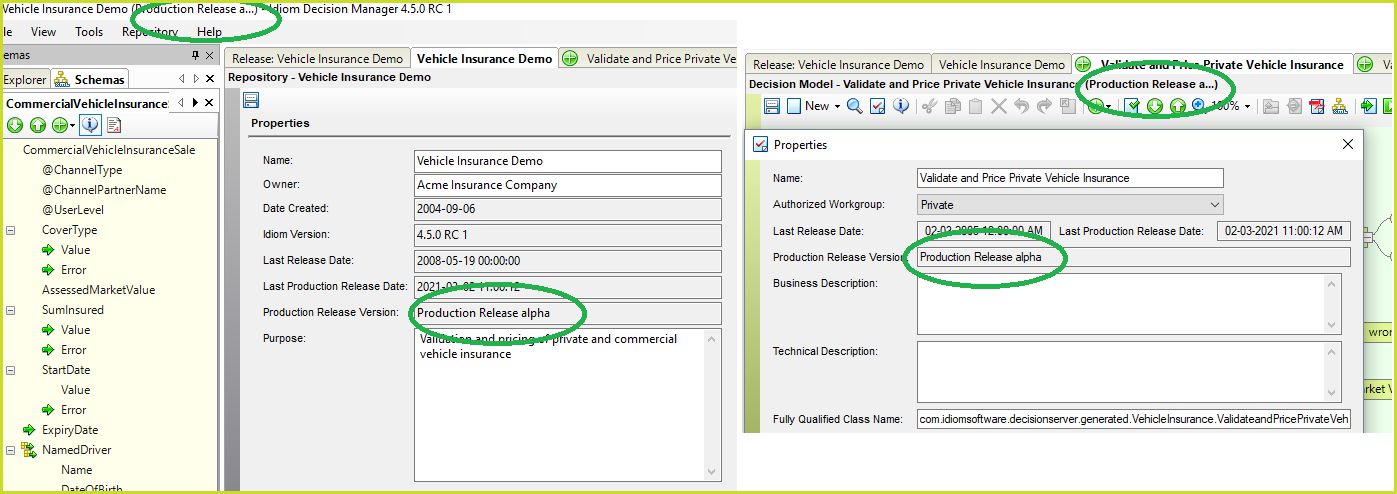
Figure 7-38(c): Production Release Version
The Repository | Administration form also displays the 'Last Production Release Date" - being the date of the last successful production release.
6. |
Click OK |
IDIOM will now validate the decision model/s and then confirm whether the validation was successful.
If the validation was not successful, the repository or decision model cannot be released; any validation errors will be displayed in the Validation Results pane.
If there are no errors, the pane will remain blank and the Production Release will be started on the Server. A dialog box will appear with the statement: 'Production Release started successfully'.
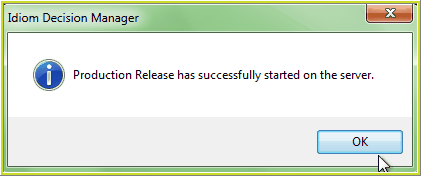
Figure 7-38(c): Enter Production Release Version Details
4. |
Click OK |
Production Release has 5 basic tasks is which it executes (in order):
1.Pre-build
2.Build (Code generation and Compilation)
3.Export
4.Documentation
5.Packaging
6.Post-build
All tasks will execute regardless of any failures with any task. Many decision models can be released at the same time to Production Release but each decision model will be processed one at a time, and the failure of any task in one decision model will not affect the tasks in another decision model.
Results of the Production Release will be displayed in the Production Release results pane.