Production release results pane |
  
|
Production release results pane |
|
The results of the Production Release will be displayed in the Production Release pane to the right of the Validation tab.
Note that Audit Logging must be enabled in order for results to be displayed. Activation is achieved via the Decision Server settings file – see Enable history manager audit feature for the required configuration changes needed.
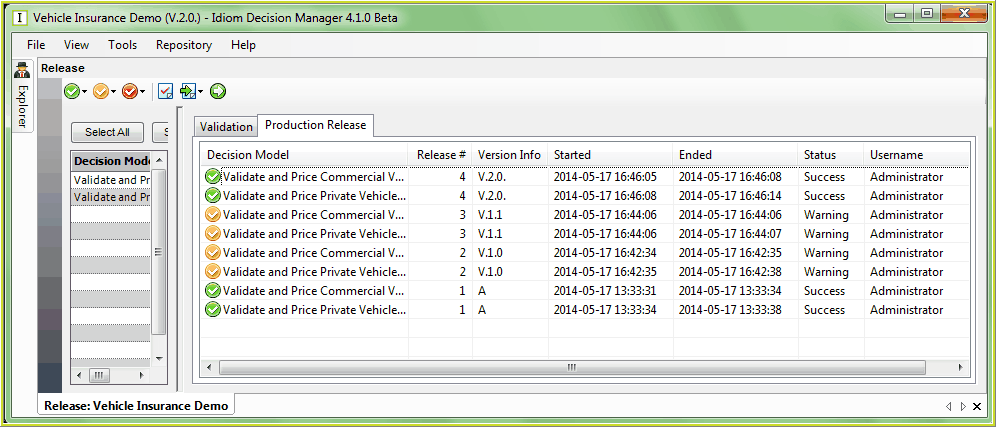
Figure 7-40(a): Production Release results pane
▪The successful release of a decision model is indicated with a green tick next to the decision model and a status of ‘Success’, while a partially successful release of a decision model is indicated with an amber tick next to the decision model and a status of ‘Warning’. This is shown in the example above where models from release V.2.0. were successfully released (green tick), while the same decision models from release # 3 were only partially successful (in this case the build of the dlls succeeded but the creation of a documentation file failed as that was not specified correctly in the Decision Server Settings).
▪The ‘Release #’ column is the system generated number of releases for that decision model.
▪The ‘Version Info’ column is the 'Product Release Version' string specified by the user at the time of submitting the Production Release.
Tip |
Click on any column heading to sort the Production Release results by that column, in either ascending or descending order. |
The Production Release results are retrieved from a database for this display, and the complete history of all Production Releases for this repository will be displayed each time.
If a Production Release is only partially successful then the user will need to check:
•the file locations specified in the Decision Server Settings to determine which requested files are missing or incomplete
•the Log files (..\Program Files\Idiom Software\Idiom Repository Server V4.5\Logs