Reconfiguring IDIOM |
  
|
Reconfiguring IDIOM |
|
It is also possible to reconfigure IDIOM after the initial installation. There are two methods for doing this:
STEPS to 'Repair IDIOM'
1. |
Click on Start (Windows Key) and type Control Panel |
2. |
Click on Programs | Uninstall a program |
3. |
Click on Idiom Repository Server V4.5 or Idiom Decision Manager V4.5 |
4. |
Click on the Change button |
5. |
Select 'Repair Idiom' and then follow the wizard instructions |
STEPS to Manually Edit the Configuration Files
1. |
Open C:\Program Files\Idiom Software\Idiom Repository Server V4.5\appsettings.json and edit the following: |
Attributes |
Function |
Serilog |
To customize logging output, see https://github.com/serilog/serilog-settings-configuration |
AllowedHosts |
This filters the addresses that the server will allow incoming connections from, for example if "repositoryserver.com" is specified, accessing the server using "localhost" will not work (i.e. clients will need to specify their server host address as "repositoryserver.com"). |
Kestrel |
Internal use only |
Urls |
The urls on which to accept client connections on (https://0.0.0.0: 42564 means to use port 42564 on all available assigned addresses). |
AutoSaveInterval |
How long to wait in between save events before writing changes to the file system. |
WorkingDirectory |
Sub folder of C:\Program Files\Idiom Software\Idiom Repository Server V4.5 where user data is kept (repositories etc.). |
AuthenticationType |
(Basic/Integrated/Preauthenticated): The authentication type being used by this server. "Basic" accepts clients that specify usernames and passwords as defined on the server itself. "Integrated" accepts clients logged onto the same domain as the server itself (but also allows fallback onto "Basic" authentication). "Preauthenticated" only accepts clients that have authenticated themselves with the same OpenID server that the repository server is associated with. |
BuildConfiguration |
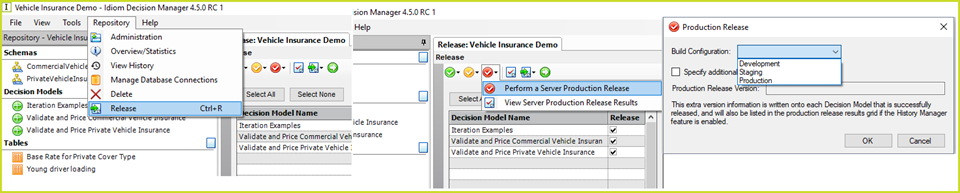
Comma separated free text values that determine what clients are allowed to select during production release as build configuration values. The values in this list are displayed in the Build Configuration list of the Production Release dialog box. This dialog box is accessed with the Repostiory > Release > Perform a Server Production Release options. The selected value is available as the <Build Config> and <Build Configuration> path variables, see Production release generation settings
|
Beacon |
Enabled (true/false): Whether the server discovery mechanism is enabled. |
ClientBeaconPort |
The port on which clients listen to for responses. |
ServerBeaconPort |
The port on which this server listens to for client server discovery requests. |
AuditLogging |
Enabled (true/false): Whether audit logging is enabled. |
DatabaseName |
The name of the audit logging database. The default name is IRSDB ( |
ProviderImplementation |
Comma separated assembly and implementation names for the audit history component that will handle communication with the database. We currently have SQL Server ("HistoryManagement.SqlServer, HistoryManagement.SqlServer.SqlServerHistoryDataProvider") and PostgreSQL ("HistoryManagement.PostgreSql, HistoryManagement.PostgreSql.PostgreSqlHistoryDataProvider"). |
ConnectionString |
The connection string to use when connecting to the database server. For example: "ConnectionString": "Data Source=DESKTOP\\MSSQLSERVER2017;Initial Catalog=IRSDB;User ID=sadmin;Password=sadmin;" A sysadmin login like sa is currently required to get the IRSDB database created. |
MaxHistoricImageCount |
The maximum number of historic images that have the entire release XML populated. 0 for none, -1 for unlimited. |
|
|
2. |
Configure log4net.config: |
Please refer to the standard documentation at http://logging.apache.org/log4net/
NOTE: The repository server must be restarted for any configuration changes to take effect.”