Stepping Into a Decision |
  
|
Stepping Into a Decision |
|
Stepping into a decision allows you to see the result of each operator used by the formula that is executed by the decision each time that the decision is called. If the context node is a collection, this will be one time for each element in the collection. This can help identify errors in your logic.
To step into a decision:
STEPS
1. |
Open the Validate and Price Private Vehicle Insurance decision model |
2. |
Build an input document or load an existing Input file (see Building an Input file). |
3. |
Specify a Break Point on the 'Adjust Cover Type' decision (see Specifying a Break Point) NOTE: You need to insert at least one Break Point because if you simply run the test without inserting a Break Point, it will have finished executing once it reaches the final decision and you will not be able to step into any decisions. |
4. |
Start the test by clicking on the Run button |
5. |
Click the Step Into button in the toolbar. Alternatively, you can right-click on the decision model and select Debug | Step Into. |
The formula associated with the decision you 'stepped into' will appear in the formula palette.
6. |
Click on the Show/Hide execution results to display the formula's execution path in green together with the results of each operator. The Document Builder highlights the context of the next decision (group) to execute. |
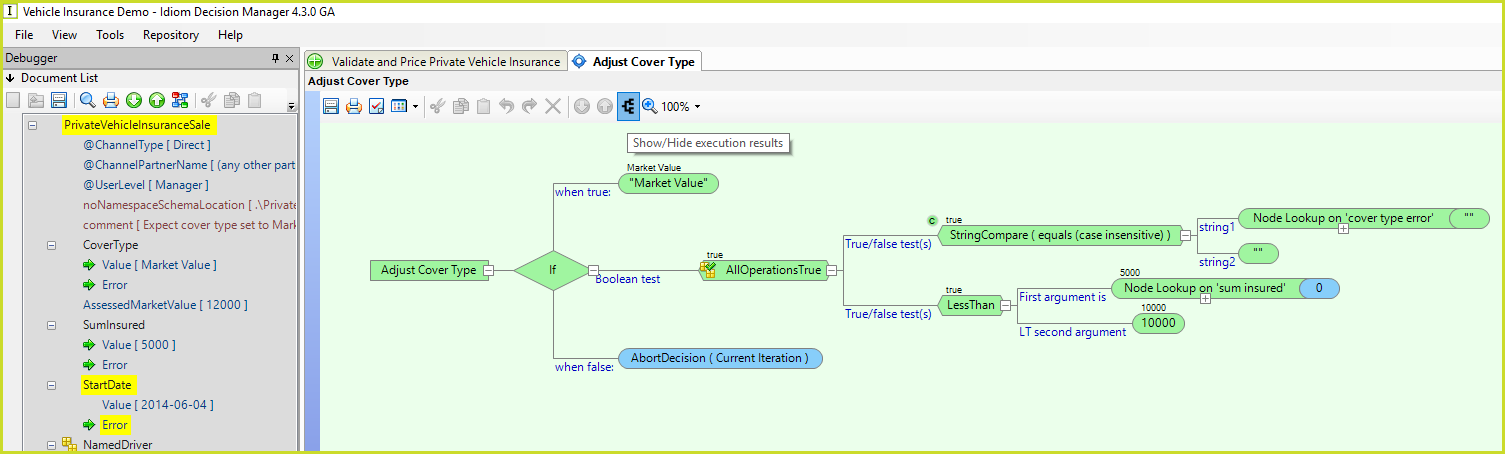
Figure 3-42(a): The formula palette is displayed after a decision is stepped in to during an inline test.
7. |
Close the formula palette and return to the decision model. |
You will see that the test has moved on to the next decision unless the element is multi-valued, in which case it is ready to process the next element in the collection. In either case you can step into it clicking the Step Into button  again, or continue on to the next break point/end by clicking the Run Button.
NOTE: You can also step in to a UDO:
Should the formula you have stepped in to contain a UDO, you can step in the UDO by right clicking on it and selecting 'Open Item'.
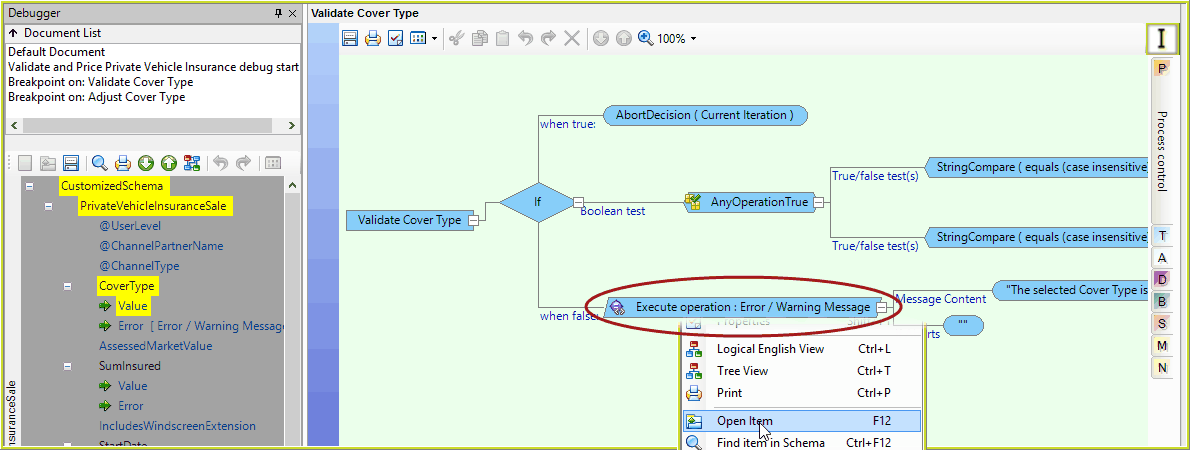
Figure 3-42(b): Step in to a UDO from the formula palette
The UDO is displayed. Hover over the operators in the UDO to view the results.
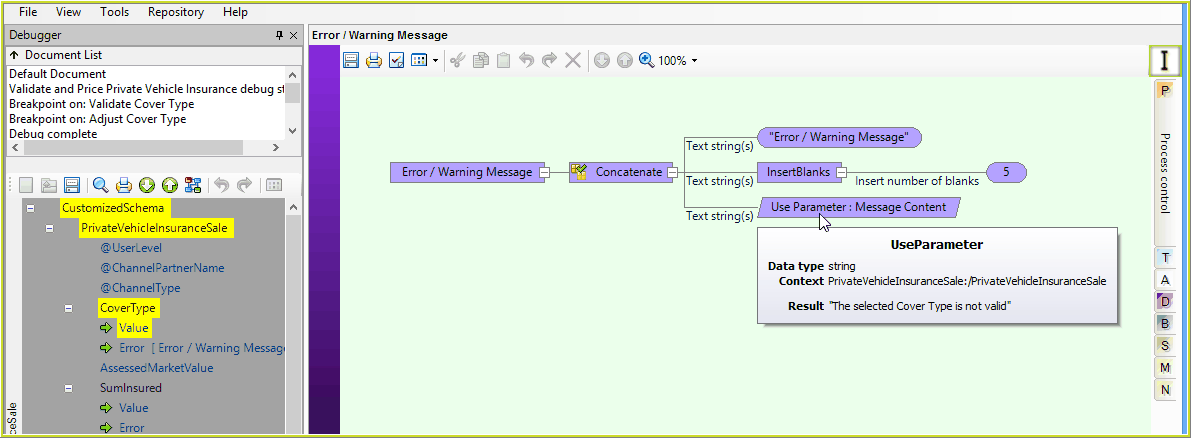
Figure 3-42(c): Viewing UDO results from the debugger
 (see