Conducting an In-Line Test |
  
|
Conducting an In-Line Test |
|
STEPS to conduct an inline test
1. |
Open the Validate and Price Private Vehicle Insurance decision model. |
2. |
Click on the Test Inputs button |
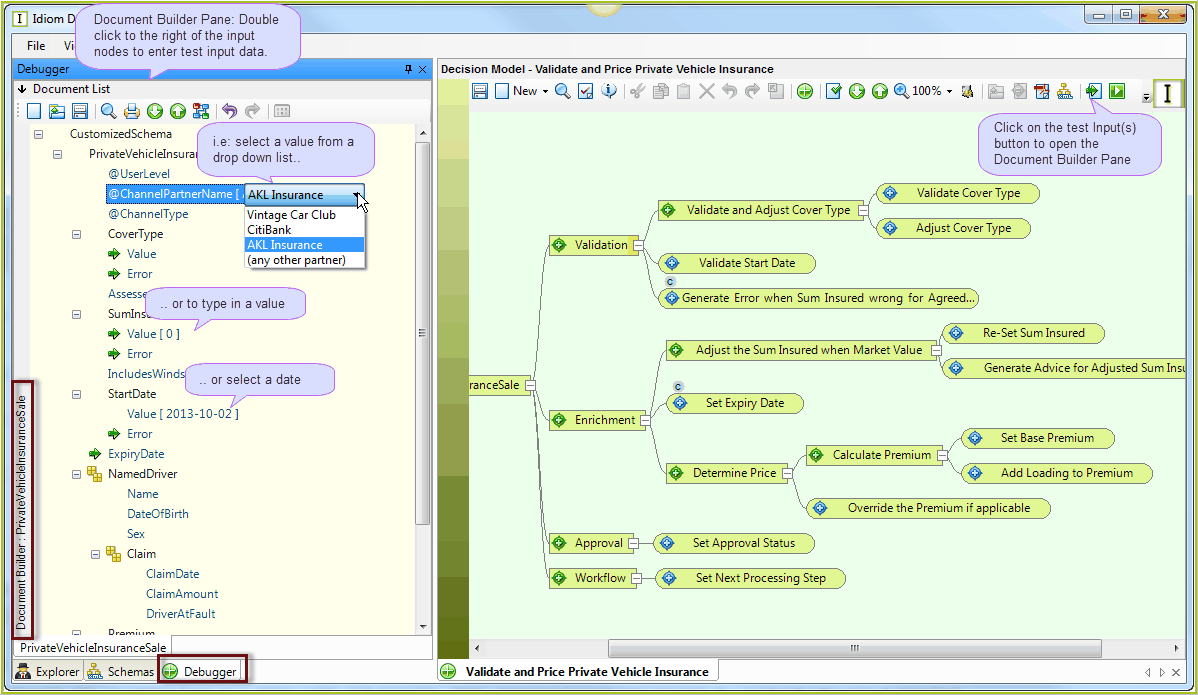
Figure 3-37: Input data can be entered directly in to the Debugger's Document Builder Pane
Tip |
Shortcut Keys (available in the document builder from Idiom V4.5 onwards) ▪'Ctrl' + 'Delete' keyboard shortcut key will remove repeating nodes in the document builder. ▪'Enter' - puts the selected node in to edit mode (if it is editable) ▪'Shift' + 'Left Click' on enumerated value - Users can now force the Document Builder to provide a plain edit box for non-string typed (or enumerated) nodes by using the Shift key while initiating the node value edit. ▪You can drag nodes from Debugger's pane onto Decision Models and Formula palettes to create new decisions, decision groups and formula nodes. |
3. |
It is possible to edit the input fields in the Document Builder Pane directly, (see Changing Node Values), or you may wish to import a previously prepared input schema file.(see Open Existing Document.) |
4. |
For the purpose of this exercise we will import a previously prepared .XML document. Click on the Open button |
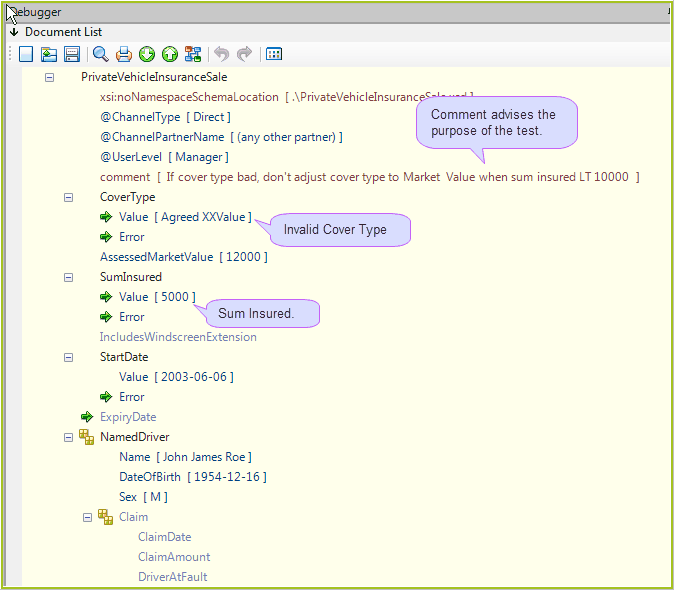
Figure 3-37(b): Previously prepared Input file has been opened in the Document Builder with data for testing 'bad cover type' error message.
This input file has been specifically designed to test the Invalid Cover Type and Adjust Cover Type decisions - 'If the cover type is not valid (i.e. not an exact match of the words 'Agreed Value' or 'Market Value') display the Bad Cover Type error message and do not adjust the cover type to Market Value.
5. |
Click on the Run button in the decision model toolbar |
IDIOM will then process the decisions within your decision model and update the Document List area at the top of the Document Builder pane when finished.
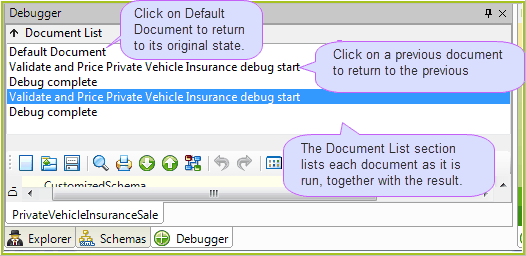
Figure 3-37(c): The Document List area of the Document Builder pane
This area lists the status of each test and acts as a history of your `debugging' efforts. After you have run your initial test, you may wish to modify the test input file in some way (see Changing Node Values) and then re-run the test
Each time you run the debugger, the tested document is listed in the Document List area.
Note: If the Document List pane does not open, a processing error may have occurred. If this is the case, the Validation Results screen will appear on the right. Double click on the element
Tips |
•If you wish to return the test document to a previous state, you simply click on a previous test. •If you want to return the test document to its original state, click on Default Document at the top of the list. •Debug input documents are now shared across all decision models on a single 'Debugger' tab as opposed to separate tabs for each decision model. |
 to open the Document Builder pane.
 in the Document Builder pane to select an input file from the Open dialog box, and Try opening PVIS_01.2_adjust_cover_type.xml from ..\Idiom Software\ IDIOM Decision Manager v4.5\Sample files\Vehicle Insurance.
