In-line test settings |
  
|
In-line test settings |
|
You can specify the settings used for in-line testing in the decision model 'Properties' dialog box:
STEPS
1. |
Open the Validate and Price Private Vehicle Insurance decision model. |
2. |
Click on the decision model Properties button |
3. |
Click on the Settings tab if it is not already displayed and then make the appropriate selections e.g. set internal decimals to 2 decimal places or specify a particular timezone. |
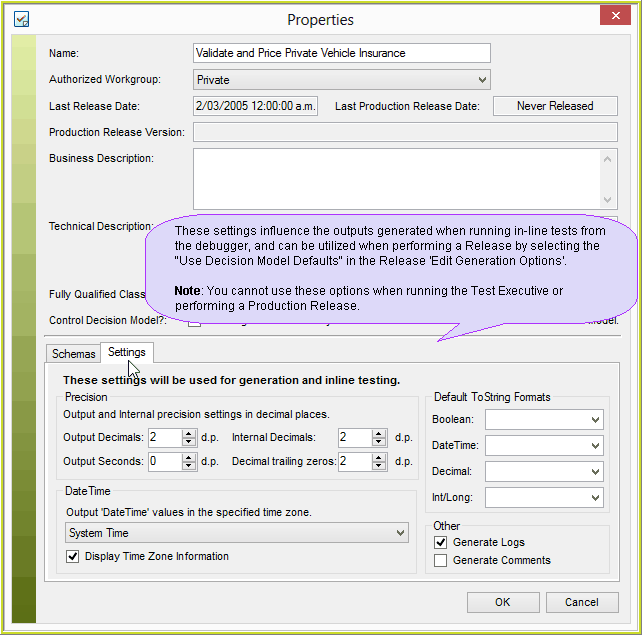
Figure 3-36: The decision model Properties dialog box
4. |
Click on OK |
Important to Note:
▪As mentioned above, these settings will apply to the outputs created when running an in-line test from the decision model.
▪Repository Releases from the Release pane also have their own 'Settings' configurations within the 'Edit Generation Options >Settings' Tab (See Edit Generation Options), however it is possible to use the Inline Test Settings by selecting the 'Use Decision Model Defaults' option within this tab.
▪The Inline Test Settings will not impact the outputs generated from the Test Executive, which uses the 'Advanced Settings' specified in the Test Executive. (see the Test Executive Advanced Settings Pane).
▪The Inline Test Settings will not impact the outputs generated by a Production Release. Production Releases use the 'Generation | Settings' specified in the Production Release Settings dialog box (see Production release settings ).
Table 3-3 provides an overview of the In-line debugging test settings.
Item |
Function |
External decimal places |
This function specifies the number of decimal places to use for decimal values in the following situations: •If the value is output by a decision. •If a formula uses relational operators e.g. <, >, =, <=, >=, not=. By choosing external decimal places you can specify the precision that both numbers are rounded to before the relational operator is performed. •The number specified may not be greater than the setting for the 'Internal decimal places', it must be a non-negative integer, and the default setting is 2. |
Trailing Zero's |
This function specifies the number of trailing zero’s to use for decimal values in the following situations: •If the value is output by a decision. •The number specified may not be greater than the setting for the 'External decimal places', it must be a non-negative integer, and the default setting is 0. |
Internal decimal places |
This function is optional and specifies the number of decimal places to use for decimal values in the following situations: •When IDIOM performs division operations - decimals are represented internally as java.math.BigDecimal, which requires rounding when performing division •When IDIOM uses the RaiseToPowerOf operation •The number specified must be a non-negative integer, and the default setting is 15. |
Seconds |
Specifies the number of seconds to be included in a date. |
Time-zone |
This field enables you to specify the timezone that is to be used when: •reading timezone unspecified date/datetime data •outputting date/datetime data You can select the appropriate timezone from a drop-down box in the Release screen |
Generate Logs |
Enables you to specify whether or not a log will be kept. This log will contain information such as the operational outcomes of formulas you have chosen to `trace at runtime' (see Extra Formula Functions). |
Generate Comments |
Enables you to specify whether or not source code comments are generated. If the check-box is checked then comments will be generated. ie: /** * ID : O1qatMIIm7k_moDLEVARJaA * Name : Int * CreatedBy : SystemAdministrator * ChangeSet : 163 * WholeNumberCalcMode : int * EffectiveDate : 1753-01-01 * Review : false * Version : 0 **/ |
Default To String Formats |
Enables you to override the formatting of the converted data, when Boolean, DateTime, Decimal, Int or Long datatypes are converted to a String datatype using the 'ToString' Operator in a formula. (See Miscellaneous Hover Tab - ToString Operator) |
Table 3-3: Decision Model > Properties >Settings
 in the toolbar > decision model Properties dialog box.