Edit local release generation options |
  
|
Edit local release generation options |
|
It is possible to assign and run batch (deployment) scripts through the Repository Release pane. The Edit Generation Options function enables you to specify actions that will be performed to support the release of the decision model/repository.
IDIOM gives you the ability to specify various release and deployment options, and to nominate deployment scripts and their arguments that can be run immediately before or after the release as an integral part of the process.
STEPS to edit the local release generation options
1. |
Log into the Vehicle Insurance repository as the System Administrator and click on 'Repository' | 'Release' |
2. |
Right-click on the Validate and Price Private Vehicle Insurance decision model under decision model Name and select 'Edit Generation Options' |
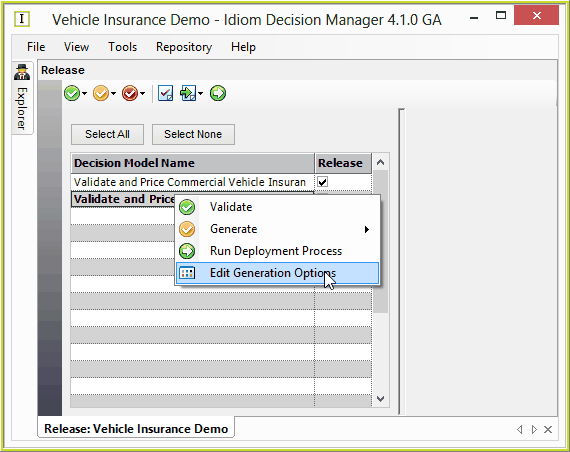
Figure 7-29: Option to Edit the Generation Options in the Release Settings pane
3. |
Open the Tabs to edit the generation options: |
Pre-build and Post-build
In the Pre-build or Post-build tab (whichever is appropriate), select a relevant batch script, if any, using the Browse button and enter the appropriate arguments in the Arguments field. Try using the Prebuild.bat and Postbuild.bat files in ..\Program files/Idiom Software/IDIOM Decision Manager 4.5/Sample Files.
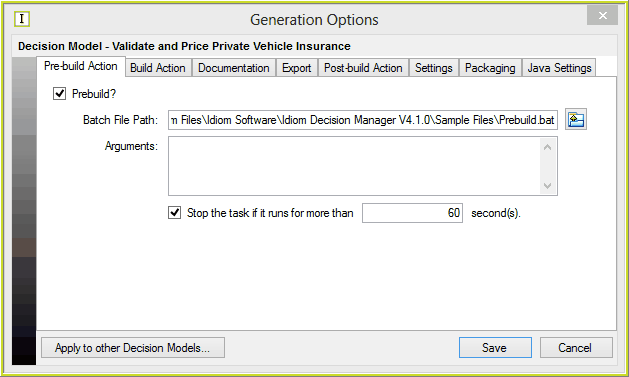
Figure 7-30(a): The Pre-build area of the Generation Options window
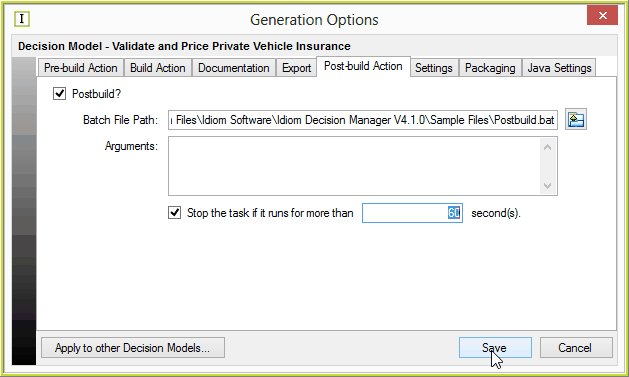
Figure 7-30(b): The Post-build area of the Generation Options window
Build Action
The Build Action tab options must be specified before the release can be run. You must specify the generation path where the generated code will be saved, and select the generation platform (Java or C#).
Note: If you choose the Java platform you must enter the path to the JDK Home in the Java settings tab.
You can also decide whether or not you wish the generated file to be compiled or not. If you do select the compile option, you must also specify the compilation path and Binary File Name.
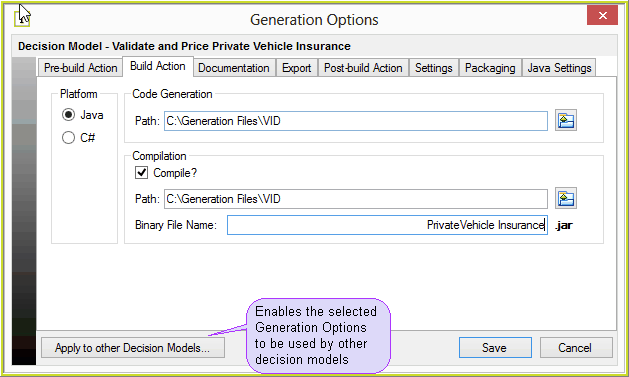
Figure 7-30(c): The Build area of the Generation Options window
NOTE: If you select the 'Apply to other Decision Models' option, remember to change the Binary File name for each decision model, or the files will simply overwrite each other.
Documentation
Under the Documentation tab you can specify whether or not you wish the repository to be documented as a .pdf. Click in the Generate Documentation check-box, fill in the appropriate Path and file name to specify where to place the .pdf generated document.
Each decision model must have a different file name or they will be overwritten by the subsequent decision model.
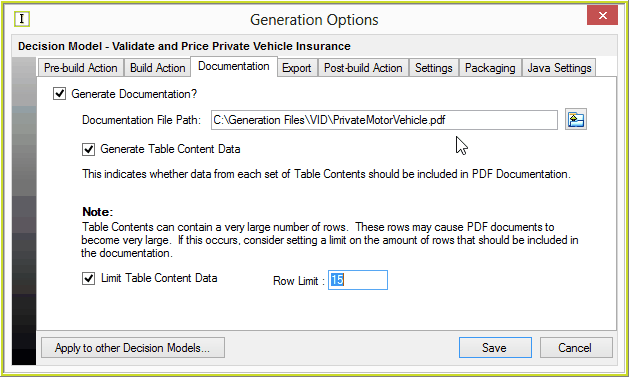
Figure 7-30(d): The Documentation area of the Generation Options window
Export Tab
The Export Tab allows you to specify whether the Repository should be exported as an XML document or not, and enter the path and file name for each decision model.
Select the encryption status of the exported file.
• Unencrypted - an unencrypted file can be opened on any text editor and viewed by everyone.
• Encrypted - an encrypted repository can only be viewed by importing it and opening it in the Decision Manager.
Check the 'Export document unrestricted' check-box if you wish to allow other user IDIOM License holders to open and make changes to the exported decision model. (See also Exporting the Repository). When the export is ‘restricted’, opening is restricted to the same licensee as defined by the IDIOM license itself.
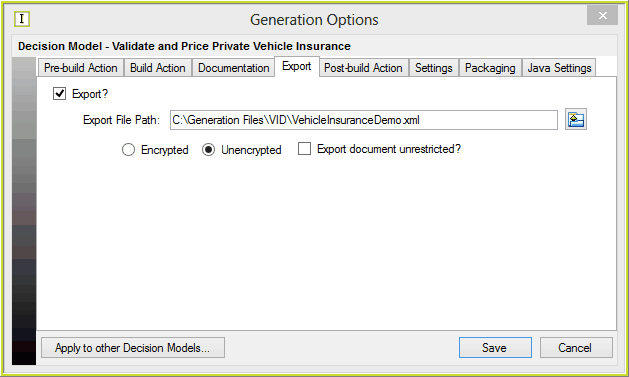
Figure 7-30(e): The Export area of the Generation Options window
Java Settings
The Java Settings tab is where you specify your java settings such as the location of JDK. You can type in a path name, or click on the browse button to browse to your file, or use the Autodetect JDK button The Export Tab allows you to specify whether the decision model/Repository should be exported as an XML document or not, and enter the path and file name for each decision model.
Select the encryption status of the exported file.
• Unencrypted - an unencrypted file can be opened on any text editor and viewed by everyone.
• Encrypted - an encrypted repository can only be viewed by importing it and opening it in the Decision Manager.
Check the 'Export document unrestricted' check-box if you wish to allow other user IDIOM License holders to open and make changes to the exported decision model. (See also Exporting the Repository). When the export is ‘restricted’, opening is restricted to the same licensee as defined by the IDIOM license itself.
.
You can also enter Compilation and JAR arguments in this area.
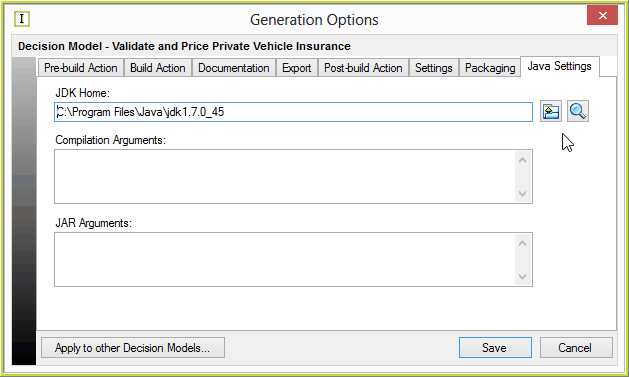
Figure 7-30(f): The Java Settings area of the Generation Options window
Settings
The Settings tab is where you can specify the timezone, precision, ToString formats, and select whether or not to generate logs and comments. These options can also be set for In-Line Testing in the Settings tab within the Decision Model Properties dialog box, and are described in more detail under this topic (see In-line test Settings).
If you wish to use the In-line Test Settings that you have already specified in the Decision Model Properties dialog box, then check the 'Use Decision Model Defaults' check-box. If you would like to specify alternate settings you can enter them here and these will then be used instead.
NOTE: settings specified in the Generation Options Window override those specified in the decision model if the check-box is not checked.
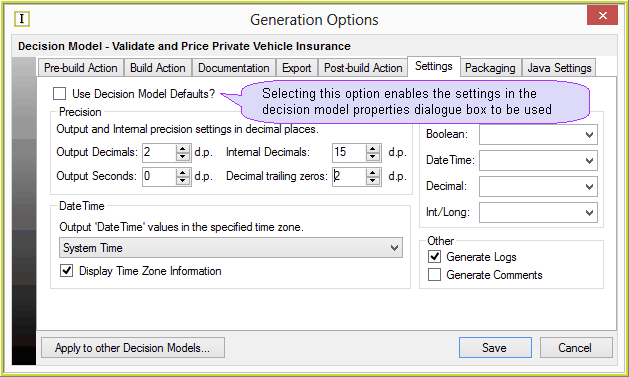
Figure 7-30(g): The Settings area of the Generation Options window
Packaging
Finally, the Packaging tab is where you can individually specify options for each decision model determining if you would like all or some of the deployed assets packaged in to a zip file.
If this option is selected, all selected contents are zipped and saved in the selected 'Package File Path'.
If you wish the Documentation and Export files to be zipped, be sure to specify these Generation options.
releasezip[.png)
Figure 7-30(h): The Packaging area of the Deployment Process window
4. |
Once you have made the appropriate changes in the Generation Options window, click on 'Save'. Alternatively, you can click on 'Cancel' if you do not wish to proceed with your changes. |
IDIOM will then return to the Release Settings pane.
Tips |
You can apply the Generation Options to other decision models by clicking on the 'Apply to Other Decision Models' button. You can utilise the In-line Test 'Settings' that you have already specified in the Decision Model Properties dialog box, simply by checking the 'Use Decision Model Defaults' check-box in the Settings tab. |