The Decision Model Workspace |
  
|
The Decision Model Workspace |
|
The decision model workspace displays all of the decisions and decision groups associated with a decision model. It can be opened by double clicking on the name of the decision model title in the Explorer pane.
Once open, you will notice that all of the decisions and decision groups are green in colour. However, these can be differentiated easily, as decision groups are shown as rectangles and decisions as rectangles with rounded edges. In addition, they have different icons. Decision group icons are green with a plus sign in the middle  and decisions are green with no image in the middle
 . When formulas have been attached to a decision, the icon changes to a formula icon, which is blue
 .
The IDIOM icon at the top right of the screen indicates the `Save' status of the decision model - it is white when all of the actions performed in the workspace have been saved and aqua when some actions that have been performed have not been saved.
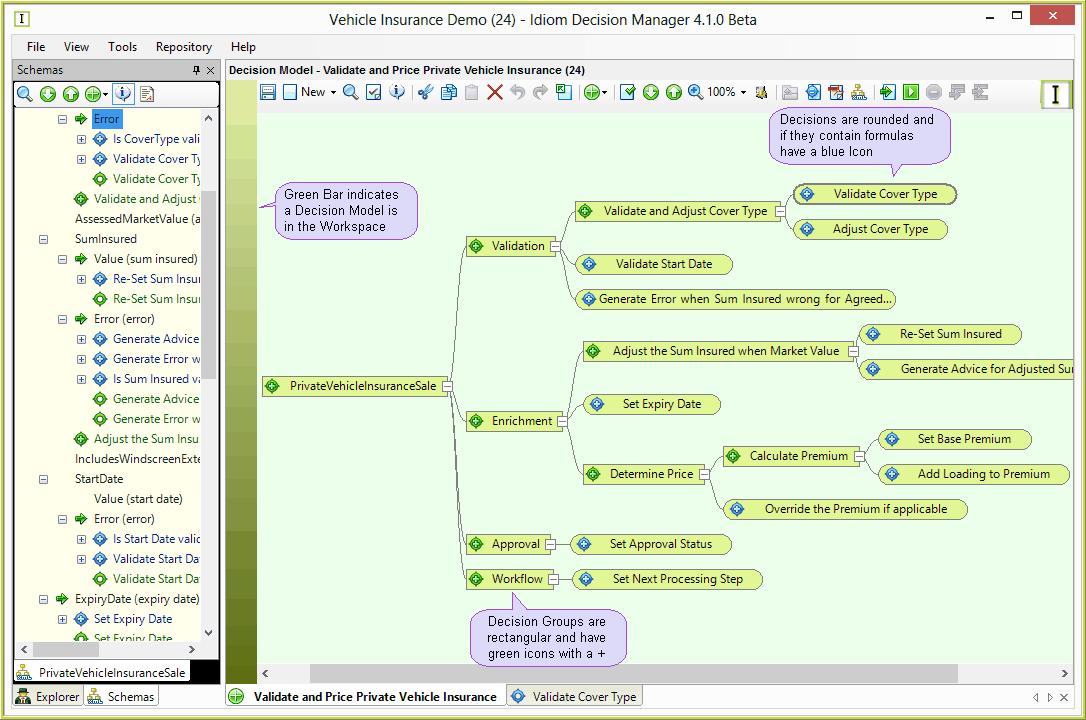
Figure 2-18 The Decision Model Palette
If a decision or decision group is white, then the decision has not been associated with a node on the schema and is merely a 'shell'.
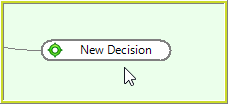
Figure 2-19: A white decision shell indicates it has not been connected to a node on the schema.
You cannot attach a formula to a decision until it has been linked to a schema node. (see Linking Decisions to Schema Nodes).
Once linked to a node on the schema, the decision turns green. When you select (click on) a decision or decision group, it will be outlined with a grey colour.
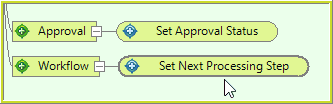
Figure 2-20: A selected decision has a slightly bolder grey outline
NOTE: Decisions can be detached, moved around the workspace and added to other decision groups by clicking and dragging. See Ordering Decisions for Runtime. Right-clicking on a decision or decision group brings up a drop-down box with several options, all of which are discussed later in this manual.