The Formula Palette |
  
|
The Formula Palette |
|
The formula palette is also displayed in the Workspace pane and is used to create a new formula or to view an existing one.
To open the formula palette and create a new formula, you can either:
•right-click on a decision/decision group in either the customized Schema pane or the decision model and select `New Formula';
•or, you can right-click on a schema node and select ‘New Formula’’ (See also Floating Formulas).
You can open an existing formula to view or change from either of these locations.
When you open the formula palette (for a new formula or to access an existing formula) you will be presented with a blue formula workspace with the current formula displayed within it and a blue boundary bar to the left of it. This indicates that you are working in the formula workspace. Hover tabs that contain the formula operators are found on the right of the formula palette. There are many tabs and operators, which are all described in detail in the Reference chapter.
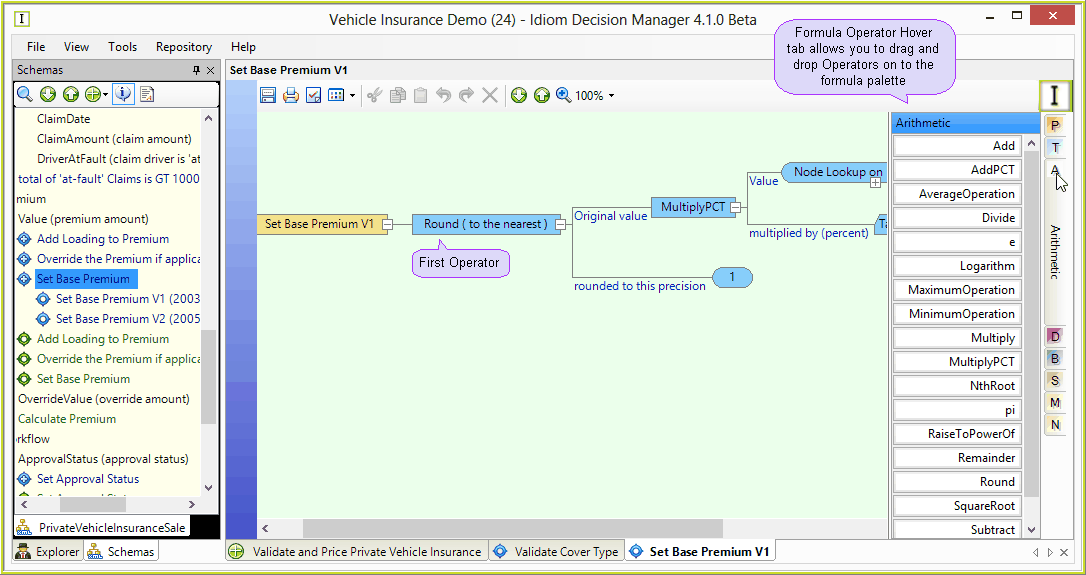
Figure 2-21: The Formula Palette
Context Stack
The Formula Workspace has a Context Stack tab in the lower left corner to display the Context Stack pane which shows the path to the formula and to the selected formula cell.
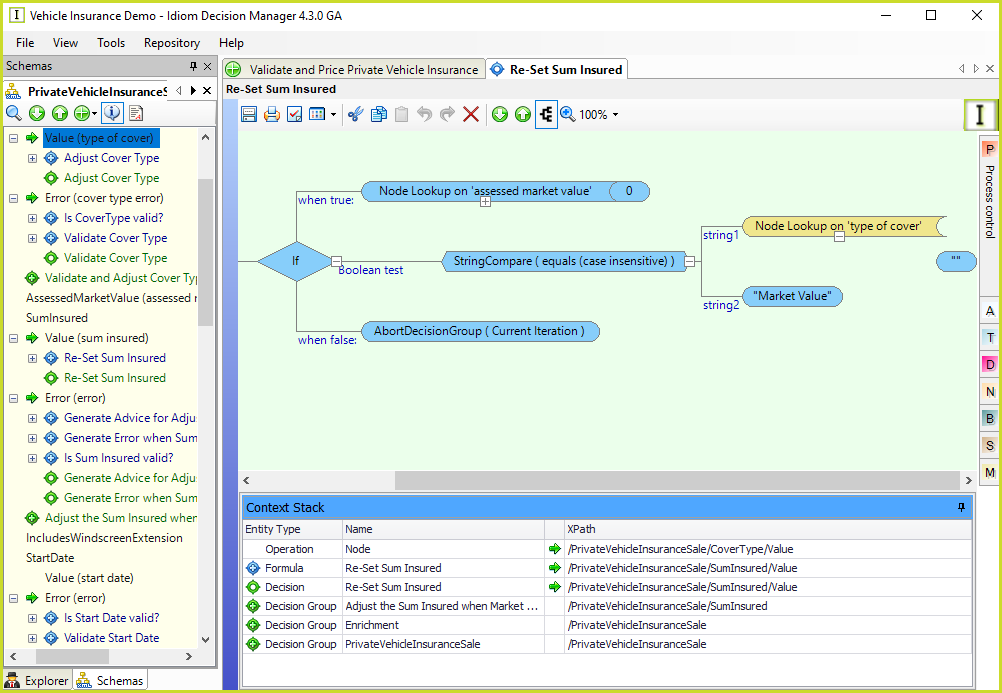
Figure 2-21a: Formula Context Stack
There are several buttons in the toolbar at the top of the formula palette. These allow you to save your formula, print it, view the Properties dialog box, copy, cut and delete bits of the formula, undo and redo actions, delete the formula, expand and collapse sections, change the zoom settings and view the Logical English and Structured views of the formula.
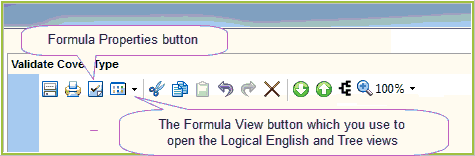
Figure 2-22: The Formula Palette Toolbar
You can open the Formula Version Properties dialog box by clicking on the Properties button  in the toolbar. This window details the properties of the formula on display, such as the formula path, name, datatype and effective date.
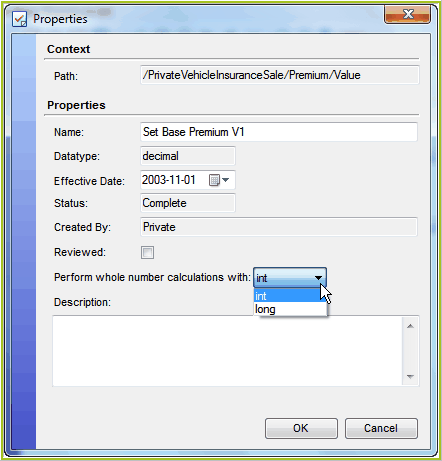
Figure 2-23: The Formula Properties dialog box