Registering a New License |
  
|
Registering a New License |
|
There are occasions when you may need to register a new IDIOM Decision Manager license:
▪to replace the temporary license issued after installing a new version of IDIOM Decision Manager
▪to upgrade your existing license
▪to renew an expired license.
Note: New licenses are issued by Idiom Limited and can be requested by contacting idiomsupport@idiomsoftware.com
STEPS - To replace a temporary license, or renew an expired license from the splash screen:
1. |
Upon receipt of the new license file, save it to a folder in your directory. |
2. |
Open the IDIOM Decision Manager. |
3. |
Select the Repository Server to register the license against. |
4. |
Click on the Registration button that appears in the splash screen. See Figure 6-10(a) below: |
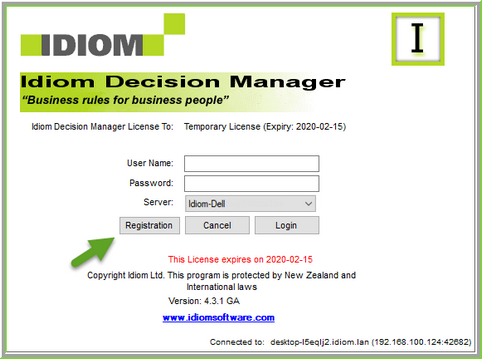
Figure 6-10(a): Registering a new license from the Flash Screen
4. |
Browse to your new license file and click 'Open'. |
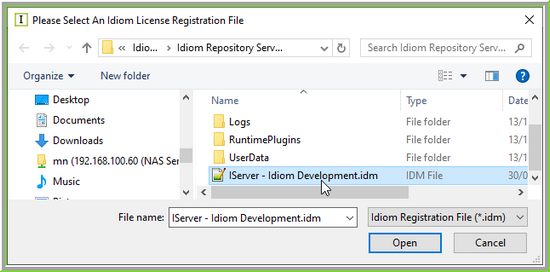
Figure 6-10(b): Browse to your Idiom License file.
STEPS - To replace or renew a license from the IDIOM Decision Manager desktop:
1. |
Upon receipt of the new license file, save it to a folder in your directory. |
2. |
Open the IDIOM Decision Manager, and log in using your User Name and Password. If you have just downloaded a new version of Idiom, you will have been issued with a temporary license and can log in using the temporary license defaults: •User Name: administrator •Password: password |
3. |
Click on Help > Registration > Register License and browse to open your license file as in step 4 above. |
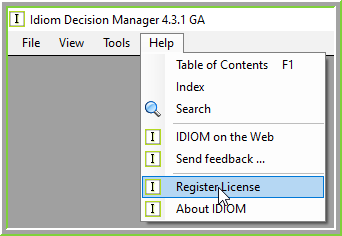
Figure 6-11: Registering your new license from the Idiom Desktop
Your new license details should now appear on the Splash screen, and on the Help > About IDIOM dialog box.
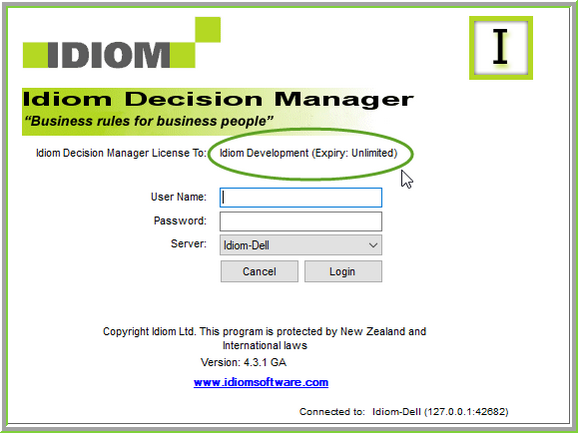
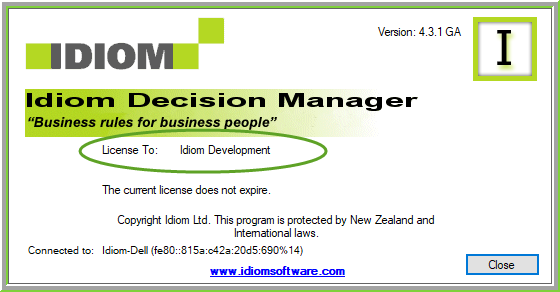
Figure 6-12: New license details display on the log-in screen and About Idiom dialog box.