Open Existing Document |
  
|
Open Existing Document |
|
In some cases it may be more convenient to open an existing .XML document that has been saved with pre-populated data entered against the nodes. Different tests can be run depending on the data that has been saved in the document you are opening.
Let's open an existing document that tests if the cover type is changed to Market Value when the Insured amount is less than $10,000
To open an existing document
1. |
Right-click on the Private Vehicle Insurance Sale in the schema pane and select 'Build Document' > Document Builder workspace |
2. |
Click on the Open Existing Document button |
3. |
Select an input .xml file and click on Open. Try importing the PVIS_01.2_adjust_cover_type.xml file from ..\Idiom Software\IDIOM Decision Manager v4.5\Sample files\Vehicle Insurance. |
Tip |
Alternatively, you can drag the input xml file from the Windows file explorer and drop it on the Document Builder panel. |
The document from the imported file appears in the Document Builder with values populated against the nodes:
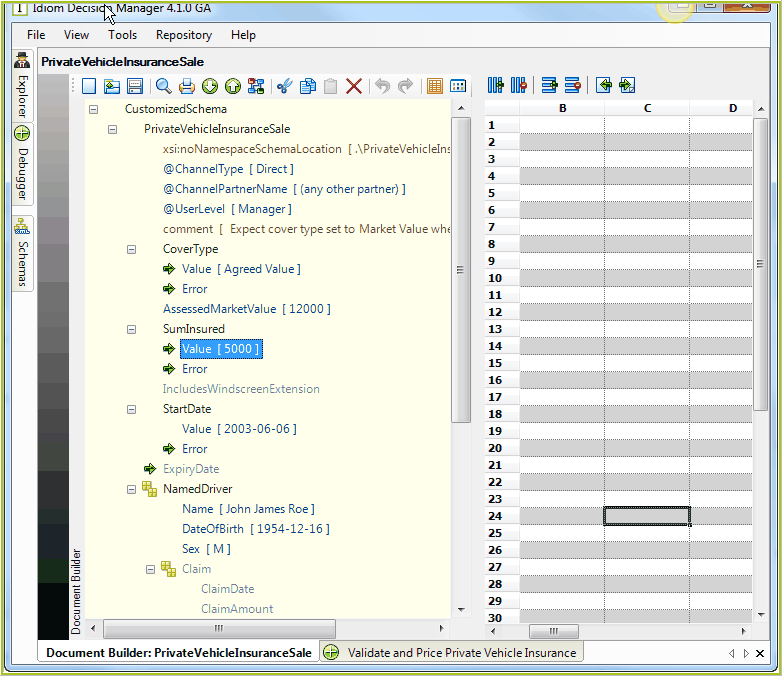
Figure 3-45: Open existing Input document
4. |
Double click, or right-click > Edit on any editable node to make the required changes to the values. |
5. |
Click on the Save button |
 in the Toolbar > Open dialog box
 to save your changes as an XML document