Changing Node Values |
  
|
Changing Node Values |
|
There are a number of changes you can make to Node values, but first you should note that you can only make changes to certain nodes, as is explained in Table 3-4.
Node Colour |
Status |
Blue |
Can be edited i.e. their values can be changed |
Black |
Cannot be edited i.e. their values are fixed. |
Grey |
These nodes are not part of the input document you have imported but exist in the customized schema in IDIOM. You will need to specifically include them to ensure that they are part of your document. |
Lavender |
These nodes are included in the customized Schema of the default document but not in the document that you have imported. To include these nodes in the document that you are building, right-click on the node and select `Include Node'. You can then specify a value for the node. An example of this type of node is Expiry Date in Figure 3-43 above. |
Red |
These nodes are not part of the schema; when one appears you will need to open the Validations pane (Click on the Validation Errors button |
Table 3-4: Status of schema nodes in the Document Builder workspace.
To manually enter a new node value:
1. |
Double click on an editable node e.g. Sum Insured Value, or alternatively, right-click on the editable node and select edit. |
2. |
Enter a new value, or select the appropriate value from a drop-down box. |
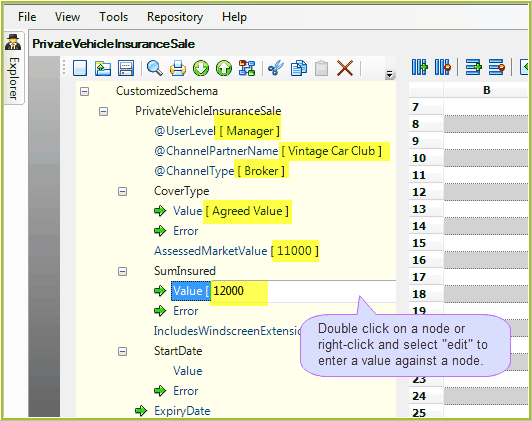
Figure 3-44(a): Manually entering new node values in the Document Builder workspace
3. |
Click on the Enter button on your keyboard or click anywhere outside the text box |
The new value appears next to the node name
4. |
When finished inserting your data, click on the Save button |
To copy and paste an existing Node Value:
STEPS
1. |
Right-click on an output node (i.e. a node that is associated with a value) and select Copy. Try copying the Assessed Market Value value |
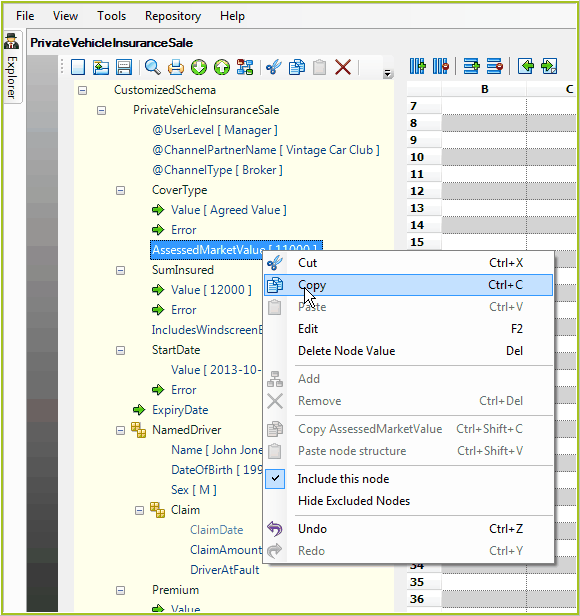
Figure 3-44(b): Copying a node value
2. |
Right-click on a second output node of the same datatype (e.g. Sum Insured Value) and select `Paste. |
The node value of the second output node is replaced with the value copied from the first output node
3. |
Click on the Save button |
 in the Toolbar > Validations pane).
 to save your changes as a new XML document.
 to save your new XML document.