Manually Editing Auto-Link Table Properties |
  
|
Manually Editing Auto-Link Table Properties |
|
It is also possible to manually edit Auto-Linked table properties.
STEPS
1. |
Double click on the relevant table in the Explorer pane > Table Definition screen |
2. |
Click on the Edit Auto-Link Settings button > Auto-Link Properties window |
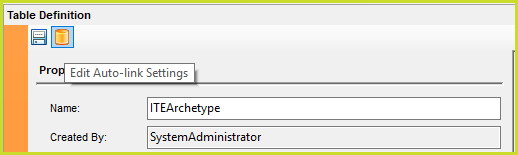
Figure 6-86a: Edit Auto-link Settings
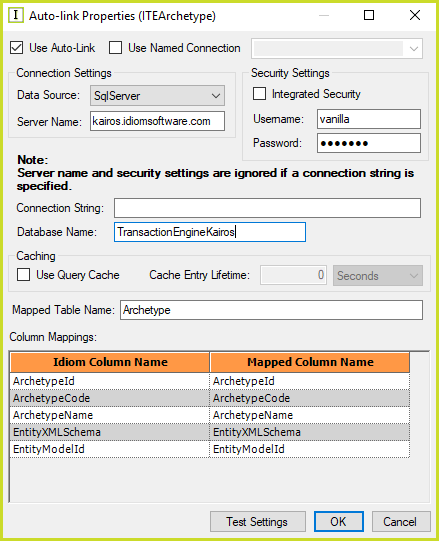
Figure 6-86b: The Auto-Link Properties window
3. |
Edit the properties to suit your requirements. |
If the table has not been set up as an auto-linked table, you can do this manually in this window by clicking in the Use Auto-Link check-box and then filling in the appropriate Connection and Security Settings and mapping the column names of the target table to your IDIOM table.
You can test your settings (i.e. whether the mappings are valid or not) by clicking on the Test Settings button
4. |
Click OK when you have finished |