Creating or copying a Table Definition |
  
|
Creating or copying a Table Definition |
|
We will explain how to create a Table Definition using the VehicleInsuranceBAU.idm repository. We will create a new table that will calculate the Claim Loading amount to be added to the premium, based on the year, and the amount of the claim.
STEPS
1. |
Open the Vehicle Insurance Demo Repository and double click on the 'New Tables' button In the Explorer pane |
Alternatively, right-click on an existing table, select 'Create copy' and click 'Yes' for the 'Create a copy of Table ...' prompt. |
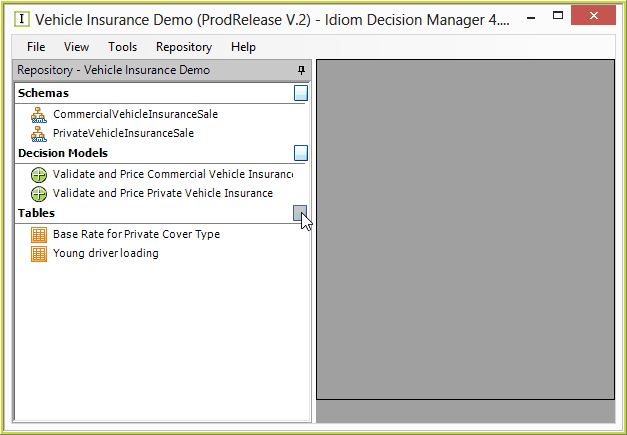
Figure 6-74: Opening the Table Definition pane via the New Tables button
IDIOM will open the Table Definition pane.
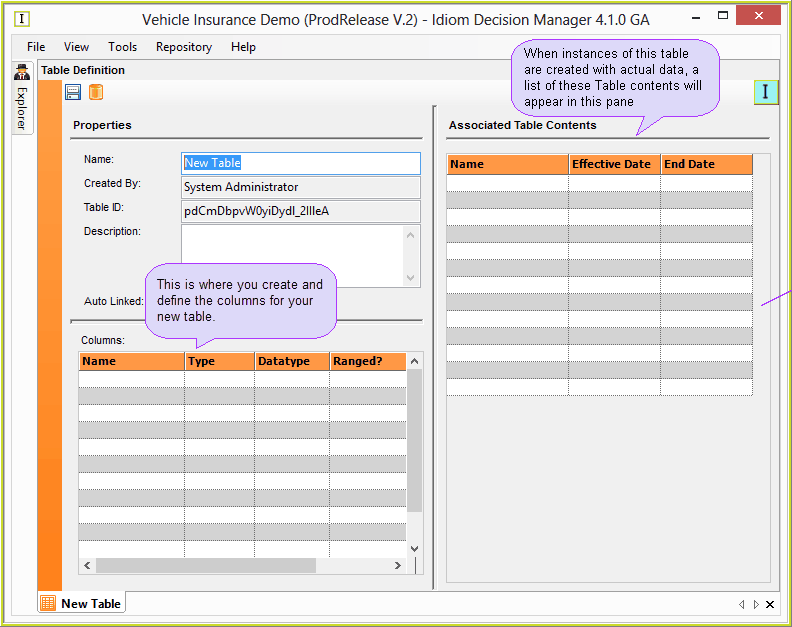
Figure 6-75: Table Definition pane
2. |
Type the name of the new Table Definition in the Name field (we will call ours 'Claim Loading') |
3. |
Enter any relevant information about the table in to the description box. |
4. |
Select the Range Type for the Table: •Key First - the table will be ranged by first selecting the Key column(s) then ranging – that is, the ranging occurs within the key value set. •Range First - the table will be ranged before the key selection is attempted. (See Table Range Up and Down) |
We will now define the fields for each new column:
Column |
Functions |
Column Name |
Enter a column name by clicking on the first row under `Column Name' |
Column Type |
Select the column type from the drop-down box under `Column Type'. Keys are used to select a row, including ranged keys. A key column is used to identify and lookup records in a table based on specific values. A table can have several key columns if required. A data column contains data values. For example, a TableLookup operation for a formula that requires the base rate for the Agreed Value cover type will look in the key column 'Cover Type' to identify the 'Agreed Value' row that contains the rates for that cover type. |
Datatype |
Select the datatype from the drop-down box under `Datatype' |
Ranged |
Select whether the column will be ranged from the drop-down box under `Ranged?. Ranging means that the Key comparison value supplied for the lookup is automatically adjusted up or down to the next ‘ranged’ key value using the ‘range up’ or ‘range down’ table operators as appropriate. Ranging is only available when the column Type is "Key" and the Datatype is Int, Long, Decimal or DateTime. Ranged options are: •Check-box unticked – no ranging up or down will be available on that column when using the "TableRange" operator within a formula. •Check-box ticked - the look-up for that column will range up or down depending on the direction set in the formula. (See Table Range Up and Down) |
Table 6-6: Column Functions
5. |
Double click the first field in the column table and type the name of your first column e.g. 'Claim Date'. Ensure that this is a key column by selecting ‘Key’ from the drop-down box under 'Type', and select the datatype of 'dateTime’. |
6. |
Ensure the check-box under 'Ranged?' is ticked. |
7. |
Create two more columns as displayed in the new Claim Loading Table below. |
8. |
Tick the Shared checkbox to share this table with other repositories as a link. Use the Table Import Wizard to import or link to tables in another repository. Importing a table that is not Shared copies both the table's definition and its data. Importing a Shared table only imports the table's definition and shares the data with the source repository. |
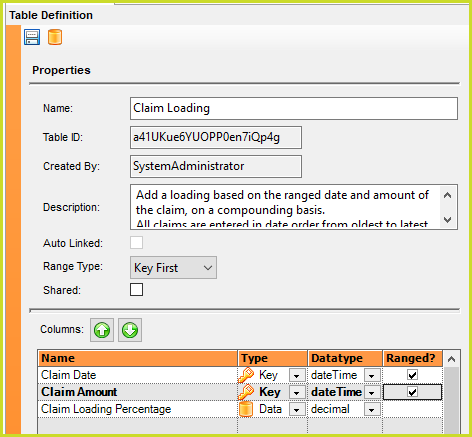
Figure 6-76: The New Claim Loading Table
10. |
Click on the Save button to save the new Table definition. |
Your new Table Definition will now appear under Tables in the Explorer pane.
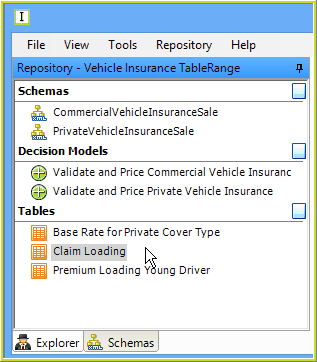
Figure 6-77: The new table is listed in the Explorer pane.