Importing Internal Table Definitions |
  
|
Importing Internal Table Definitions |
|
The Table Import Wizard will help you import table definitions from other IDIOM repositories.
STEPS
1. |
Click on Tools | Wizards | Table Import Wizard > Welcome to the Table Import Wizard dialog box |
2. |
Click on Next > Source Repository Selection dialog box. Select a repository on the Repository server or select an exported repository xml file on the Local File System. |
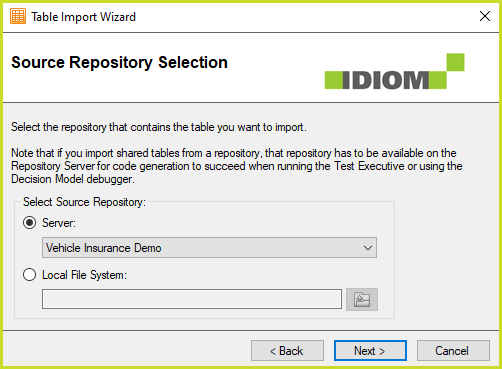
Source Selection screen
3. |
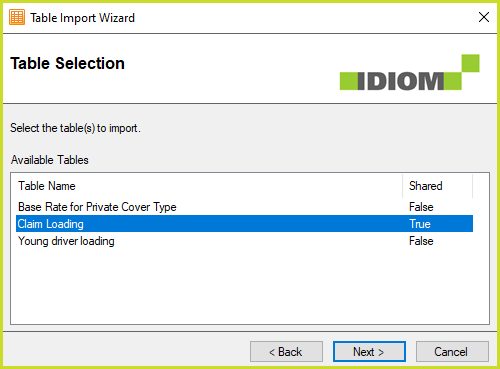
Click on Next | Table Selection dialog box. The dialog box shows the tables in the selected repository. Click on the table(s) you would like to import. Use Ctrl+Click to select multiple tables. The source and destination repositories will share the data of tables with Shared = True. The table's data will only reside in the source repository. The Wizard will import a copy of the table's date when Shared = False. The source and destination repositories will have their own instance of the table's data. |
4. |
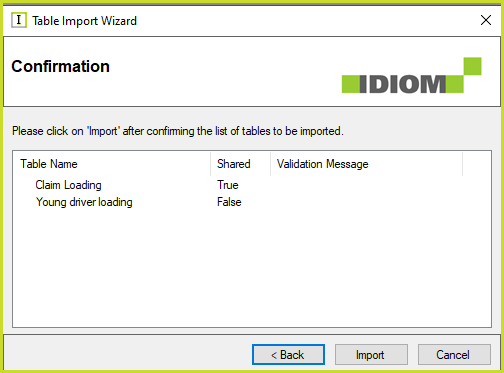
Click on Next > Confirmation dialog box > Import |
5. |
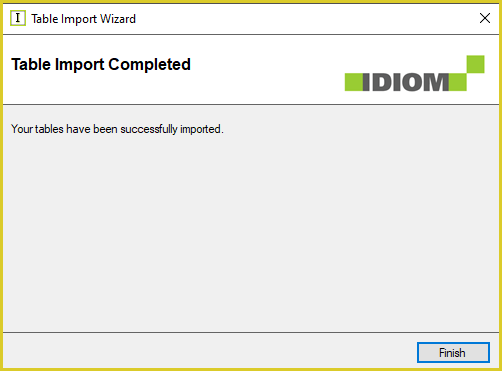
Table Import Completed > Finish |
6. |
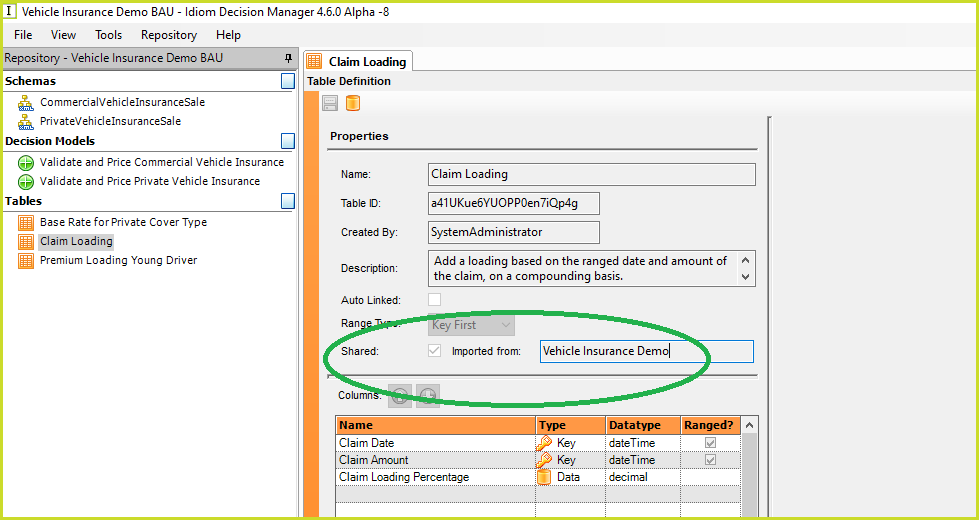
A Shared table does not have Table Contents. The table properties indicate that its data is Shared and the name of the source repository of the data. |