Auto-Link tables |
  
|
Auto-Link tables |
|
See additional information in the Developers Guide at the end of this manual, or in Customer Resources here: http://sales.idiomsoftware.com/Idiom/IdiomCustomers.nsf/
Also there are tips and guidelines in our technical blog here: http://sales.idiomsoftware.com/Idiom/techcomment.nsf/
The data for an Idiom table can reside in the Associated Table Contents in the repository or in an external database.
•Associated Table Contents is static data which can only be modified in the repository. The Decision Manager doesn't have formula operators to add, delete or change Table Contents data during execution. Table Contents data becomes part of the model's .dll or .jar when it is released.
•The 'Table Contents' of Auto-Link tables is dynamic data stored in an external database table. MS SQL Server, Oracle, and MySQL databases are supported, DB2 is planned. The Decision Manager will connect to the external table when a TableLookup, TableRange and ExistInTable formula operator is executed. Auto-Link tables do not have Associated Table Contents. There are two ways to store the table's connection string in a table definition:
oUsing a static connection that is stored in the .dll and .jar when the model is released;
oUsing a dynamic named connection that can be configured in the decisionserver.config file during execution;
There are two wizards to auto-link tables: the Table Wizard and the Table Auto-Link Wizard. The Table Wizard creates an Idiom table from an external table design and optionally auto-links it to an external table. The Table Auto-Link Wizard links an existing Idiom table to an external table.
The Table Auto-Link Wizard helps you set up an Auto-Link connection and map your columns to the corresponding database table columns. This wizards will not import the external table's column definitions so you have to ensure that your Idiom table column Datatype match their mapped database column data type. See Importing external table definitions for the Table Wizard which can both import an external table design and auto-link it to an external table.
You do not have to create an Idiom table column for each column in the database table and your Idiom table key(s) columns do not have to match the database table key(s) columns. You can even define multiple repository tables will different keys and columns for the same external database table.
STEPS
To link existing tables to external databases:
1. |
Click on Tools | Wizards | Table Auto-Link Wizard > Table Auto-Link Wizard dialog box |
2. |
Click on Next > Table Selection screen |
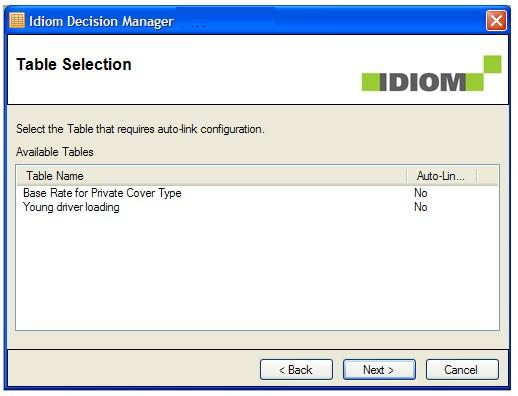
Figure 6-80a: Table Selection screen
3. |
Click on the name of the table you wish to link to an external database e.g. Young Driver Loading and click Next. |
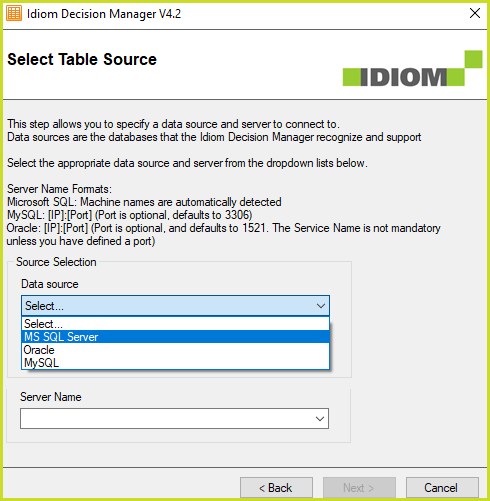
Figure 6-80b: Selecting a Data source and Server Name to link to an external database
4. |
Select your Data source from the drop-down box. This box contains a list of the types of databases that are supported by the wizard. At the moment, these include Microsoft SQL Server, Oracle Database Server and MySQL Database Server. |
You also need to enter your server name into the Server name drop-down box (if you are using Microsoft SQL servers these are automatically detected and you can select the name from a drop-down box).
6. |
Click on Next >Enter Credentials screen |
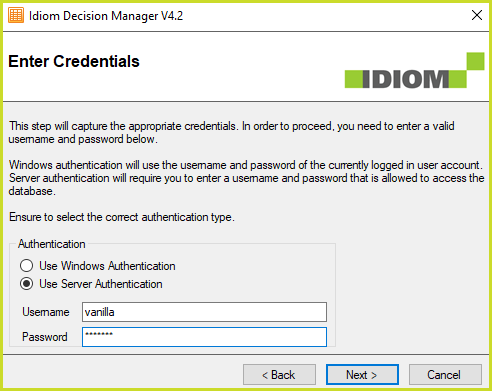
Figure 6-80c: Selecting a Data source and Server Name to link to an external database
7. |
Specify whether you will be using Windows Authentication or Server Authentication by clicking the appropriate radio button. This will be the credentials that the model will use during development, testing and execution. It will only be possible to override these credentials during execution if a Named Connection is going to be used. •If you choose to use Windows Authentication, the same login you use for windows will be used and the Username and Password details will be greyed out. You have to ensure that the account of your runtime environment also has access to the server, database and table. •If you choose to use Server Authentication, you will need to fill in your Username and Password. |
8. |
Click on Next > Select Database screen |
IDIOM now attempts to authenticate your login details and if these are correct will establish a connection with the database server. A list of databases that are on the server will now be available from the drop-down menu.
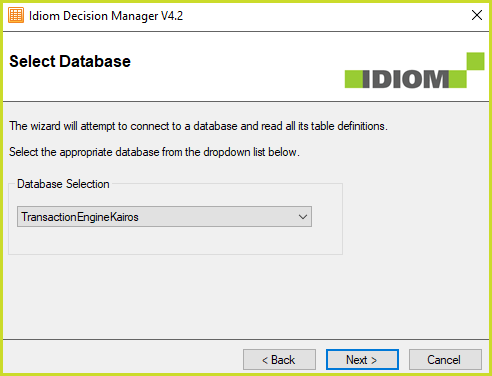
Figure 6-80d: Selecting a database on the server
9. |
Select the database you wish to connect to then click Next > Target Table Selection screen |
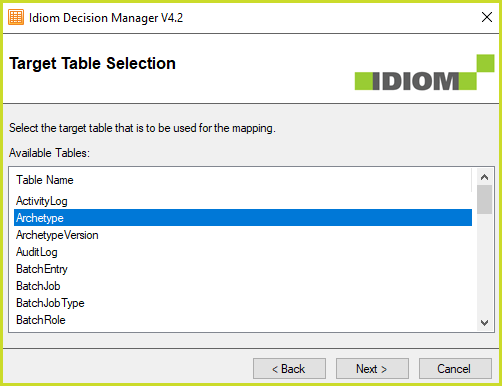
Figure 6-84: Selecting a table in the database
10. |
Select the table you wish to auto-link your table to and click Next > Column Mappings screen |
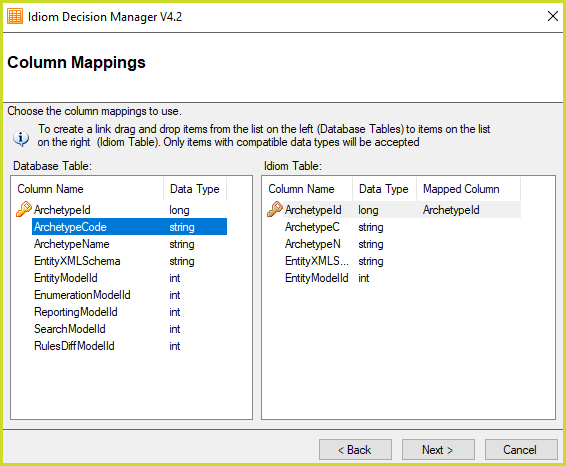
Figure 6-81: Column Mappings
You must now map all of the columns from the target table to the columns in the IDIOM table. You do this by clicking on a column name in the Target table list and dragging it onto the IDIOM table list
11. |
Click Next > Confirmation dialog |
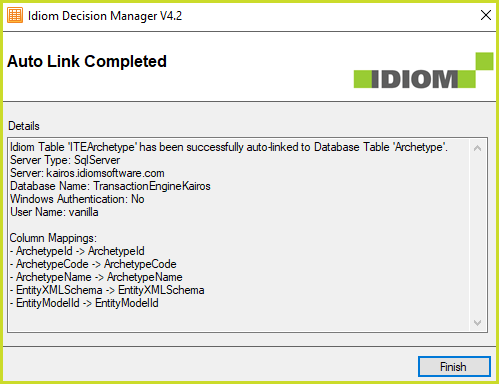
Figure 6-82: Auto Link Completed
You have now linked your IDIOM table to a target table in an external database
NOTE: Auto-linked tables can be identified in the Table Definition Properties screen by a tick in the Auto Linked check-box. They also have an additional Column property Mapping:
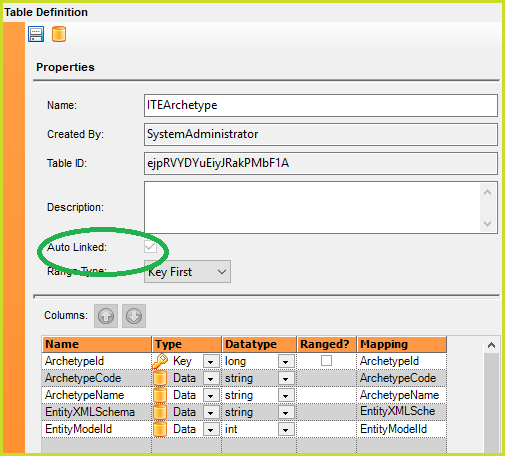
Figure 6-83: Table Definition Properties screen showing an auto-linked table
Once a Table Definition has been auto-linked you will not be able to create new associated table contents or to modify existing ones. Any associated table contents that are already in the repository will still be visible but you will only be able to delete them. You will see a dialog box such as the one below if you attempt to create associated Table Contents for an Auto-linked table:
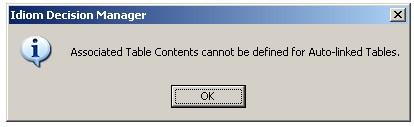
Figure 6-84: Dialog advising that associated Table contents cannot be created for auto-linked tables
Also, when you attempt to save an Auto-Linked table that has previously had Table Contents associated with it, a dialog box will appear that will advise you that these Table Contents can no longer be used with the Table Definition as it has been auto-linked to an external database.