Importing Data |
  
|
Importing Data |
|
The Import Data Table is used for importing external data that you wish to use in your Test Input file; it can also be used for converting data from a .csv file to a .xml file. You can show/hide the Import data table in the Document Builder by clicking on the Hide Import Table button.
To import a CSV data file:
STEPS
1. |
In the Document Builder Workspace (See Building an Input File), click on the Import CSV file button |
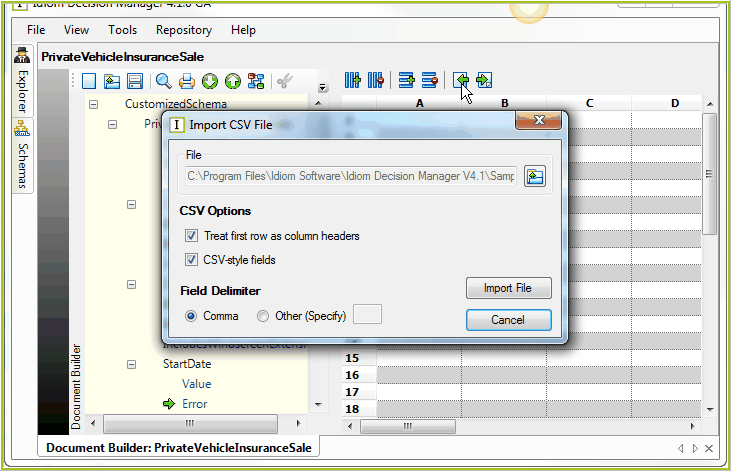
Figure 3-50: Import CSV File dialog box
2. |
Click on the Select File button > Select File dialog box. |
3. |
Select your .csv file (try claims.csv found in ..Program Files\Idiom Software\IDIOM Decision Manager v4.5\Sample files.) and Click on Open > Import CSV file dialog box. |
4. |
Specify the appropriate CSV Options and delimiters (if you use the claims.csv file, make sure the box `Treat first row as column headers' is unchecked). |
5. |
Click on the Import File button. |
The table is populated with data from the .csv file
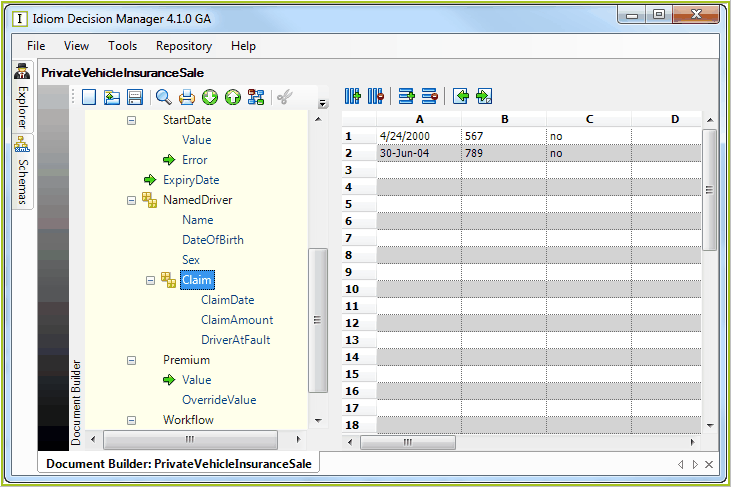
Figure 3-51: The Import Data Table populated with claims data.
 > Import CSV file dialog box.