Importing expected output files |
  
|
Importing expected output files |
|
IDIOM gives you the ability to import pre-prepared .XML documents that contain the expected outputs from the files you are about to test, and then compare the test results against these expected outputs. This is particularly useful for regression testing to ensure there have been no unexpected changes to known outputs as a result of any amendments or updates that have been made.
As with importing the input test files, it is possible to import each file individually, many expected output files at once, and/or a folder of expected output files.
STEPS to import individual expected output files
1. |
Right-click in the column to the right of the Test Inputs you have imported (See Importing Test Inputs Files,) and click on 'Select Expected Output file(s)'. |
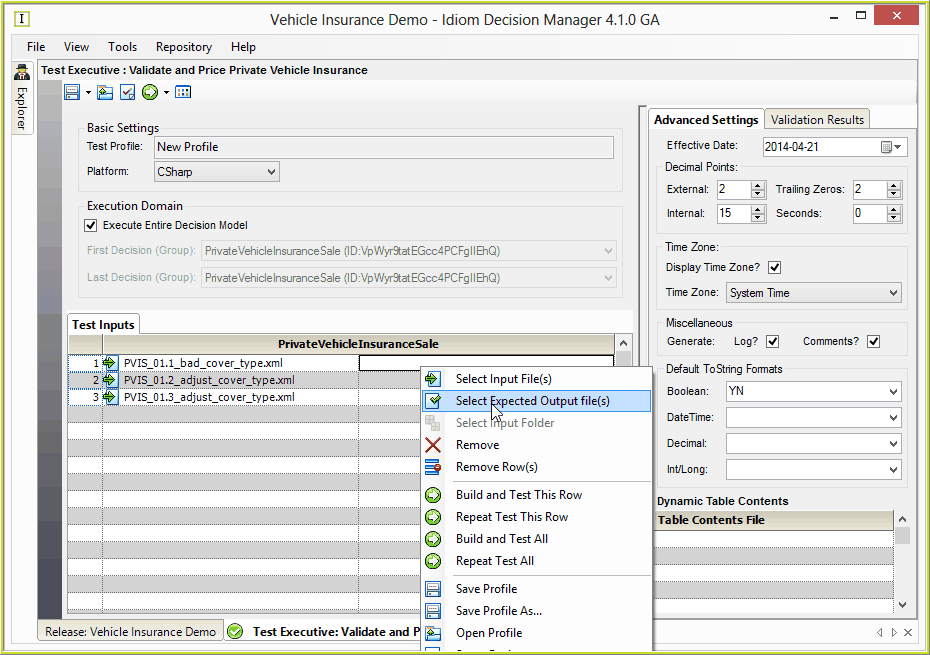
Figure 713(a) Import expected output files
2. |
Browse to the sample files provided by Idiom: ..\Program Files\Idiom Software\ IDIOM Decision Manager v4.5\Sample Files\Vehicle Insurance\ExpectedOutputs, and select the corresponding expected output data file(s). NOTE: You may select more than one file at a time, however it is important to import the correct .XML document adjacent to the corresponding input file in the order displayed. |
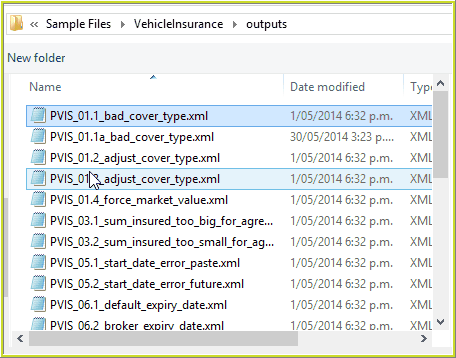
Figure 7-13(b): Browse to select the expected output files
3. |
Click on the 'Open' button. |
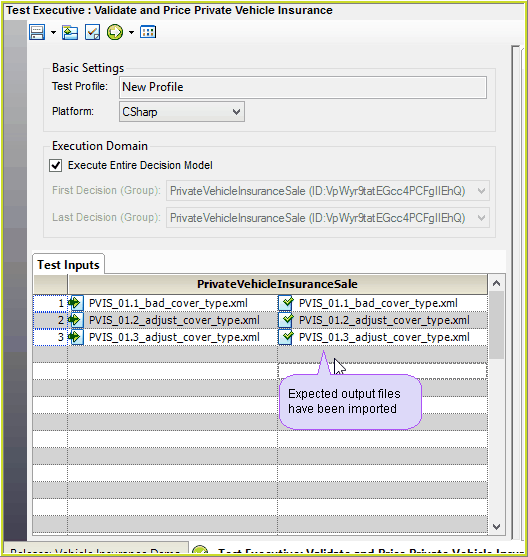
Figure 7-13(c): The expected output files in the Test Executive.