Importing Test Input Files |
  
|
Importing Test Input Files |
|
Before you can run a test, you must choose one or more files containing test input data. These pre-prepared input files are used to check the accuracy of the rules that you have built. You may import and test a single input file, multiple individual input files, or a folder containing numerous input files, each of which tests different aspects of the decision model.
IDIOM gives you the flexibility to test a folder of files at once or each file individually. Below, we explain how to test individual (or small groups of) files. Please see for information on how to test large groups of input files simultaneously.
STEPS to import an input file
1. |
Open the Test Executive for the Validate and Price Private Vehicle Insurance Decision Model and right-click on an empty line in the Test Inputs table, and select 'Select Input File(s)'. |
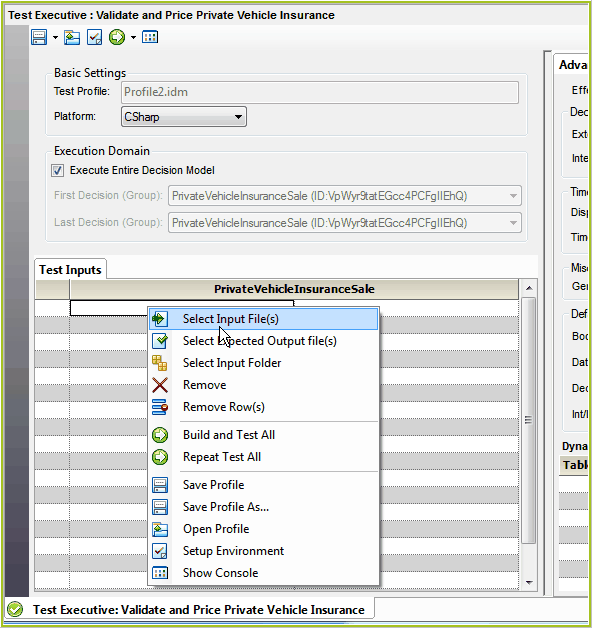
Figure 7-10: Select Input File(s) option in the Test Inputs table.
2. |
Browse to the sample files provided by Idiom - \Idiom Software\IDIOM Decision Manager v4.5\Sample Files\VehicleInsurance, and select the desired input data file(s). |
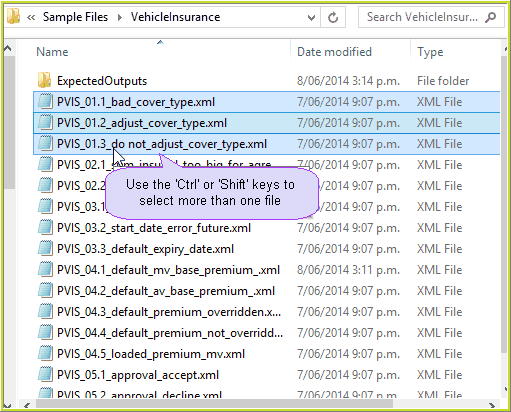
Figure 7-11: Browse to select the input files to be tested.
3. |
Click on the 'Open' button. |
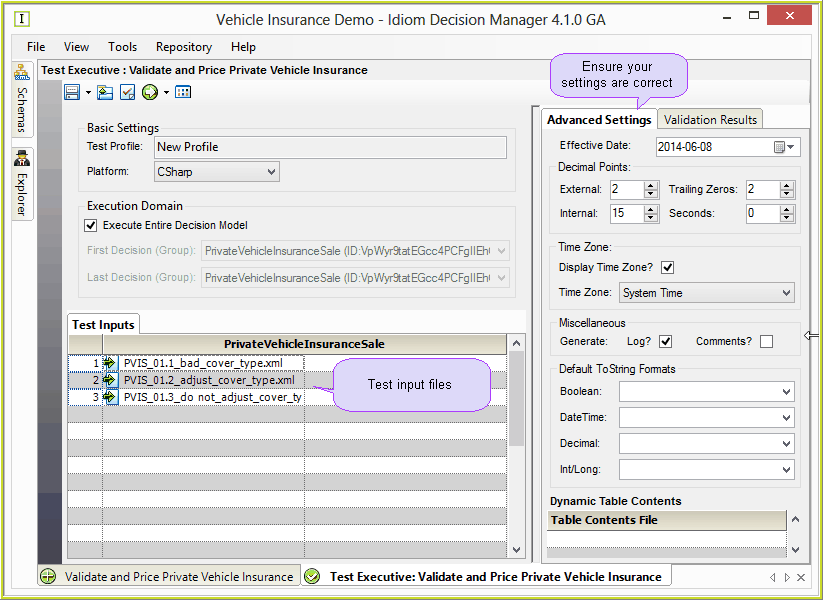
Figure 7-12(a): The Test Input files are displayed in the Test Inputs table
4. |
Continue selecting input data files until all of the files that you require are listed in the table. |
STEPS to remove an input file:
1. |
Should you import a file that is not required, simply right-click on the file and select Remove, or Remove Row(s). |
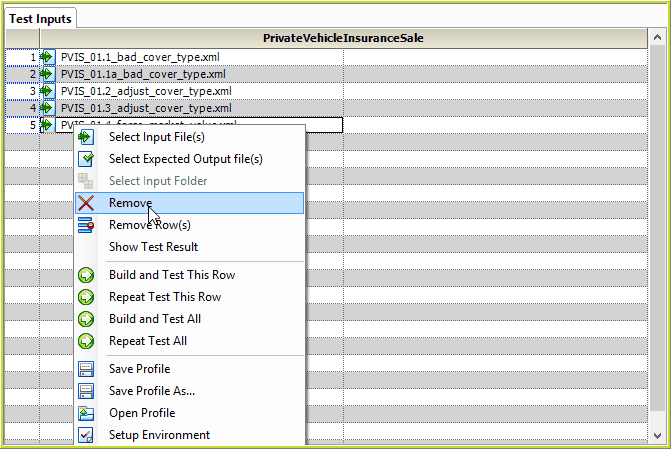
Figure 7-12(b): Removing a Test Input file
NOTE: You can generate new test input files using IDIOM. Please see Building an input file.