Different Views of Your Formula |
  
|
Different Views of Your Formula |
|
When you create or edit a formula in IDIOM, you use the formula palette view. You can also view the formula in two other modes - a Tree view and a Logical English view. However, you cannot edit formulas in these two views.
STEPS To see other views of your formula:
1. |
In the formula palette, click on the arrow next to the formula view button (found in the formula palette toolbar) and choose the desired option. |
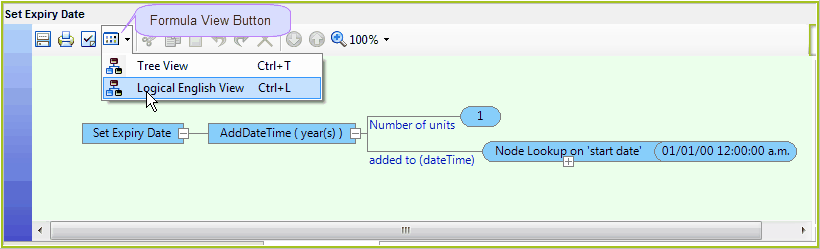
Figure 2-47: Formula view button options.
IDIOM displays the current formula in the View that you have selected.
Logical English view
The Logical English view presents the formula in a form that is more suitable for a non-technical audience and may, therefore, be a suitable format for reviewing the formula with business domain experts. You can print the Logical English view of your formula as a PDF document by clicking on the Print button in the Logical English view.
IDIOM also improves the readability of the formula through the use of bullets and indentations. As a decision designer you can create formula labels, which label certain parts of the formulas, to create paragraph breaks. These are especially useful for nested IF statements (see Formula Labels).
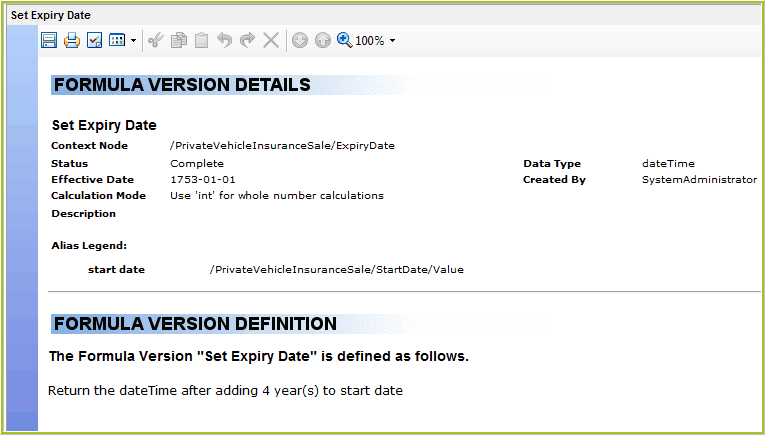
Figure 2-48: The Logical English view of the Set Expiry Date formula.
NOTE: In Figure 2-48, you will see the term `Alias Legend'. This refers to the Xpath of the alias; the Xpath describes the fully qualified location of the aliased node. (see Creating an Alias)
There are multiple sources of comments associated with formulas, including the Technical and Business Descriptions, and commented operators within formulas. The latter are added as footnotes in the Logical English view. (see Formula Comments).
Tree View
In the tree view, each line represents an operation or an argument in the formula.
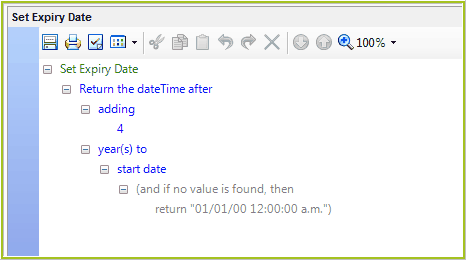
Figure 2-49: The Tree view of the Set Expiry Date formula.
Tip |
You can cycle through the different views by simply clicking on the formula view button itself, rather than the arrow. |