Formula Labels |
  
|
Formula Labels |
|
You can add a label to a complex formula in order to clarify the function of certain operators or groups of operators.
Formula labels are also used to create paragraph breaks in the Logical English view of the formulas, thereby increasing legibility.
Note that labels should not be used as comments.
▪Labels are used to improve the 'readability' of any documents generated from the repository.
▪Comments are used to provide additional notes (see Formula comments).
Tip |
When you create a new label, click on the Change View icon |
For the purpose of further explaining this topic we will now show you how to edit a label for the 'Validate Start Date' formula. Although we will be editing an existing label, the same set of steps is used to create a new label.
STEPS
1. |
Open the Validate Start Date formula in the Private Vehicle Insurance schema. |
2. |
Click on the 'Between' operator within the Validate Start Date formula and either use the shortcut 'F2' function key , or right-click on the operator and select 'Edit Label', to bring up the Edit Label function for Label 1. |
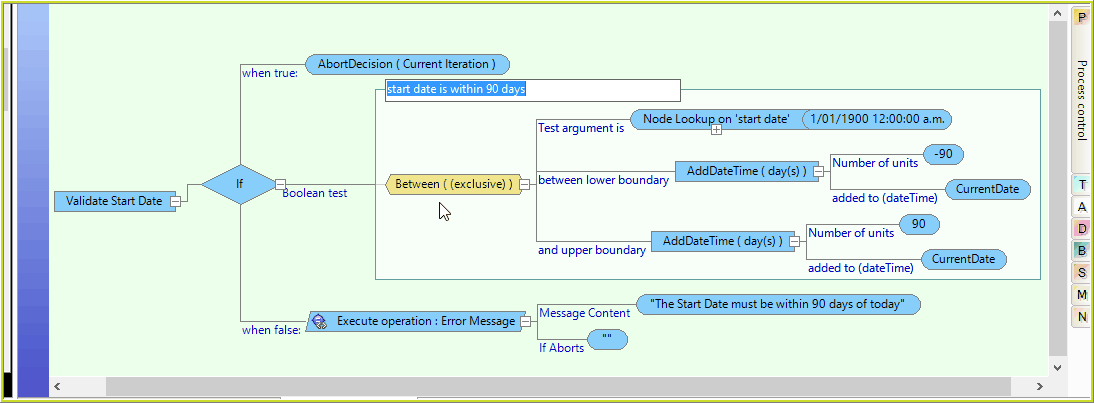
Figure 4-13: Creating formula labels.
3. |
Type in the text box to label the selected set of operators, ensuring that your label identifies their primary function, e.g. start date is within 90 days |
Figure 4-14: Editing formula labels.
Tips |
•Formula labels can be used with Nested 'If' statements i.e. any If that is the child of another IF argument should be labelled. •Labels should start with a lower case verb . •Do not use a label for the initial (leftmost) operator in a formula. •Check that the label reads well in the Logical English view of the formula and adjust accordingly before saving. |
4. |
Click on the Change View |
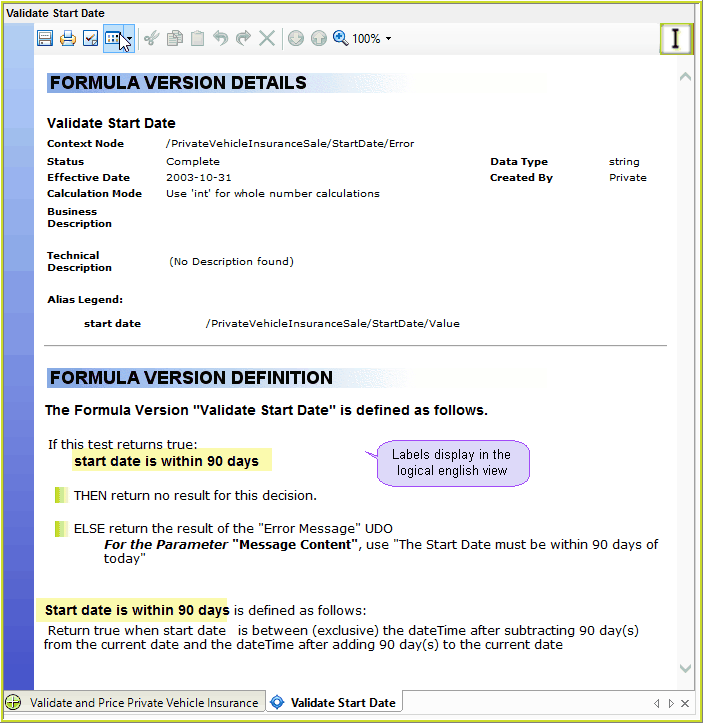
Figure 4-14: Logical English view with Labels.
Labels are also visible in the Tree View:
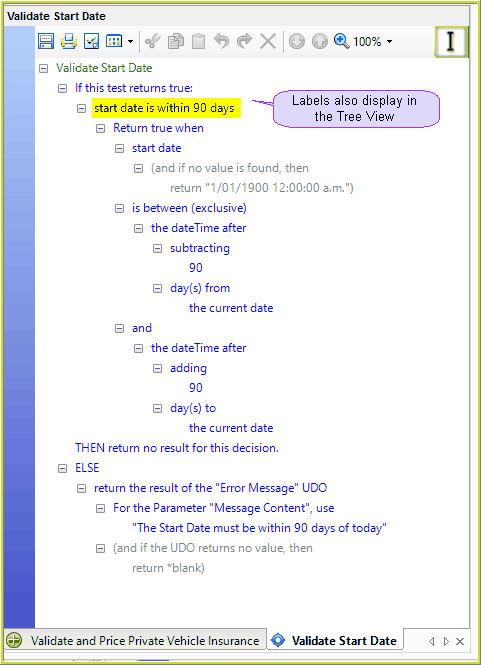
Figure 4-15: Formula labels in the Tree view.
 in the toolbar, and check the Logical English view of the formula to ensure that your label improves the 'readability' of the formula. (see below)
 icon in the toolbar to see how the labels appear in the Logical English view: