Formula Comments |
  
|
Formula Comments |
|
You can create a comment that will appear whenever the mouse hovers over a particular area of the formula.
In IDIOM, whenever you hover over a cell in the formula palette, certain information will automatically appear regarding datatype, context etc. You may wish to add additional information, such as why you used a particular operator, or details of who authorised the use of an operator (e.g. `as agreed with Fritz').
In this section, we will add the comment `As agreed by Alice and Fritz' to the second argument of the Adjust Cover Type formula.
STEPS
1. |
Open the Adjust Cover Type formula from the customized Schema pane. |
2. |
Right-click on the second `If' argument of the formula and select 'Edit Comment' > Operation Comment dialog box. This box is normally empty unless a comment has already been recorded. |
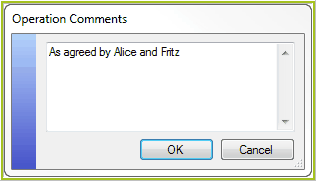
Figure 4-18: The Formula Comments dialog box.
3. |
Type in `As agreed by Alice and Fritz' and click `Ok'. A light green circle with the letter `c' inside will appear to the left of the argument you added a comment to. |
4. |
Hold your mouse over this circle (or over the argument itself) to view your comment, which will appear in a yellow comment box. |
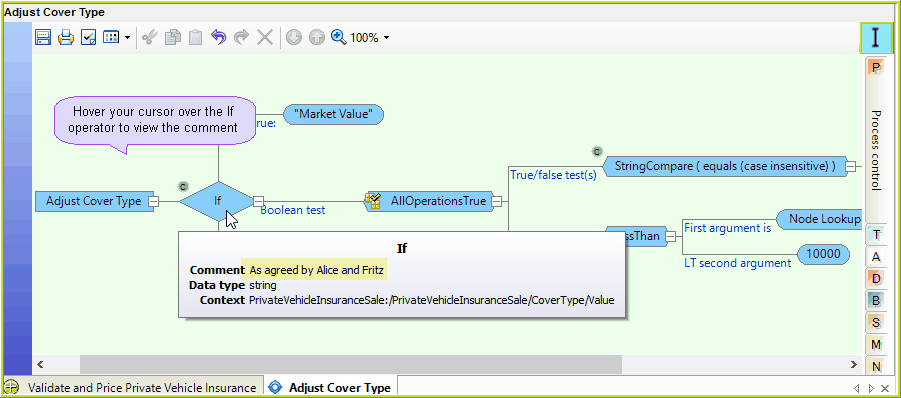
Figure 4-19: Comment added to an operator.
The comment will also appear as a footnote in the Logical English view of the formula.
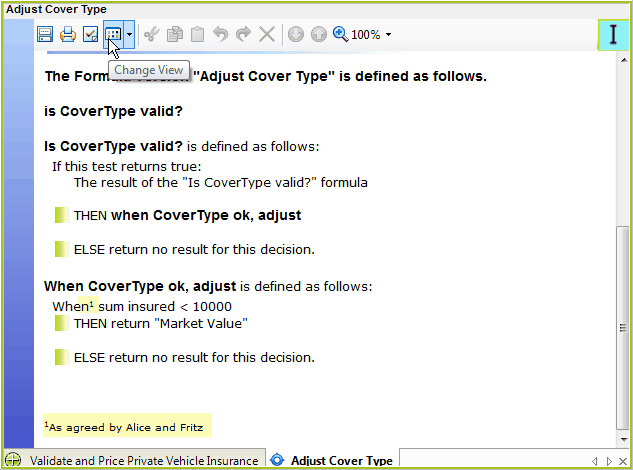
Figure 4-20 Comment in Logical English View.