Create Multiple Table Range Formula |
  
|
Create Multiple Table Range Formula |
|
Ranged table lookups are created in a similar manner to table lookups. To demonstrate this we will replace the existing Claim Loading formula in the Vehicle InsuranceBAU.idm repository with one that uses multiple table ranges. The look-up will firstly range up on the date of the claim, and then range down on the amount of the claim to retrieve the Claim Loading %.
STEPS
1. |
Open the VehicleInsuranceBAU.idm repository, and click on the New Table icon in the explorer pane. |
2. |
Create a Table definition that has two Key columns, with the 'Ranged' option ticked as shown below. (See Creating a table definition) |
3. |
Select Range Type = "Key First' and save the new Table Definition. |
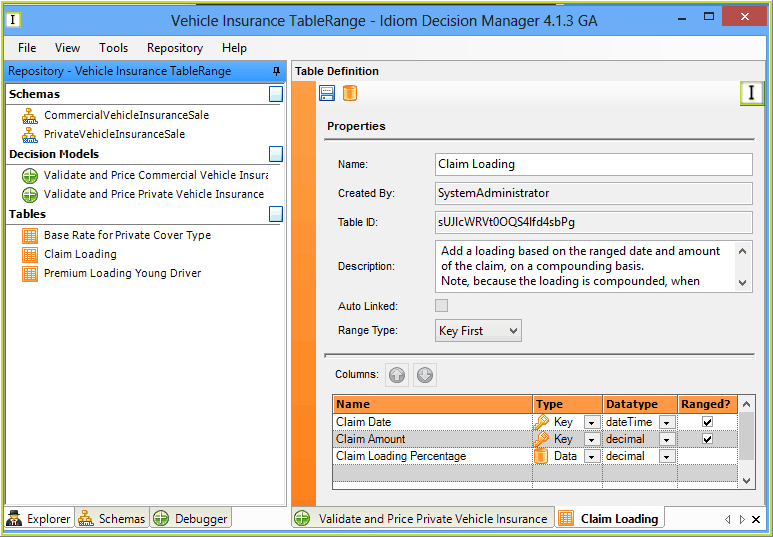
Figure 4-29(a): The Table Definition with 'ranged Keys.
4. |
Now we need to create the Table Contents. Double click on a row in the Associated Table Contents pane to the right, and enter some data for ranging (as shown below), and save. Also see Creating new table contents) |
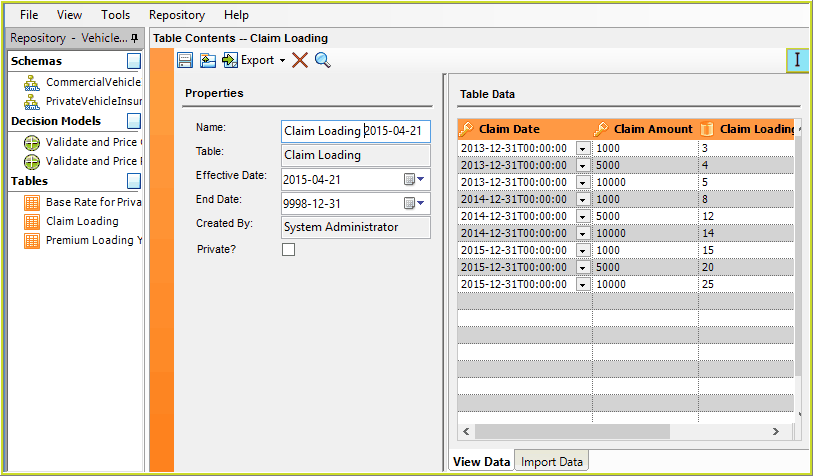
Figure 4-29(b): The Table Contents Data
5. |
Open the Validate and Price Private Vehicle Insurance Decision Model, and delete the two decisions 'Add Claim Number Loading' and 'Add Claim Value Loading' from the 'Add Loadings' decision group. |
6. |
Drag the Claims node from the Schema on to the 'Add Loadings' Decision Group, and click 'New Decision Group'. |
7. |
Drag the Value(premium amount) node on to the new Claims Decision Group, and select 'New Decision', and change the name to Add Claim Value Loading |
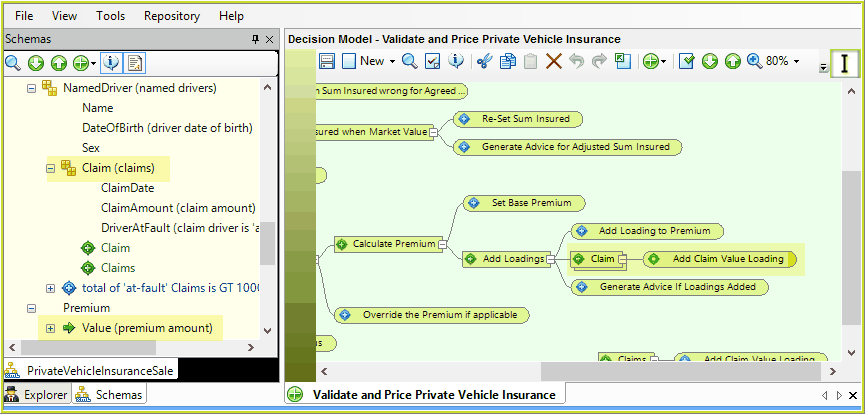
Figure 4-29(c): Create the Claim Loading Decision.
6. |
Double click on the 'Add Claim Value Loading' decision and add the Formula that will perform a multi ranged table lookup. odrag the 'AddPCT' operator on to the first element odrag the "Value (premium amount)' node from the schema to the first element and select 'Node' odrag the 'Claim Loading' table from explorer to the second element and select 'TableRange' > Claim Loading Percentage. odrag the Claim (Claims)' node from the schema Claim Date and Claim Amount elements and select 'External Context' oType '0' in to the 'Default if No Matching Rows' odrag the Claim Date node from the schema Claim Date and Claim Amount elements and select 'External Context' oFinally, right-click on the Claim Date ExternalContext element, and select 'Range Direction' > 'RangeUp' from the menu items. (or use the shortcut keys Ctrl + Shift + G)
|
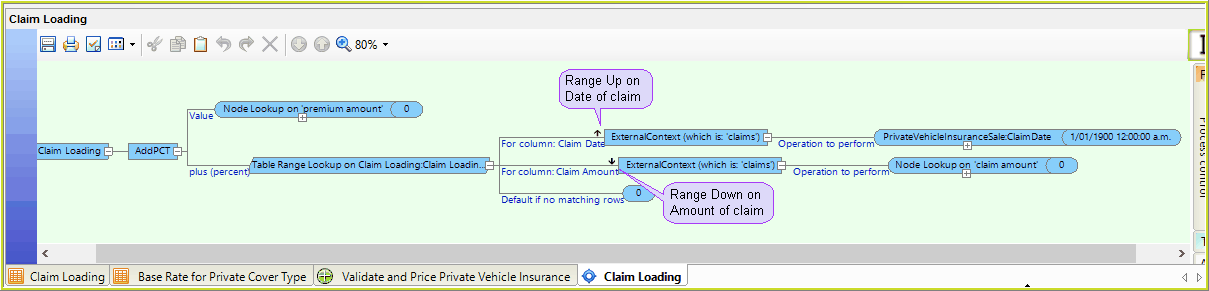
Figure 4-29(c): Using TableRange Operations in a formula.
7. |
Click Save. |
The Table Range Lookup in this formula will firstly range up on the date of the claim, and then range down on the amount of the claim to retrieve the appropriate Claim Loading Percentage. This enables the loading retrieved from the table to be defined by both the age of the claim as well as the amount.