How to Create Formulas Using Data From Tables |
  
|
How to Create Formulas Using Data From Tables |
|
You can create a formula that uses data from a Table contents by using the Table operators.
We will demonstrate how to multiply the sum insured by a percentage derived from the 'Base Rate for Private Cover Type' Table to calculate the Base Premium Value. We will use the Set Base Premium v1 formula in the Private Vehicle Insurance repository (we have deleted the original formula in order to build it from scratch). For more information on how to build a formula see Creating your first formula.
STEPS
1. |
Open the 'Set Base Premium V1' formula version [under the Set Base Premium formula] in the Private Motor Vehicle Insurance Sale schema. |
2. |
Drag the 'Round (to the nearest)' and then the 'MultiplyPCT' operators from the Arithmetic hover tab, and type '1' in to the 'rounded to this precision cell as shown in Figure 4-28 below. This operation is intended to multiply an original value (to be derived from the schema) by a percentage (to be derived from the table), rounded to a precision of 1. |
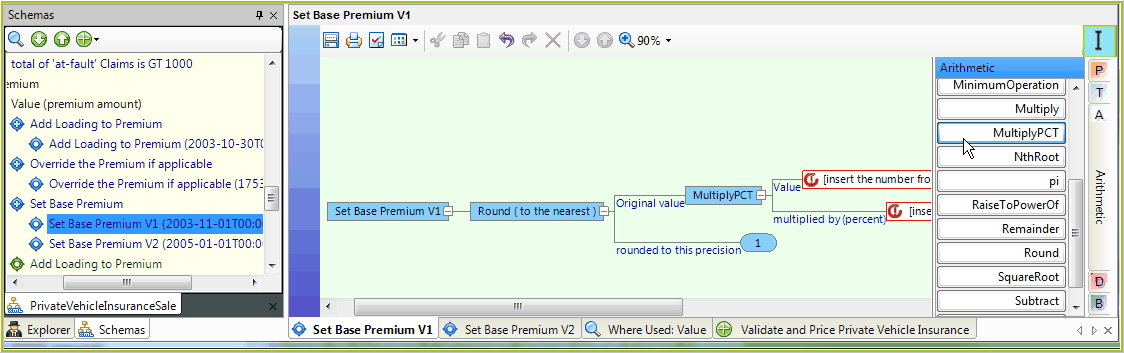
Figure 4-28: The modified Set Base Premium v1 formula.
3. |
Next, we will drag the 'Target Context' node from the schema. Drag the 'Sum Insured' node from the customized Schema pane to the 'Value' box in the formula and select `Node' from the resulting drop-down box. |
Figure 4-28(b)Drag the Target Context Node from the schema.
4. |
Now we need to insert the Table Lookup percentage. Click on the Explorer tab in the left hand pane to switch it to the Explorer view. |
5. |
Click on the 'Base Rate for Private Cover Type' table and drag it across to the multiplied by (percent) box, and select TableLookup > `Rate Percent' (decimal) |
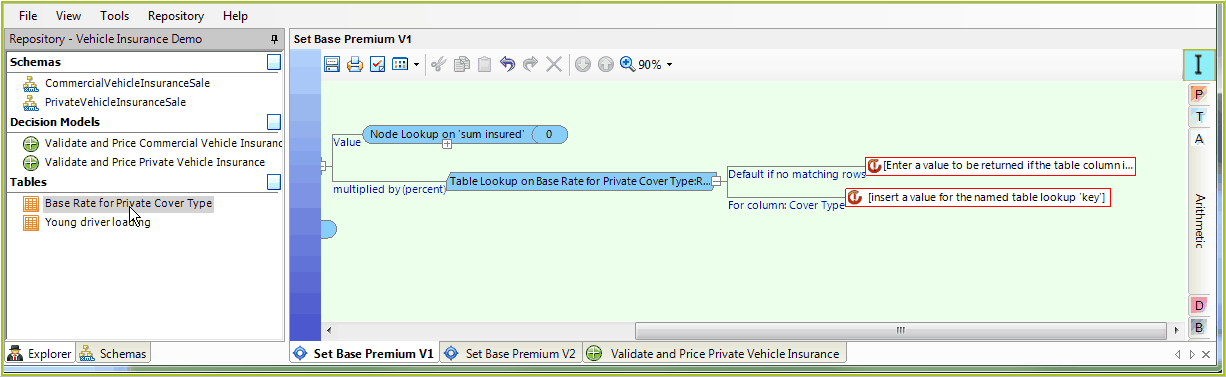
Figure 4-28(c): Using Table Operators in a formula.
6. |
Type in a default value of '0', to be returned if no matching rows are found in the table. |
7. |
Finally we need to add the table 'Lookup Key' which in this instance is the Cover Type (Market Value or Agreed Value). Drag the 'Value(type of cover)' node from the schema on to the 'For column: Cover Type' box and select `Node' from the resulting drop-down box. |
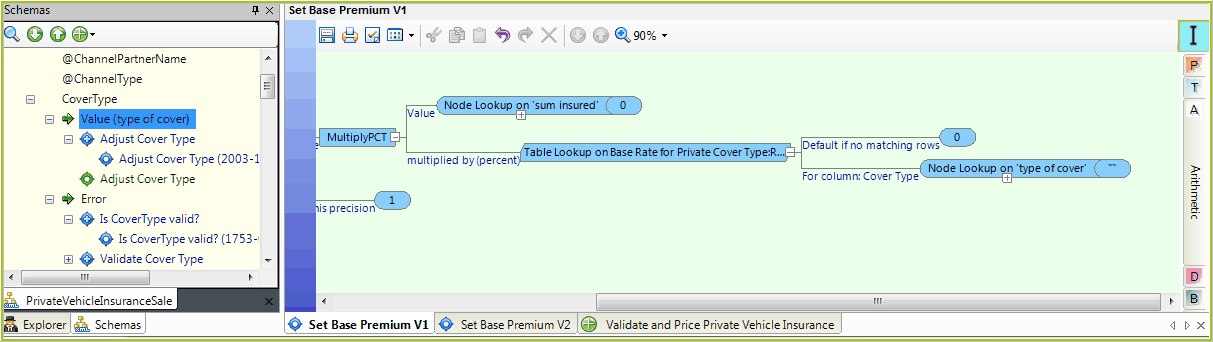
Figure 4-28(d): Using Table Operators in a formula.
The completed formula will now be displayed in the formula palette.
Target Column and Update columns
The Decision Manager displays the Table Lookup column below the formula operator. This Lookup column can be changed by selecting a different column from the Target Column list of the right-click menu. This may require additional formula changes when the data types of the current and new columns differ.
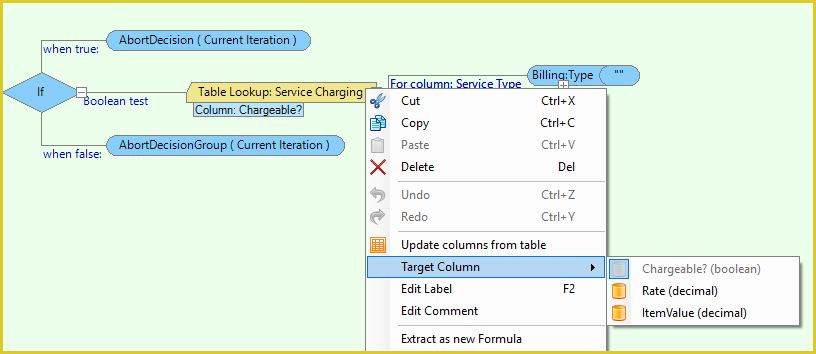
Figure 4-28(e): Change Table Lookup column
The right-click menu has got an additional Update columns from table menu option to update the formula operator after table definition changes.