Creating a Default Table Contents |
  
|
Creating a Default Table Contents |
|
In this section, we will explain how to create a default Table contents. Continuing with our Vehicle Insurance case study, we will create a default Table contents that will then be used for setting a base rate for general Private Cover Insurance customers.
To perform this exercise, please log into the Vehicle Insurance repository as the System Administrator, as only a System Administrator or Work Group Administrator can create default Table contents.
STEPS
1. |
In the Explorer pane, right-click on the 'Base Rate for Private Cover Type' table and select `Open' (or double click on the name) |
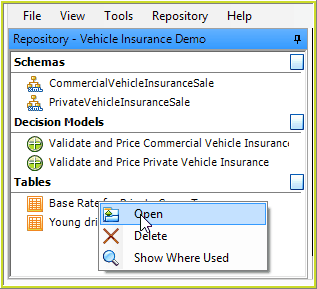
Figure 6-91: Opening the Base Rate for Private Cover Type table
2. |
The Tables pane, which is composed of the Table Definition Properties pane and the Associated Table Contents pane, will open in the Workspace. The Associated Table Contents Pane in the screen shot below shows that there are currently 3 sets of table contents defined, with an effective date set for each. |
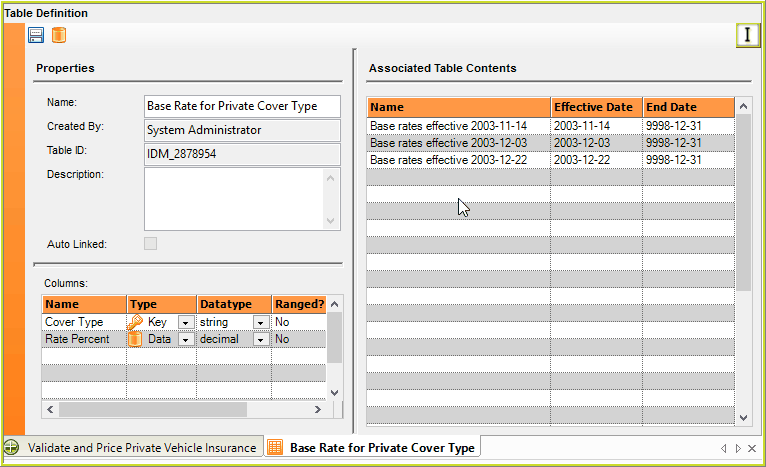
Figure 6-92: The Tables pane, composed of the Table Definition and Associated Table Contents panes
3. |
To create another set of table contents (the 4th one in this example), double click on the first free field in the 'Associated Table Contents' pane, to open the 'Table Data' pane |
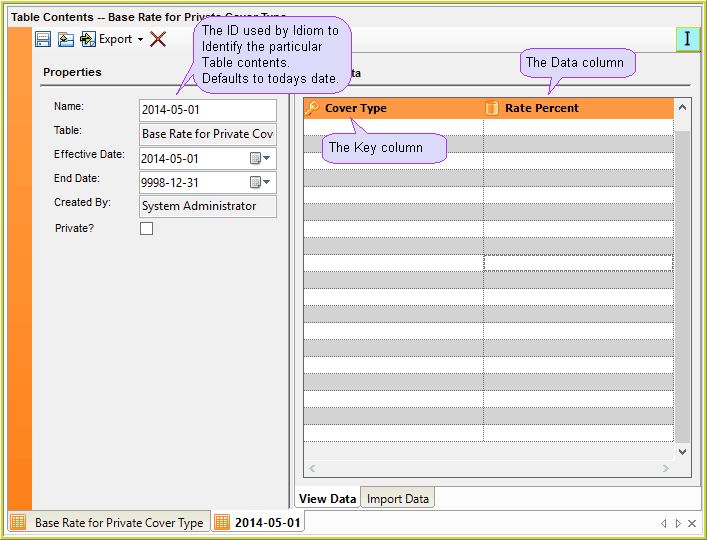
Figure 6-93: The Table Contents pane displaying the Table Contents
4. |
Change the Name in the Table Contents Properties pane to a meaningful name for this new set of contents. The default value is today’s date. |
5. |
Set the effective and end dates for this new set of table contents in the Table Contents Properties pane. |
6. |
Set the Privacy setting. If checked Private, then only the Owner (i.e. a member of the Workgroup that created this new set of table contents) and/or a System Administrator will be able to open the table.. |
7. |
Click on the Save button to save the newly created default for this new set of contents. |
When you close the Table Contents pane the new set of table contents will now appear in the ‘Associated Table Contents’ pane under the name assigned in step 4 above.