Document List |
  
|
Document List |
|
The Document List at the top of the Debugger window records the contents of each xml file when the debugger starts, reaches a breakpoint or ends. Double-click on an entry in the list to load the corresponding contents of the xml file when the debugger started, reached a breakpoint or ended.
For example, after the execution of the decision model ([14:0046] Debug complete),you can double-click on the [14:00:45] Validate and Price Private Vehicle Insurance debug start entry to load the PrivateVehicleInsuranceSale.xml as it was when the inline debugger started.
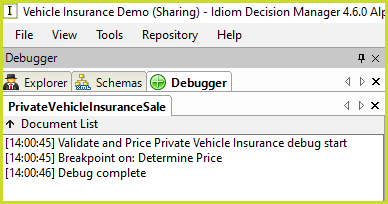
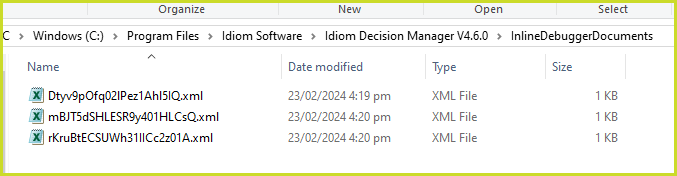
The debugger retains the contents of the xml files for each Document List entry in the InlineDebuggerDocuments subdirectory of the Decision Manager's installation directory.
Saving and Loading xml documents and sets
The xml files can be written to and read from disk for future reference. The xml files of a model that uses multiple schemas can be written and read as a Set. Using Sets is easier than writing and reading the xml files individually.
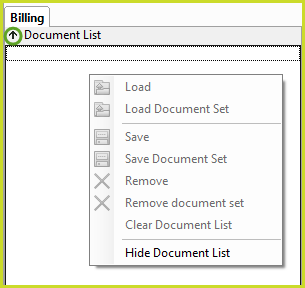
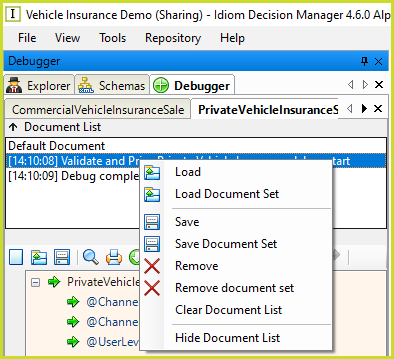
Right-click on a Document List entry to access its Load and Save operations. The entry's xml file(s) can be saved and loaded to the local file system individually or together as a Set.
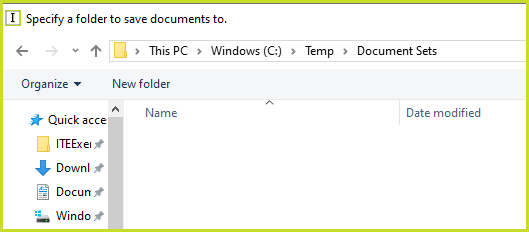
You will be prompted to select a directory when saving an xml file individually or all xml files as a set.
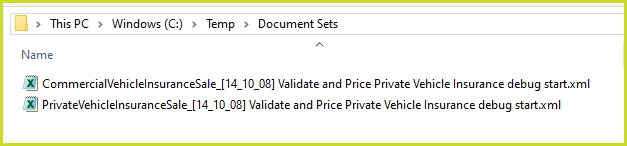
The debugger will save the xml files using the time stamp to create unique file names:
Select the Load or Load Document Set menu options to restore the xml documents for the selected Document List entry.
Removing Document List entries
The Remove and Remove document set only remove the entry or entries from the InlineDebuggerDocuments folder. They do not remove the corresponding xml files that have been saved to disk with the Save and Save Document Set menu options.
Clearing and Hiding the Document List
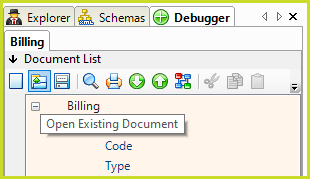
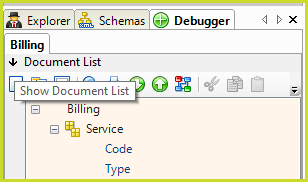
Clearing the Document List removes all the entries from the list. This disables the Load, Save and Remove menu options which operate on Document List entries. Saved xml files can still be opened with the Open Existing Document button. The Document List can be hidden with the Hide Document List menu option or by clicking on the up arrow to the left of the Document List caption. The Document List can be displayed by clicking on the Show Document List down arrow.