Comparing With Expected Output |
  
|
Comparing With Expected Output |
|
As mentioned above, Idiom allows you to import a previously prepared file (or folder of files) that you know has correct output data in to the Test Executive Test Inputs pane, prior to running your test. Once the test is run, Idiom will compare the 'Expected Outputs' with the IDIOM-generated outputs, so that you can identify and correct any discrepancies in the rules that you have built in IDIOM before releasing the repository/decision model.
For the purpose of this exercise we will compare a folder of files with a folder of known 'expected output' files.
STEPS
1. |
In the Test Executive pane, import the Input folder 'Vehicle Insurance' and expected output folder 'outputs' (see Importing Multiple Files) and click on the Execute Button (see Build and Test). |
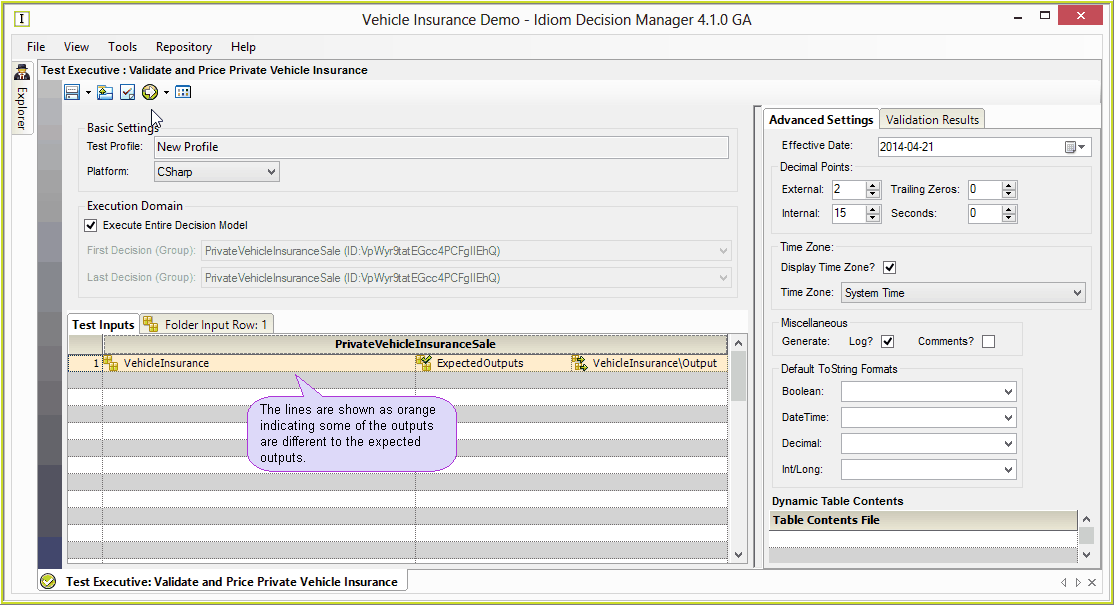
Figure 7-18(a): Viewing test results for input and expected output folders.
The tested row is highlighted in a different colour depending on whether or not the newly generated output files contain the same data as the expected output files:
▪Green - all of the newly generated output files in the folder contain data that is the same as the expected test outputs.
▪Orange - one or more of the newly generated output files contains data that is different to the expected outputs.
▪Pink - all of the newly generated output files contain data that are different from the expected outputs.
2. |
To open the files inside the folder for individual review and comparison, either right-click on the row and Click 'Show Test Results', or click on the 'Folder Input Row' Tab. |
The individual test results are displayed.
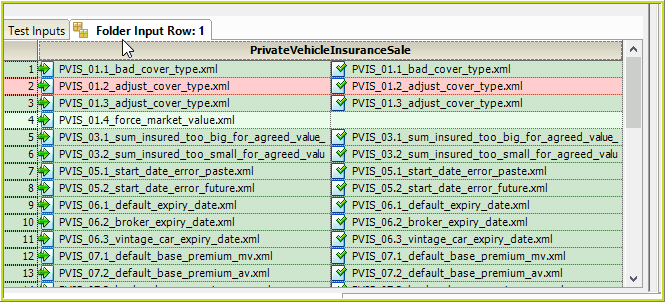
Figure 7-18(b): Compared 'Output' and 'Expected Output' results.
As with the folders, each file is colour coded to represent if it passed or failed testing.
▪Green - the test outputs are same as the expected outputs
▪Light Green - the test was executed but the expected output file was not available for comparison.
▪Pink - the test outputs are different from the expected outputs.
3. |
To view and compare the individual details of the test 'Input', 'Actual' and 'Expected' documents, double-click on a row or right-click on the row and select 'Show Test Results'. The 'Compare' option defaults to 'Actual vs. Expected'. |
Figure 7-18(d): The Test Executive Results pane with 'Input' vs 'Actual' vs 'Expected' comparison options.
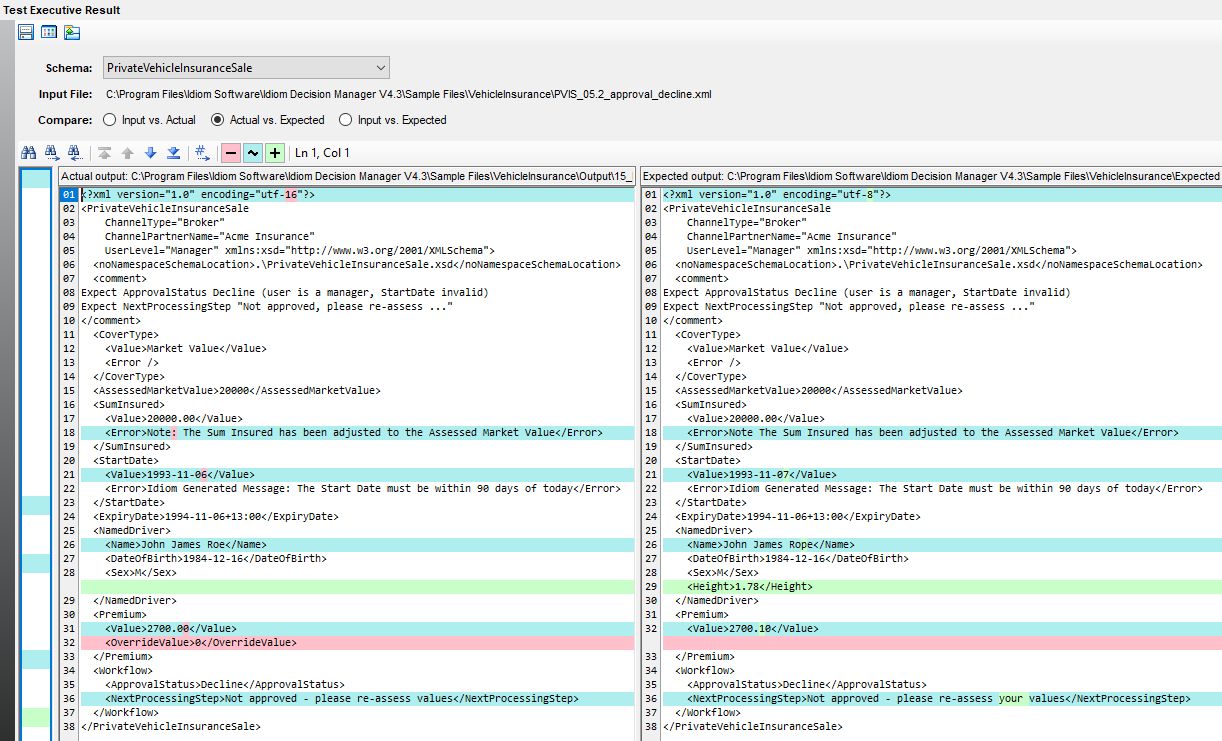
The details of the selected comparison are displayed side by side with the differences between the documents highlighted in pink (deleted), blue (changed) and green (inserted):

The toolbar buttons and shortcuts are:
•Find: Ctrl+F
•Find Next: F3
•Find Previous: Shift+F3
•First Change: Ctrl+Shift+F8
•Previous Change: Shift+F8
•Next Change: F8
•Last Change: Ctrl+F8
•Go to line: Ctrl+G
4. |
Manually check any highlighted differences to determine what has changed and correct any discrepancies in the rules that you have built in IDIOM before releasing the repository/decision model. |
Note: Differences between the actual and expected output files may be caused by the parameters you have set in the Advanced Settings Tab (See Advanced Settings) before running the Test Executive. You may need to amend these settings and then re-run your test files by clicking on the Execute button and selecting 'Build and Test'.
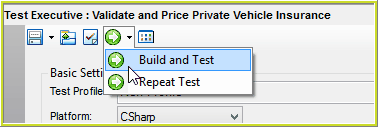
Figure 7-18(e) Build and Test to re-run your tests incorporating any changes you have made to your settings.
Tips |
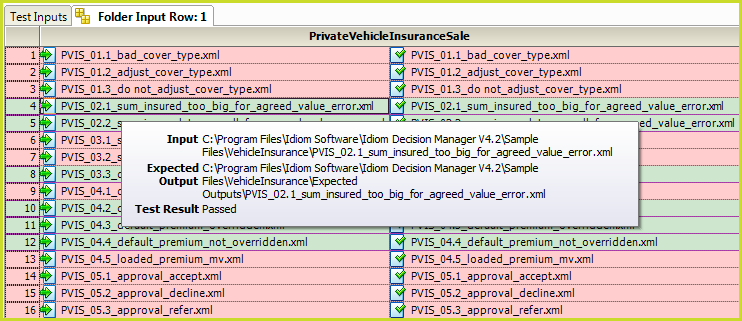
Hover your mouse over any row to display pop-up details of the test results:
Figure 7-18(c) Hover for pop-up details
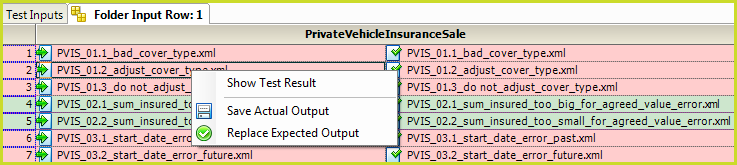
Right-click on a row to either Save the Actual Output or to Replace the Expected Output. The 'Replace Expected Output' menu option is only enabled for pink rows because the Expect Output file for the green rows did not change.
Figure 7-18(f) Save Actual Output and Replace Expected Output |