Reviewing Test Results |
  
|
Reviewing Test Results |
|
For the purpose of this exercise we have returned to the Vehicle Insurance repository and are viewing test results for the Input files that we imported in the topics above: PVIS_01.1, PVIS_01.2 and PVIS_01.3.
STEPS to view the test results for individual input files:
1. |
In the Test Executive pane, import the Input files PVIS_01.1, PVIS_01.2 and PVIS_01.3, (see Importing Test Input Files), and click on the Execute Button (see Build and Test) |
Idiom highlights each file that has been tested in light green:
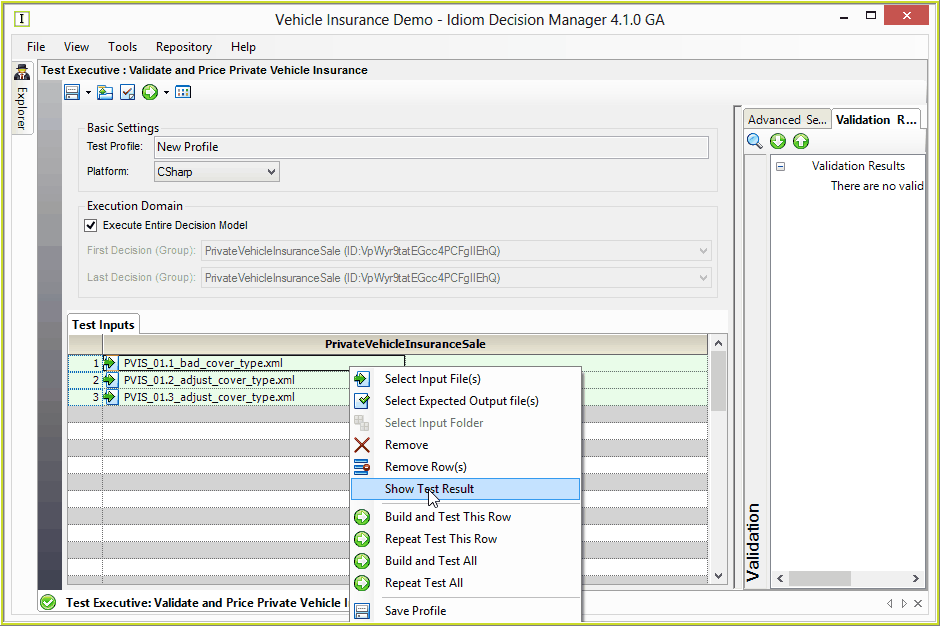
Figure 7-17(a): Viewing Individual Test Results from the Test Executive pane
2. |
right-click on any file and click on 'Show Test Results' |
The Results pane opens and displays the input and output documents side by side, with any differences between the two highlighted in yellow:
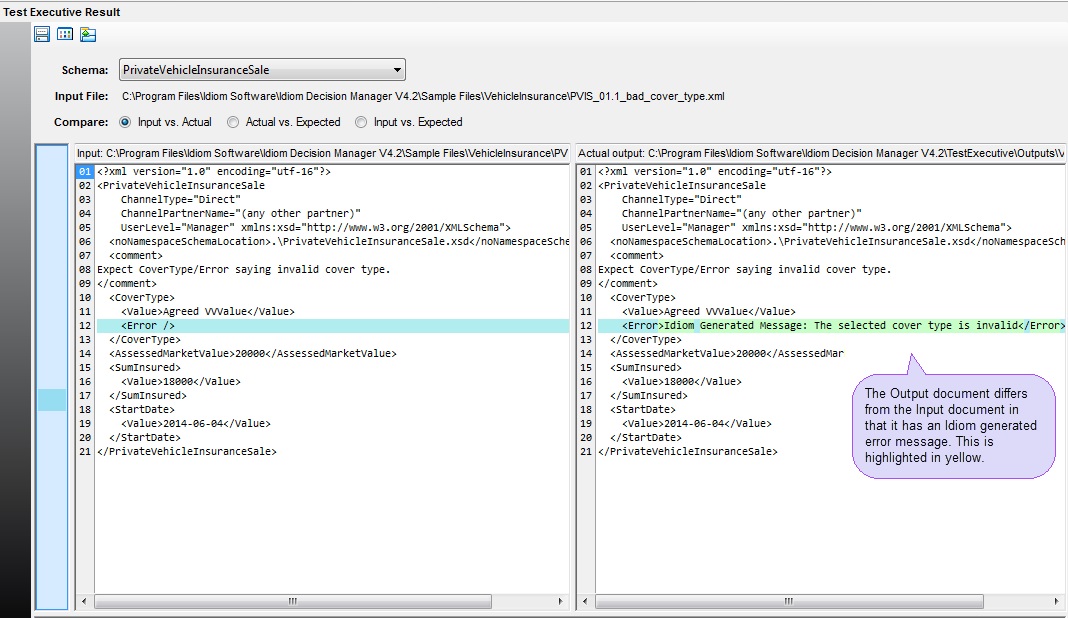
Figure 7-17(b): The Test Executive Results pane with data from the Input and Output.
3. |
Simply close the Results pane to return to the Test Executive pane. |
Xpath Utility
The Test Executive Results screen also includes an Xpath utility that allows users to find information within the displayed XML document via Xpath 2.0 queries. This can be accessed via the 'Toggle Xpath Utility' button on the toolbar.
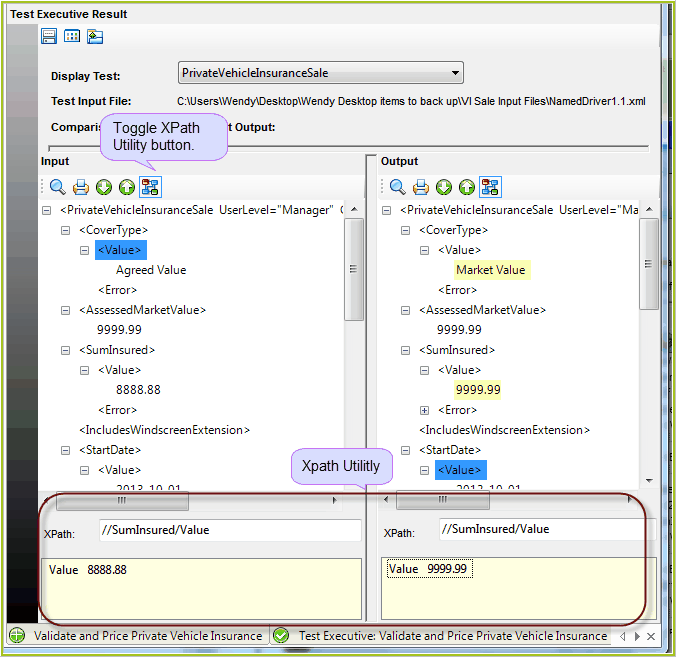
Figure 7-17: Xpath Utility function
More information on Xpath 2.0 can be found at the following links: http://www.w3.org/TR/xpath20/ and http://www.w3schools.com/xpath/