Variable Nodes |
  
|
Variable Nodes |
|
Variable Nodes are nodes that can be added to a Schema to act as temporary storage fields during the execution of a Decision Model. They are not defined in the formal Schema and they do not affect output but in all other ways they are used in the exact same way that normal schema nodes are used.
The Retain variable nodes post execution toggle on the decision model toolbar determines whether or not they removed from the schema at the completion of each execution of the Decision Model. This feature is only available during debugging and the variable nodes are not visible following execution of a model in the Test Executive.

Figure 6-50a: Retain variable nodes post execution.
Note that the model may behave differently if it is executed subsequently with this option selected. If executed again the variable nodes will exist which can affect the execution of decision (group)s depending on their Action (Create, Create if Necessary or Update). Use the Document List panel to reset the Debugger to its initial state if required, see Conducting an in-line test.
To Create a Variable Node:
1. |
Click on Tools | Schema Administration > Schema Administration screen. |
2. |
Double click on the name of the Customized Schema you wish to add a variable node to > the schema appears in the Output Nodes pane. |
3. |
Click on the Node Visibility toggle icon to switch to the Node Visibility view. |
4. |
Right-click on a node that you wish to use as a parent for your variable node (including existing Variable Nodes) and select `Add Variable Node' from the menu. |
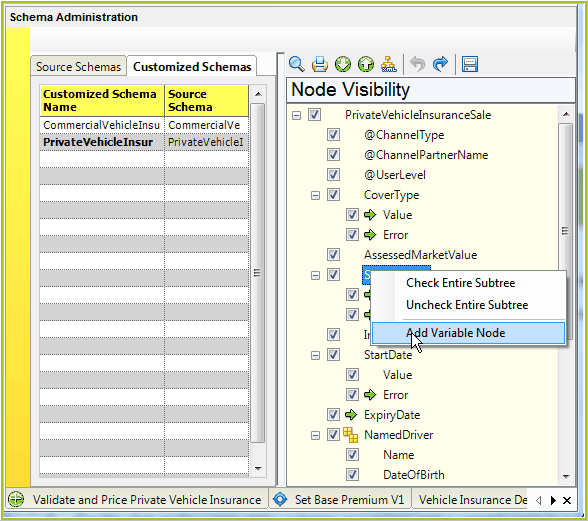
Figure 6-50: Adding a Variable Node to a schema.
Your variable node appears in the schema in light blue.
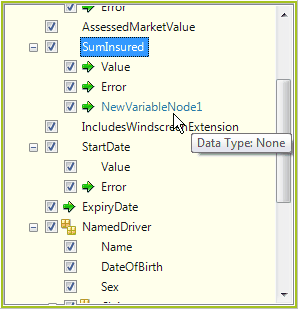
Figure 6-51 Variable Nodes are pale blue.
5. |
Right-click on the variable node to re-name it (see the note below for naming conventions), and set the required datatype. |
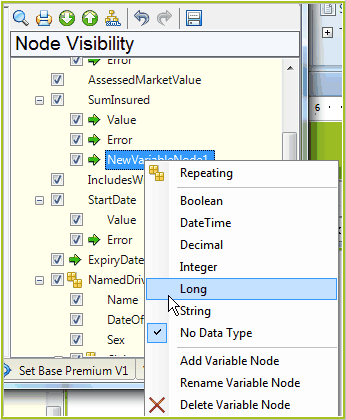
Figure 6-52: Specifying a datatype for a Variable node
Important Note: Naming Conventions:
•Names cannot contain spaces, or start with numbers or punctuation characters (including the ‘@’ character used at the start of attribute names).
•The node cannot share the same name as another variable or ‘real’ node on the same level.
To Reposition a Variable Node:
1. |
Go to the Schema Administration Node Visibility view (see steps 1-3 above) |
2. |
Click on the Variable Node and simply drag it to its new position. Insertion point artefacts are displayed to aid the user with re-arranging. |
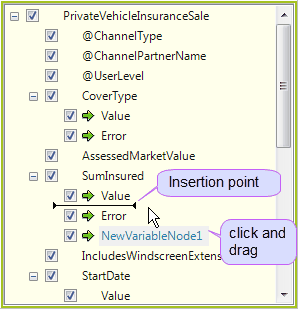
6-54 Reposition Variable Nodes by clicking and dragging.
3. |
Click on the Variable Once the insertion point is in the correct position release the click and the Variable Node will appear in the new position |
NOTE: you can build Variable Node structures by adding children to existing Variable Nodes.
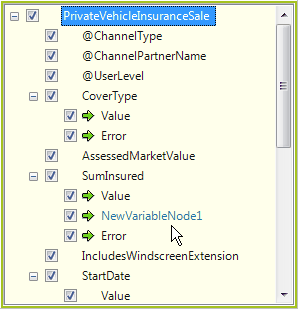
Figure 6-55 Repositioned Variable Node