Show Schemas |
  
|
Show Schemas |
|
The Show Schemas functionality opens the customized Schema pane if it is closed, and scrolls to the context node for the decision/group and highlights it in blue. There are two simple ways to open a schema related to a decision/decision group, and scroll to the associated context node.
STEPS
1. |
Select a decision/decision group |
2. |
Click on the `Show Schemas' button in the Toolbar OR alternatively Right-click on a decision and select `Show Schemas'. |
3. |
The customized Schema pane will appear on the left hand side of your screen, and the node that the decision is associated with will be highlighted in blue. |
4. |
Click on the Save button. |
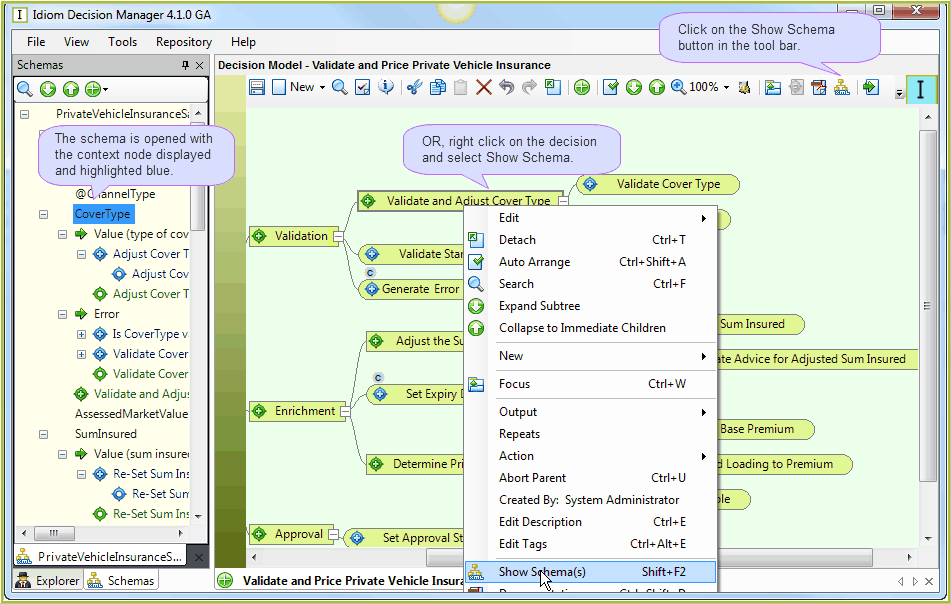
Figure 3-22: Clicking Show Schemas opens the customized Schema pane with the context node highlighted in blue.
