Decision Menu Items |
  
|
Decision Menu Items |
|
When you right-click on a decision or decision group in the decision model, you will be presented with the following drop-down menu items:
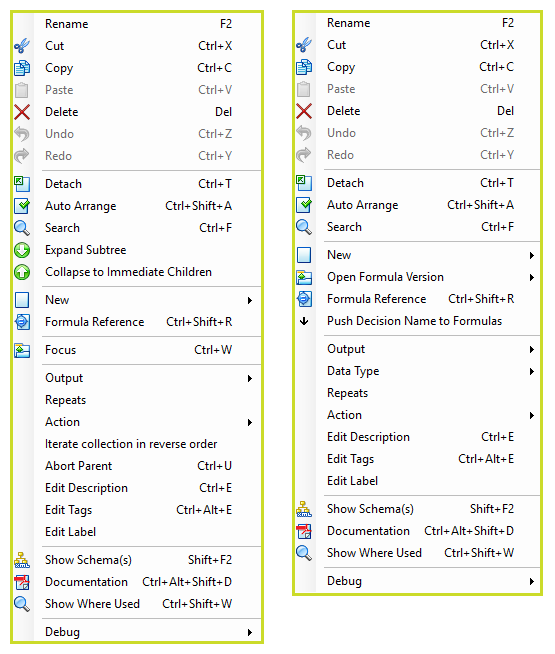
Figure 3-14: Right-click menu items for use with decision groups and decisions
You will note that most of the functions available with decisions are also available with decision groups, however there are a few differences as explained in Table 3-1 below.
Note: If you right-click on a decision/group and no functions are available, it is likely that you are operating on a decision/group that your workgroup is not authorised to edit.
Table 3-1 provides a list of the functionality available from the right-click menu options above.
Menu Item |
Available from: |
Function |
||||||||
Rename |
Both |
Rename decision (group) |
||||||||
Edit: Cut Copy Paste Delete Undo Redo |
Both |
Edit - Enables the user to cut, copy, paste or delete a decision/group, as well as undo or re-do the last action taken. Note: Cut/Copy/Paste/Delete/Undo/Redo is only displayed under the 'Edit' sub menu when the active screen resolution height is under 768 pixels, in all other cases, the stated menu items will simply appear on the main pop-up menu, when you right-click on a decision, decision group, formula etc. |
||||||||
Detach |
Both |
Detaches the decision from a linked decision group. |
||||||||
Auto Arrange |
Both |
Automatically arranges decision model in a neat orderly manner. (see Auto Arrange). |
||||||||
Search |
Both |
Searches the decision model for the typed text. (see Search) |
||||||||
Expand Subtree |
Decision Group |
Displays all sub decision groups and decisions linked to the decision group |
||||||||
Collapse to Immediate Children |
Decision Group |
Hides all sub decision groups and decisions except for those immediately linked, alternatively you can use the shortcut key (Ctrl + '-') |
||||||||
New |
Decision |
Opens the formula palette to enable you to create a new formula associated with the selected decision. |
||||||||
New |
Decision Group |
Enables the User to attach a new decision/decision group to the decision group. |
||||||||
Open Formula Version |
Decision |
Opens a list of the associated formula versions that are associated with the decision. |
||||||||
Formula reference |
Decision |
Displays a grid of all formula references attached to the decision. |
||||||||
Push Decision Name to Formulas |
Decision |
Updates the name of all attached formulas and formula versions with the same name as the decision. This option is only available for decisions that have referenced formulas. |
||||||||
Push Decision Group Name to Formulas |
Decision Group |
Updates the name of all attached formulas and formula versions with the same name as the decision group. This option is only available for decision groups that have referenced formulas. |
||||||||
Decision Group |
The right-click 'Focus' menu item is only available on decision groups, and is used to stop multiple users editing the same decisions/groups at the same time. Once you have focused in on a decision group, it appears in a new workspace where you can continue editing it. The decision group will be greyed out in the decision models of other users and they will not be able to access it for editing until you have finished with it. |
|||||||||
Output |
Both |
Shows the Xpath of the decision context node i.e. where the decision output can be found on the schema. |
||||||||
Use Previous Context |
Decision |
Use the context of a previous decision group, see Use Previous Context |
||||||||
Data Type |
Decision |
Indicates the datatype of the output that the formula will produce e.g. Decimal, integer etc. Only decisions (not decision groups) can have a datatype. Decisions with a control datatype are not associated with schema nodes for output, and have a datatype of ‘Control’. They are shown with a background of light red in the decision model instead of green. |
||||||||
Repeats |
Both |
Decisions and decision groups can be designated to repeat until such time as they receive a command to exit or abort. (see Iterating over a Decision) |
||||||||
Action |
Decision |
Displays the 'Action' that is to be taken when the decision executes. The options for a decision are:
(see Action Types ) |
||||||||
Action |
Decision Group |
Displays the 'Action' that is to be taken when the decision group executes. The options for a decision group are:
(see Action Types ) |
||||||||
Iterate collection in reverse order |
Both |
Process repeating collections in reverse. This option is available if the action is Update and the Use Previous Context flag is not set. |
||||||||
Abort Parent |
|
Abort Parent is used with nested decision groups i.e. with decision groups that are children of other decision groups. If a decision aborts within a decision group that is the child of another decision group, then this action causes the parent decision group to also abort. If you right-click on the child decision group in the decision model and select `Abort Parent', then the parent decision group will be aborted when the child is aborted. |
||||||||
Edit Description |
Both |
Opens the dialog box for creating or editing the description attached to the decision/group. (See Edit Description) |
||||||||
Edit tags |
Both |
Opens the dialog box for creating or editing the Tag text box attached to the decision/group. Decision/decision groups that have been tagged will have a small 'T' icon displayed above them on the decision model palette, and particulars of the tag will be displayed in the corresponding details panel. Tags can be used to match decision/decision groups with correspondingly tagged text within Word and/or Excel documents - please refer to the IDIOM Decision Tracker Manual for further information.(See Edit Tag) |
||||||||
Both |
Add a label to a decision (group) in order to clarify its function |
|||||||||
Show Schema(s) |
Both |
Opens the schema pane (if not already open) and scrolls to the schema node that the decision/group is linked to, and highlights it in blue. |
||||||||
Documentation |
Both |
Produces a PDF document that details the schemas, decisions/groups, formulas (Logical English version), and table contents that are found within the selected decision/group, and displays it in the workspace pane. |
||||||||
Show Where Used |
Both |
Opens the 'Where Used' form and shows the connection between the decision/group and other elements in the repository. (see Show Where Used) |
||||||||
Debug |
Both |
Enables certain conditions to be set against specified decision/groups (i.e. to stop at, step over or step into a decision), when conducting in-line tests against the decision model. (See Conducting an in-line test) |
Table 3-1: Functions available when you right-click on a decision
The next few topics provide further detail on the more complex menu items above.