Edit Tag |
  
|
Edit Tag |
|
Idiom has recently developed a new application as part of the Idiom Decision Suite of products called the Idiom Decision Tracker.
The Tracker is the result of a customer’s desire to be able to identify the origins of decisions in Corporate Policy Statements on the one hand, and to locate the corresponding decisions that implement that corporate policy on the other.
Because Idiom decisions are implemented directly as code, this tool is be able to map Corporate Policy as described in policy statements (from Word and/or Excel) directly to the implementing code in the Idiom decision model, and vice versa.
Decisions or decision groups are easily tagged by entering 'Tag::', or 'T::' followed immediately by a short Tag Name in to the Decisions 'Tag' field.
The corresponding policy MSWord and/or Excel documents are then tagged by placing a 'comment' against the desired source data with the keyword ‘Tag::’ or ‘T::’ followed by the identical tag name.
The tracker application also allows the User to specify one column of data within a specified worksheet, to be used as tags for an Excel worksheet.
Important to Note:
| § | Tag Names created against Decision/Decision Groups must be identical to the corresponding Tag Names created in the matching Source Policy Statements. |
| § | Tag names are case sensitive and should not contain spaces between words. |
Please refer to the IDIOM Decision Tracker Manual for further information. (See Edit Tag)
1. |
Right-click on a decision (e.g. Validate Cover Type) and select `Edit Tag > Tag dialog box' |
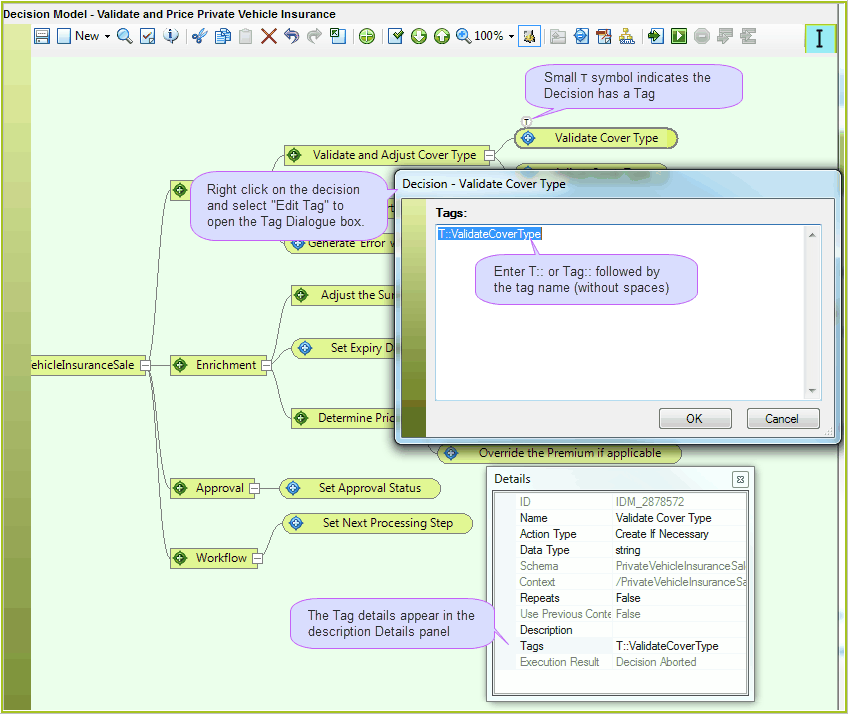
Figure 3-21(a): Creating a Tag
2. |
Type your Tag details e.g. 'Tag::ValidateCoverType' without any spaces. |
3. |
Click on Ok. |
4. |
The 'T' displayed above the decision indicates that a Tag is associated with it. Hold your mouse cursor over the decision; your Tag will appear in the pop-up box. |
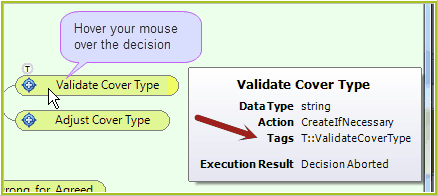
Figure 3-21(b) Hover over a decision to view Tag information
5. |
Click on the Save button |
Please refer to the IDIOM Decision Tracker Manual for further information on this topic.