Documentation |
  
|
Documentation |
|
The Documentation function can be used to produce a PDF document that details all of the schemas, decisions/groups, formulas (Logical English version), and table contents that are found within the selected decision model, or selected decision/decision group.
This function is accessed via the  documentation button in the decision model toolbar, or by right-clicking and selecting the menu item 'Documentation.
STEPS to document the decision model .pdf
1. |
Open the Validate and Price Private Vehicle Insurance decision model. |
2. |
Click anywhere on the decision model palette, but NOT on a decision/decision group |
3. |
Either click on the Documentation icon on the toolbar, OR right-click on the palette and select documentation |
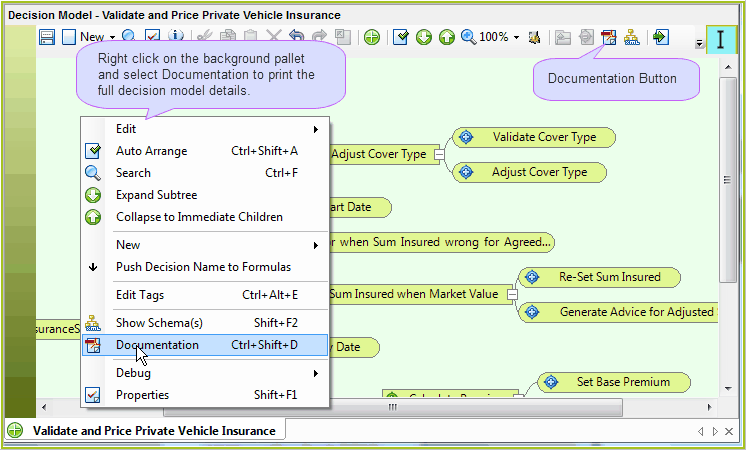
Figure 3-23(a): Document the decision model.
Idiom displays the documented version of the decision model in the Idiom Workspace.
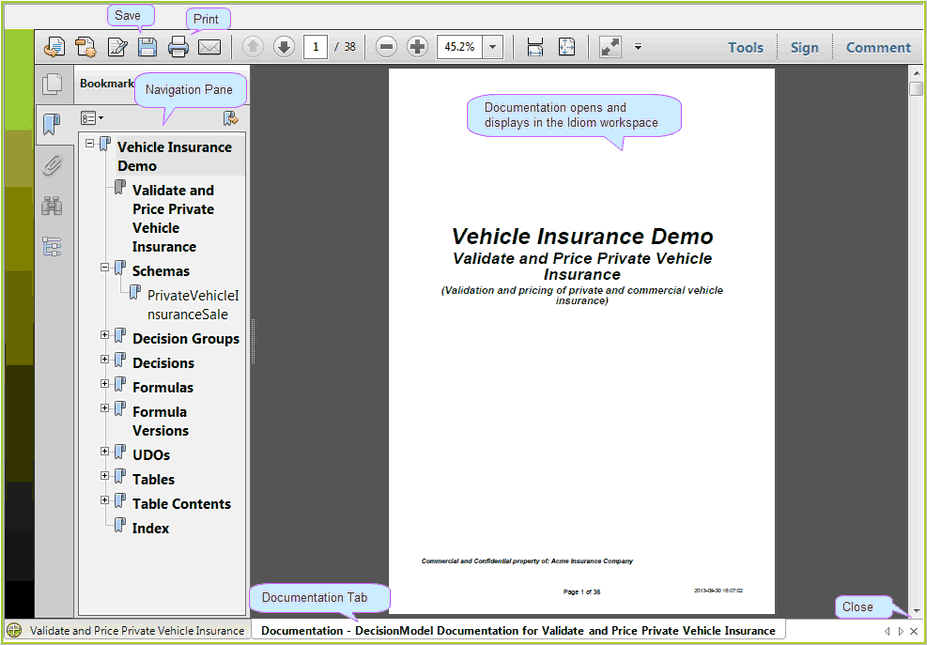
Figure3-23(b) Documentation for the decision model is displayed in the Idiom workspace.
STEPS to document a specific decision/decision group.
This is primarily the same as documenting the decision model, except you first select a specific decision/decision group.
1. |
Open the Validate and Price Private Vehicle Insurance decision model. |
2. |
Click on the specific decision/decision group. |
3. |
Either click on the Documentation icon on the toolbar, OR right-click on the decision/decision group and select documentation from the drop-down menu. |
Idiom displays the documented version for the selected decision/decision group only.
Tip |
To ensure your document is up to date with the latest changes, you can refresh as you initiate documentation by holding the "Ctrl" button down as you click on the documentation button and/or menu item. |
STEPS to Save and/or Print
•You can choose a name for your PDF file and specify its location within your file directory by clicking on the Save button in the Document workspace. IDIOM will generate a PDF version of your document and place it in the specified directory.
•Click on the print button in the toolbar to open the print preferences box.