Rendering Schemas |
  
|
Rendering Schemas |
|
The process of generating the Customized schema makes some structural changes to the supplied source schema.
When customizing a schema, IDIOM translates the many valid .xsd datatypes into a more restricted set of IDIOM supported datatypes as follows:
✍Idiom int = int, integer, short, positiveInteger, negativeInteger, nonNegativeInteger, nonPositiveInteger, unsignedShort, unsignedInt
✍Idiom long = long
✍Idiom decimal = decimal, float, double, unsignedLong
✍Idiom string = string, normalizedString, nmToken
✍Idiom dateTime = date, dateTime
✍Idiom bool = boolean
Anything else is defaulted to strings on simple type elements.
Recursive structures are also removed and replaced with explicit parent child relationships up to 3 levels deep. This is not configurable.
STEPS to render a schema
1. |
Double click on the source schema in the Source Schemas table (or right-click on the name and select `Customize') |
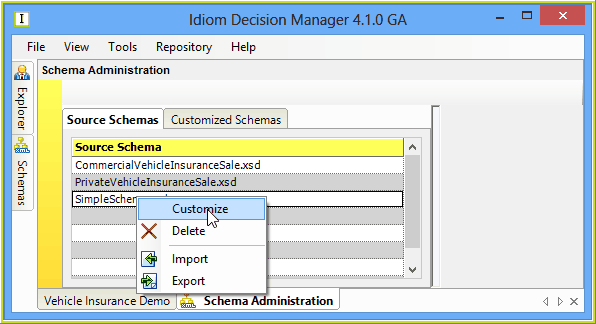
Figure 6-47: Customize menu option in the Source Schemas table.
IDIOM displays the schema in the Customized Schema pane on the right hand side of the workspace. It is now ready for additional user customisation. Users can:
•Hide nodes on the schema (‘Visibility’ settings)
•Make nodes available for update to decision designers (‘Output’ settings)
•Add nodes that are temporary within the execution of a decision models (‘Variable node’ settings)
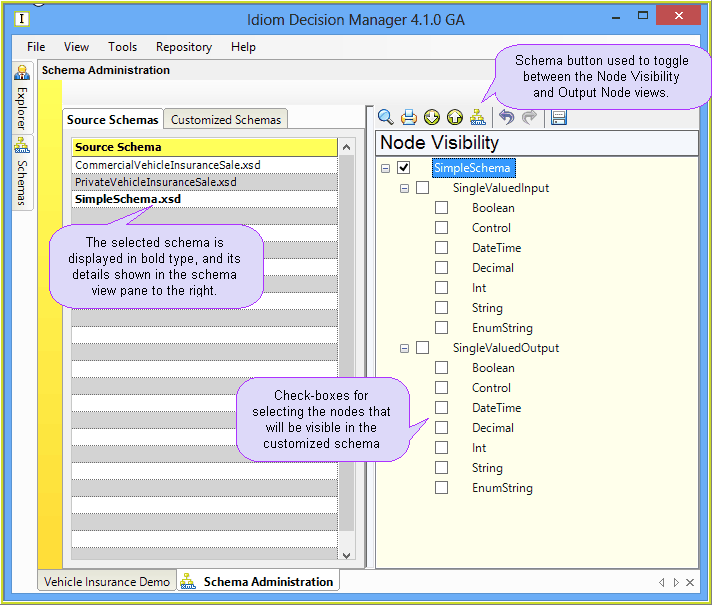
Figure 6-48: Customized Schema pane - used to create the customized schema.
2. |
Expand the tree view by clicking on the Expand tree button in the Customized Schema pane |
NOTE: Initially, only the very top level of the schema is displayed in the Customized Schema pane as this is all that is rendered. Further levels can be rendered as you `drill-down' through the schema using the 'Expand Tree' button. IDIOM only renders the source schema when you expand the tree view of the schema because rendering a large schema all at once can take some time. (see Creating the Customized Schema). By 'rendering as you go', IDIOM minimises the time that you spend waiting for it to render levels of the schema that you may never display when creating your customized schema.
3. |
Now you can identify the nodes you wish to include in your customized schema by specifying node visibility (see Node Visibility). You can click on each check box individually, or alternatively right-click on a tree node and click on 'Select entire subtree' |
NOTE: There is a practical limit to the size of schemas that can be rendered, which is dependent on the amount of memory available. Above this limit (i.e.assuming unlimited memory) there are also limits to what the underlying dotNET components can handle. This size is substantial, but can be reached with the very large industry schemas (for example ACORD or MDDL) if the full extent of the Schema is rendered. In these cases we suggest only rendering the parts of the schemas that are required.