Manual firewall setup |
  
|
Manual firewall setup |
|
Both IDIOM Decision Server and IDIOM Decision Manager automatically add themselves to the Windows Firewall Exceptions list during installation. However, if the installer fails to complete this operation you can manually set up Windows Firewall for both server and client.
IDIOM Decision Server
In order to configure Windows Firewall on the server machine, ensure that you are logged in as the Administrator for the machine. Then follow the steps below (see the Note section of this topic if you are running Windows 2008):
STEPS
1. |
Right-click on Start/Windows key. |
2. |
Select Settings |
3. |
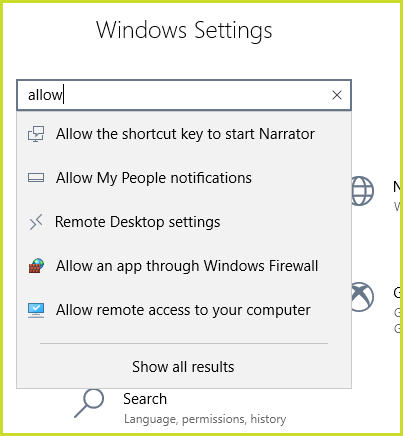
Type 'allow' in the Find a setting box and click on the 'Allow an App through Windows Firewall'.
|
4. |
If you do not see Idiom Decision Server in the Allowed apps and features list, click on Change Settings. |
5. |
Then click on the 'Allow another app' tab. |
6. |
Browse your directory and find where the Idiom Decision Server is installed. |
7. |
Click on OK. |
IDIOM Decision Server will now be added to your exceptions list:
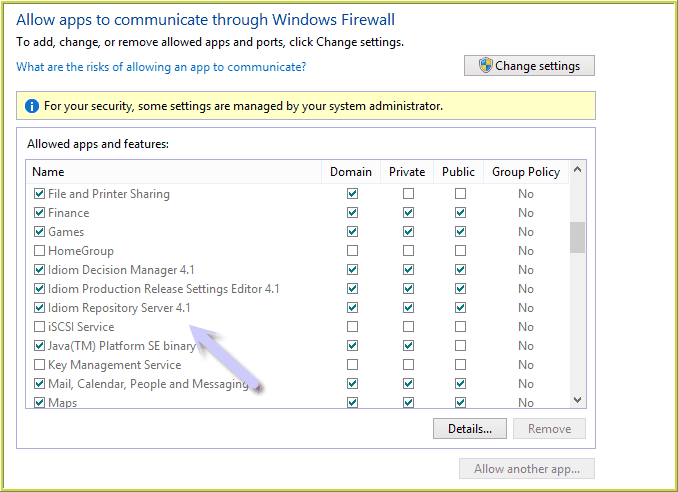
Figure 6-14: IDIOM Decision Server listed in the Windows Firewall Exceptions list
You will also need to add the IDIOM Decision Server port to the Exceptions list.
STEPS
1. |
Right-click on Start/Windows key, Select Settings |
2. |
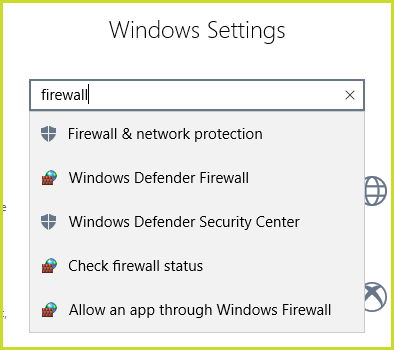
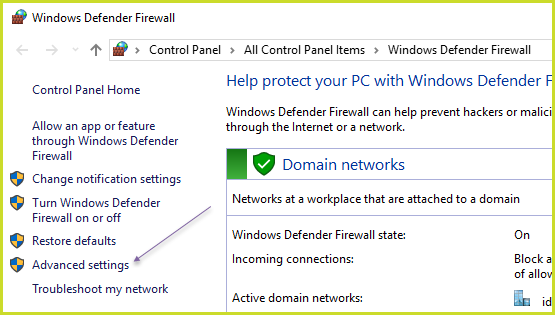
Type firewall in the Find a setting box and click on the 'Windows Defender Firewall' and on 'Advanced settings'.
|
3. |
In the Windows Firewall with Advanced Security dialog box, in the left pane, click Inbound Rules, and then, in the right pane, click New Rule. |
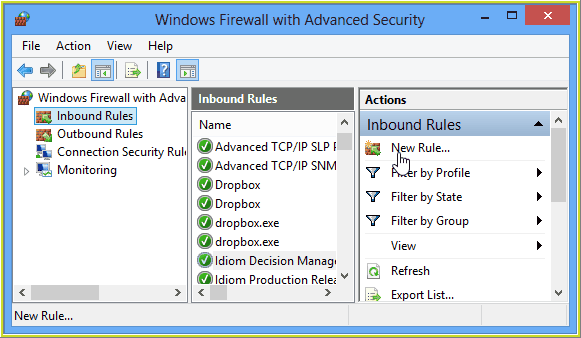
Figure 6-15b: Specifying the IDIOM Decision Server Port
4. |
In the New Rule dialog box select 'Port' and click next. |
5. |
Specify the server port number that you configured during the Idiom Decision Server installation, and follow the installation Wizard instructions. |
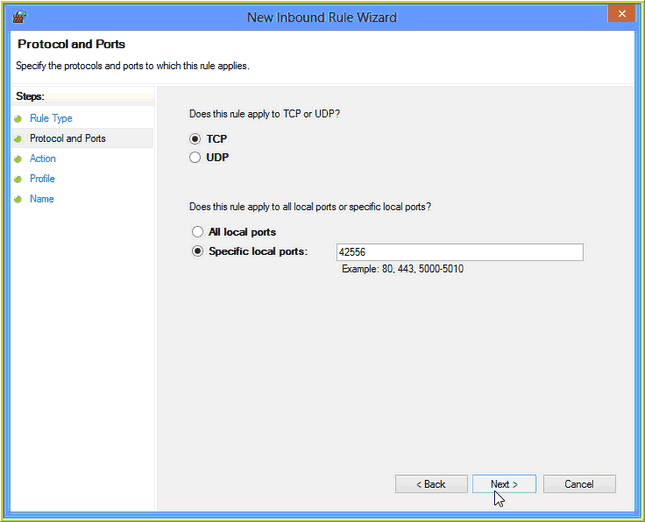
Figure 6-15b: Specifying the IDIOM Decision Server Port
IDIOM Decision Manager
In order to configure Windows Firewall on the server machine, ensure that you are logged in as the System Administrator. Then follow the steps below:
STEPS
1. |
Right-click on Start/Windows key |
2. |
Select Settings |
3. |
Type 'allow' in the Find a setting box and click on the 'Allow an App through Windows Firewall'. |
4. |
If you do not see IDIOM Decision Manager in the Exceptions list, click on Change Settings. |
5. |
Then click on the 'Allow another app' tab. |
6. |
Browse your directory and find where the IDIOM Decision Manager is installed. |
7. |
Click on OK. |
IDIOM Decision Manager will now be added to your exceptions list:
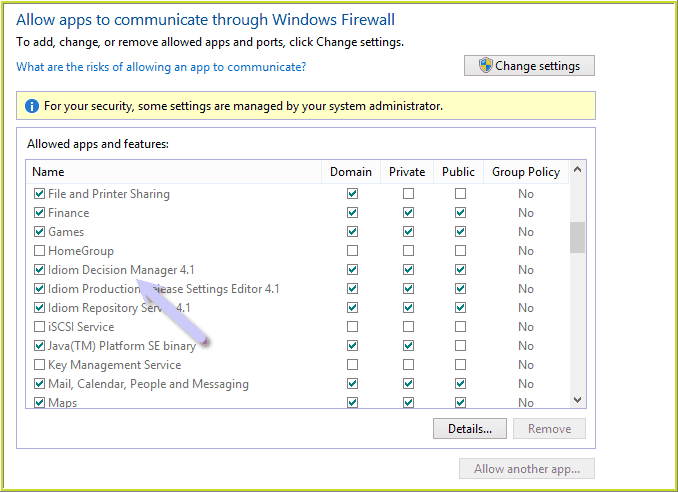
Figure 6-16: IDIOM Decision Manager listed in the Windows Firewall Exceptions list
NOTE: If you are running the client and/or server on Windows XP (no Service Pack or Service Pack 1) or Windows Server 2003 (no Service Pack), you will have to configure Windows Internet Connection Firewall instead.
To configure Internet Connection Firewall:
STEPS
1. |
Open the Control Panel |
2. |
Click on Network and Internet Connections |
3. |
Right-click on Local Area Connection |
4. |
Choose Properties |
5. |
Click on the Advanced tab |
6. |
Ensure the Internet Connection Firewall check-box is not checked. |