Opening a New Formula Palette |
  
|
Opening a New Formula Palette |
|
The first step when creating your formula is to open the formula palette. This is the area where you build your formula and it is displayed in the Workspace pane. For this example, we assume that you are logged in as 'FormulaExpert1', or Administrator (see Case Study Data and Creating New Users).
A new formula palette can be opened from the decision model palette and/or the schema pane.
STEPS To open from the Decision Model
1. |
Open the Validate and Price Private Vehicle Insurance decision model. |
IDIOM displays the decision model, showing all of the decision groups and decisions in the decision model.
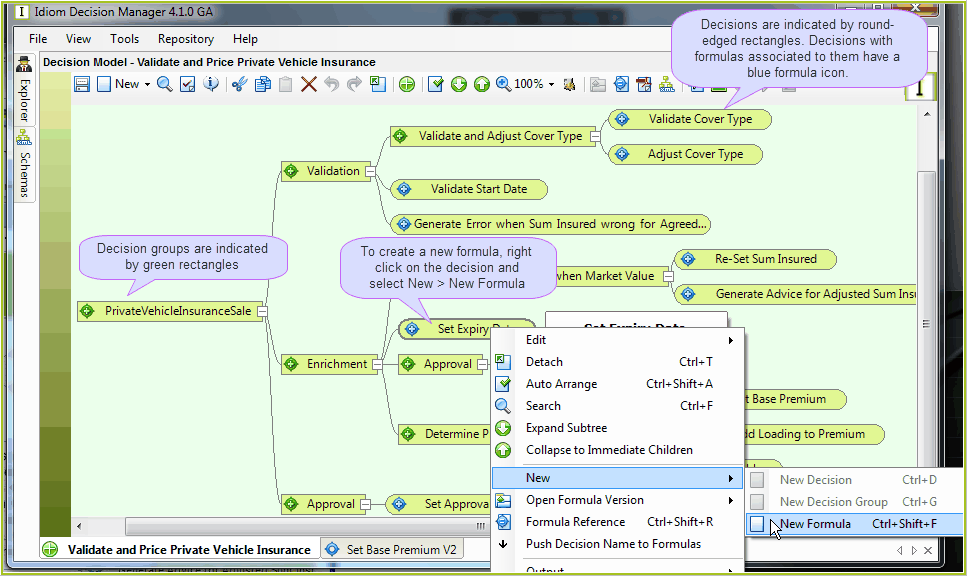
Figure 2-35: decision groups and decisions in the decision model
2. |
Right-click on the decision 'Set Expiry Date' and select New | New Formula to go to the New Formula dialog box. |
STEPS To open from the Schema
1. |
Alternatively you can right-click on the decision node in the schema (indicated by the green decision icon) that you wish to create your formula for and select 'New Formula'. |
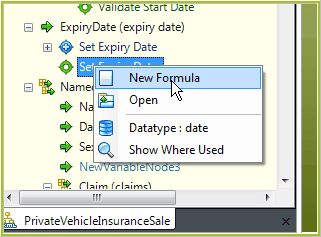
Figure 2-36: Creating a formula for a decision node in the customized Schema pane
Either method takes you to the New Formula Version dialog box:
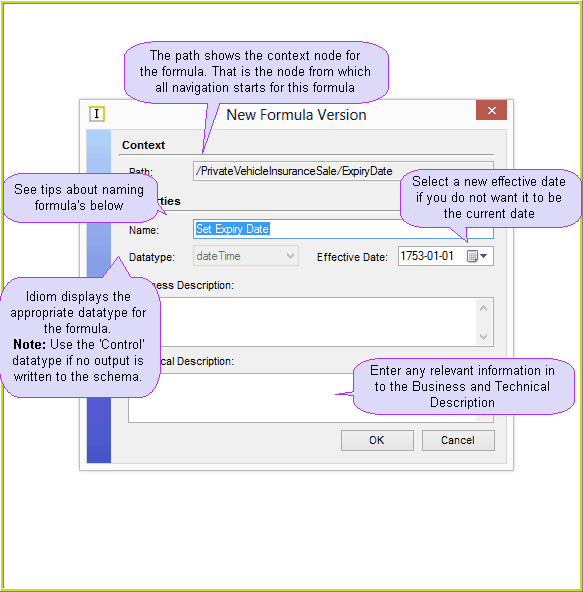
Figure 2-37: The New Formula Version dialog box.
2. |
Enter the formula name and a description. We left the default formula name - Set Expiry Date. See below for some tips on naming formulas. |
When naming formulas we recommend the following:
▪Use the default name that IDIOM provides for formulas created under decisions - these formulas are named with the same name as the decision, helping you to keep track of the formulas associated with your decisions.
▪Use mixed case for standard formulas.
▪For formulas that have been created with different effective dates, extend the default decision name with a meaningful qualifier e.g. Calculate Premium - 2010.
▪For formulas that are not associated with any decisions (see Floating formulas), use all lower case characters, making these formulas easy to distinguish from other formulas. These formulas should also be prefixed with a qualifying verb e.g. Calculate.
Tip |
If you wish to rename all existing formulas so that they have the same name as the decision to which they are associated with, right-click on the decision in the decision model palette, and select 'Push Decision Name to Formula's. |
3. |
Click on the `Ok' button to proceed to the formula palette. |
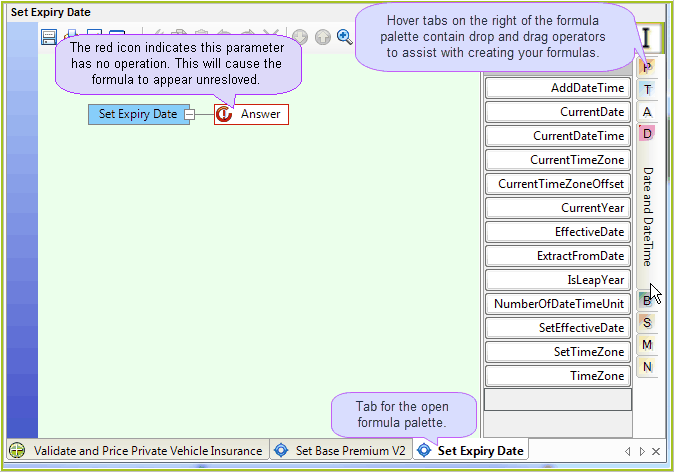
Figure 2-38: The Formula Palette
You are now ready to start building your new formula.