Building your formula |
  
|
Building your formula |
|
Now that you have opened a new formula palette, we will show you how to create the Set Expiry Date formula, where we will set the expiry date of the insurance policy to be 4 months after the policy start date.
STEPS to build a formula
1. |
Open a new formula palette for the Set Expiry Date decision (See 'Opening a new formula palette' topic above). |
2. |
Unpin the Explorer pane if you would like more room on your workspace. |
3. |
Right-click on the Set Expiry Date decision and select New Formula > Formula Dialog Box. |
4. |
Click on the 'Date and DateTime' hover tab to the right of the formula palette (identified by the pink letter 'D'). |
5. |
Click and drag the 'AddDateTime' operator onto the first results box (for more information on Operators and how to use them see Formula Arguments and Operators.) |
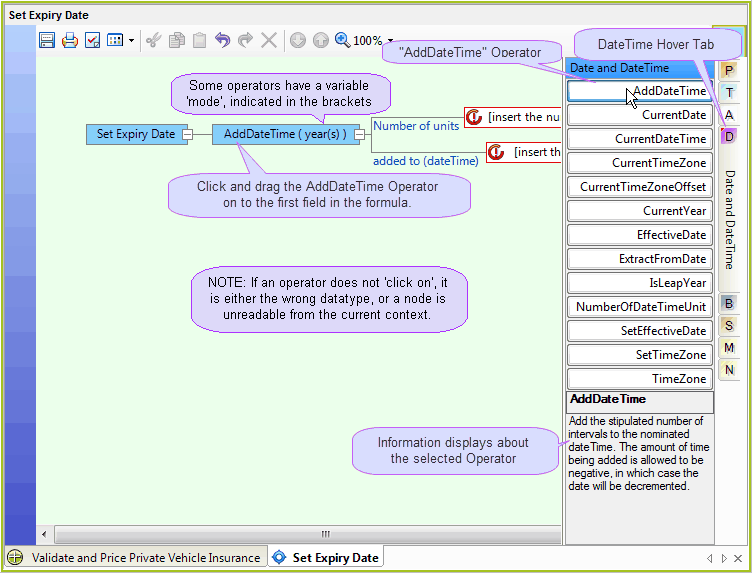
Figure 2-42: Using operators from the Hover tabs.
We will now change the time period from the default Years to Months.
6. |
Double click on the 'AddDateTime (Years)' results box and select 'Months' from the AddDateTime drop-down box. |
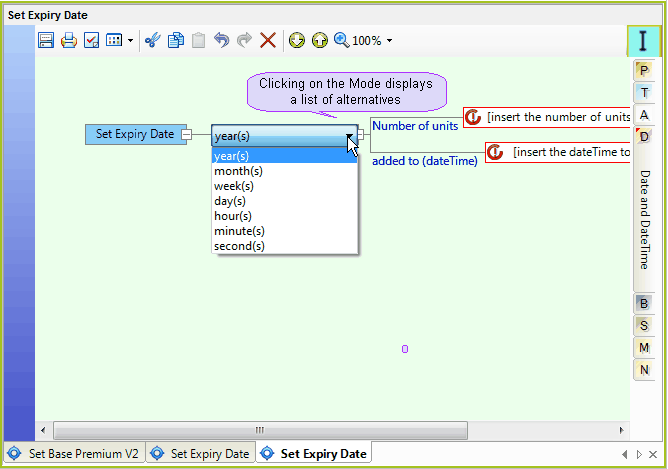
Figure 2-43: The AddDateTime drop-down box.
Now we will set the expiry date to be 4 months after the policy start date.
7. |
Double click on the `Number of units' results box and type in '4' |
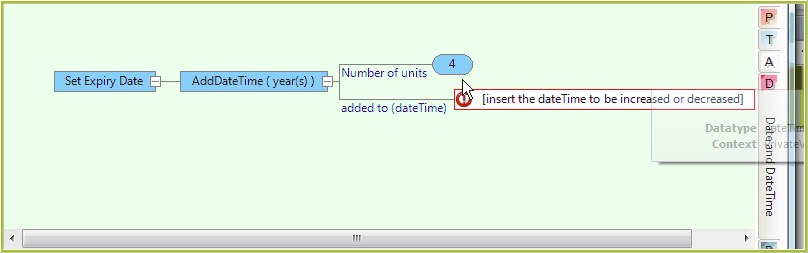
Figure 2-44: Adding number of units in the Formula palette.
We will now direct IDIOM to find the policy start date.
8. |
If it is not already open, double click on the schema name in the Explorer pane to open the customized Schema pane. |
9. |
Click on the StartDate/Value node in the customized Schema pane and drag it onto the 'added to (dateTime)' results box. The palette will highlight valid drop-zones when something is dragged onto it. |
10. |
Select 'Node' from the resulting drop-down box. |
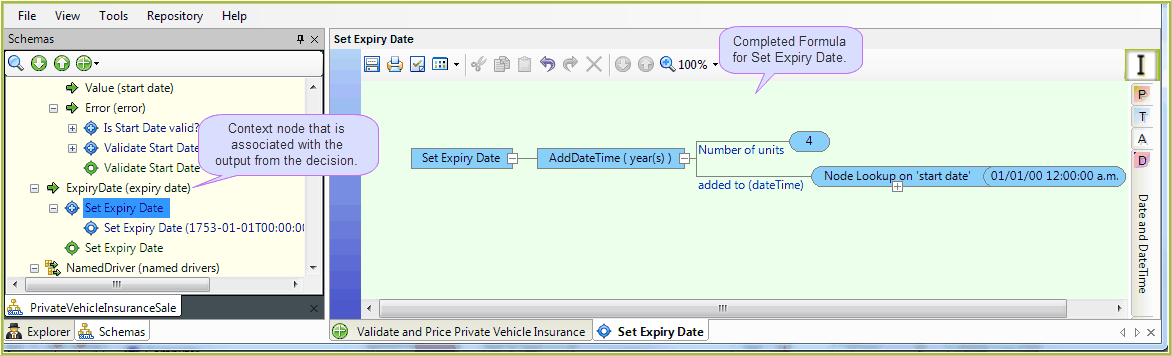 Figure 2-45: The complete Set Expiry Date formula.
11. |
Click on the Save button - Your formula will now appear in the customized Schema pane. |