How to View an Existing Formula |
  
|
How to View an Existing Formula |
|
There are three places from which to open and view a formula that has already been created:
1. |
Explorer pane. |
2. |
Customized Schema pane. |
3. |
Decision Model. |
STEPS for viewing formulas from the explorer pane
You can view formulas from the Explorer pane using the 'List Formula Versions' functionality.
This method is useful for viewing all of the formula versions within a schema. It also facilitates management of the formula building process, allowing you to compare a list of formulas to be built with a list of formulas that have already been built.
1. |
In the Explorer pane, right-click on the PrivateVehicleInsuranceSale schema and select `List Formula Versions' > Formula list. |
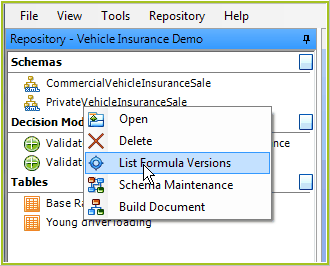
Figure 4-3: Finding a list of formulas
2. |
Hover your mouse cursor over a formula in the formula list pane, to view a tool tip that shows a brief description of the purpose of the formula (this is the description that would have been entered in the description field in the New Formula dialog box or in the Formula Properties window). |
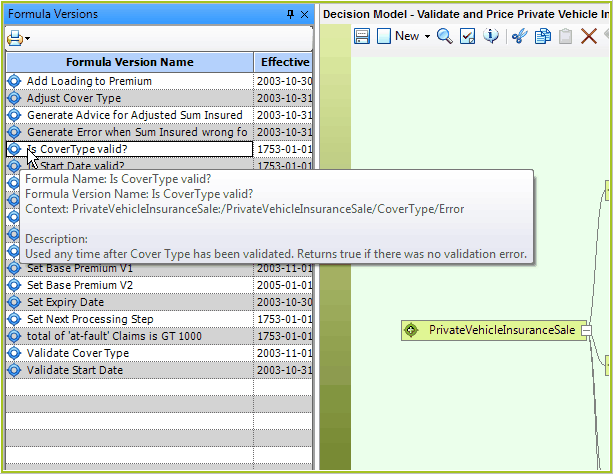
Figure 4-4: The Formula List pane.
3. |
Double click on a formula version in the list, to view it in the formula palette. |
STEPS for viewing formulas from the schema pane
This method allows you to view the decisions that the formula output is linked to.
1. |
Double click on the PrivateVehicleInsuranceSale schema in the Explorer pane > customized Schema pane. |
2. |
All of the formulas (in blue) are shown under the decisions (in green) in the expanded tree. |
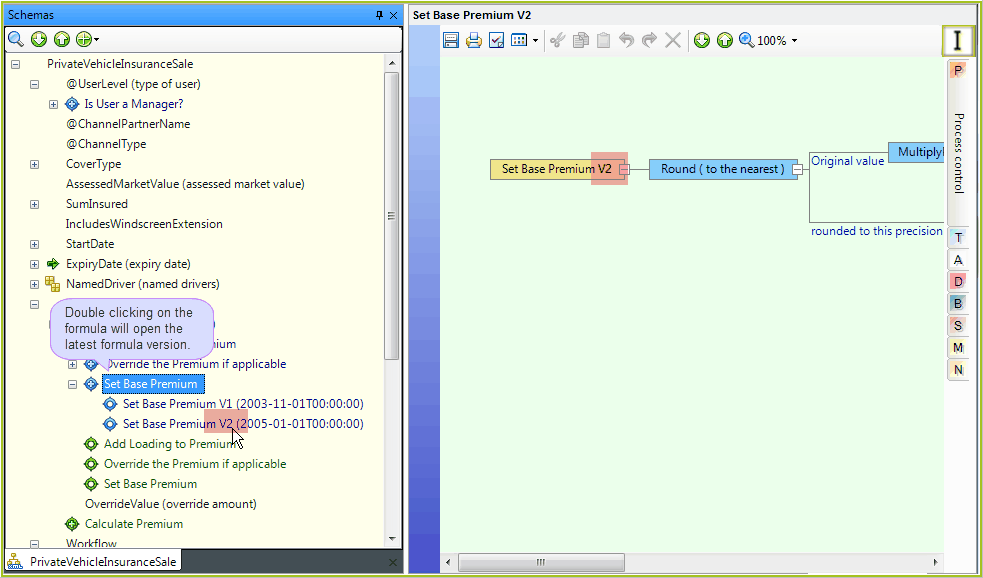
Figure 4-5: Decisions and formulas in the customized Schema pane.
To open a required formula version from the schema:
•double click on the formula (e.g. Set Base Premium) to open the latest formula version (by date) associated with the formula.
•right-click on the formula (e.g. Set Base Premium) to open the formula properties box, and select (double click or right-click and select open) the formula version required.
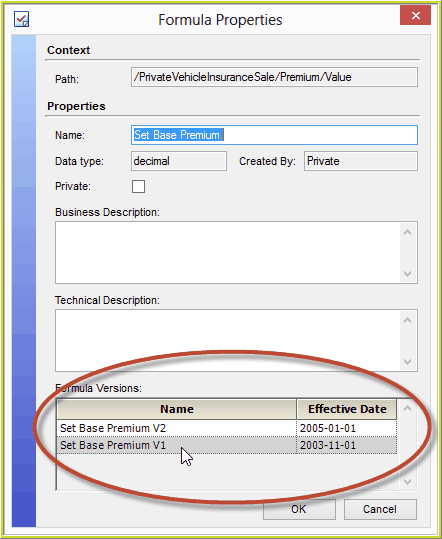
Figure 4-5(b): View and open formula Versions from the Formula Properties dialog box.
•Alternatively, you can simply double click directly on the required formula version in the schema, or right-click and select 'open'.
Viewing formulas from the decision model palette
This method allows you to see which formulas are linked to which decisions.
Please see Viewing Formulas Attached to Decisions.