How to Find a Formula |
  
|
How to Find a Formula |
|
You may wish to find a formula in order to print it for review, to make changes to it, or to confirm its contents. You can find an existing formula in the customized Schema pane by searching for the formula name using the 'Search' button. In this example, we will search for the Adjust Cover Type formula.
STEPS
1. |
In the Explorer pane, double click on the PrivateVehicleInsuranceSale schema> customized Schema pane |
2. |
Click on the root node e.g. 'PrivateVehicleInsuranceSale' and click on the Search button > Search dialog box |
3. |
In the Search dialog box, type in 'adjust': NOTE: you will need to deselect the Match Case to search all matches regardless of case. |
4. |
Click on `Find Next'. |
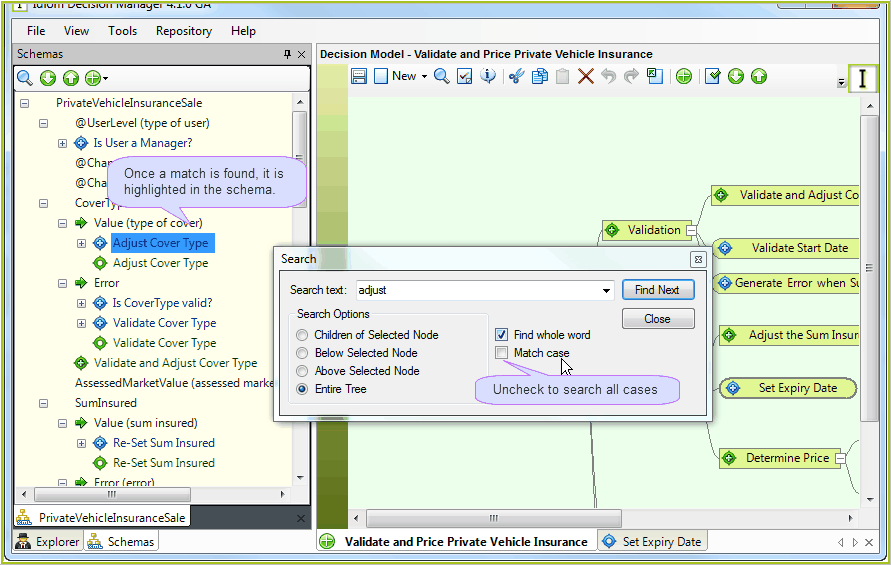
Figure 4-1: The Search dialog box
5. |
Click on `Close'. |
NOTE: To ensure that you search through all of the nodes in the tree, select the node at the root of the tree before clicking on Search.
Alternatively, if you wish to search within a specific region of the tree, the dialog box offers you the option to search for children of the selected node or to search below or above the selected node.