Viewing Formulas Attached to Decisions/Decision Groups |
  
|
Viewing Formulas Attached to Decisions/Decision Groups |
|
Formulas attached to Decisions/Decision Groups
There are numerous ways to find, open and view a formula, but if you want a simple way to view a formula from the decision model palette, you can simply 'double click' on the decision/decision group. This will automatically open the Formula Version with the latest start date, even if it is future dated.
Tip |
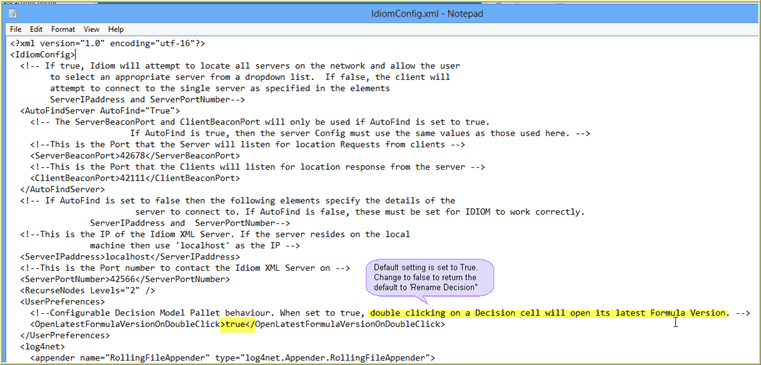
Previously, when you double clicked on a decision the default function was to enable the user to rename the decision. You can change the default action back to 'rename the decision' by opening the Idiom Decision Manager ...\Idiom Decision Manager V4.5\XML\IdiomConfig.xml file and setting the element under "/IdiomConfig/UserPreferences/OpenLatestFormulaVersionOnDoubleClick" to "False".
The IdiomConfig.XML can be found in the ..\Program Files\Idiom Software\Idiom Decision Manager V4.5\XML folder |
Formulas attached to Decisions/Decision Groups
Alternatively, you can right-click on the decision/decision group, select 'Open Formula Version', and click on the formula version displayed in the sub menu.
1. |
Open Validate and Price Private Vehicle Insurance decision model. |
2. |
Right-click on the Validate Cover Type decision and select `Open Formula Version'. |
The formula versions that are associated with the decision will be listed in a sub-menu to the side of the original menu. In our case, we only have one formula associated with the decision - the Validate Cover Type formula.
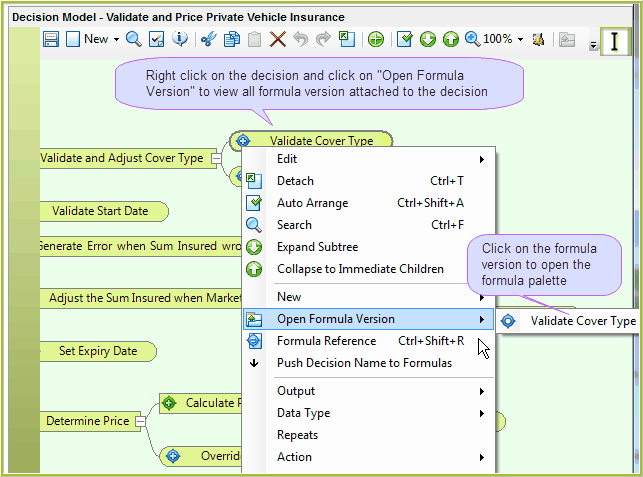
Figure 3-13: Viewing formulas associated with decisions
3. |
Open the formula palette by clicking on the name of the formula version in the sub-menu. |