Focus |
  
|
Focus |
|
The right-click 'Focus' menu item is only available on decision groups, and is used to stop multiple users editing the same decisions/groups at the same time.
Once you have focused in on a decision group, it appears in a new workspace where you can continue editing it. The decision group will be greyed out in the decision models of other users and they will not be able to access it for editing until you have finished with it.
STEPS
1. |
Open the Validate and Price Private Vehicle Insurance decision model |
2. |
Click on the decision group that you wish to edit e.g. Determine Price |
3. |
Click on the Focus button |
A new tab opens with the focused decision group displayed.
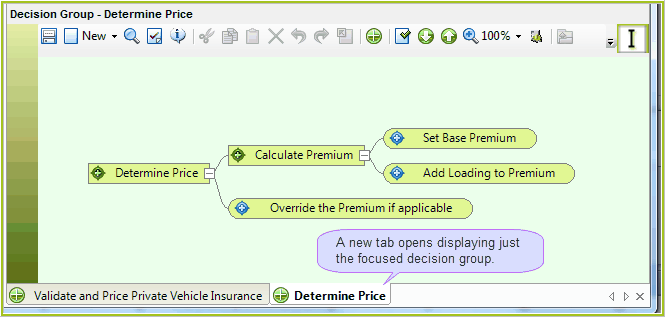
Figure 3-24(a): Focused decision Group
The decision group will now appear grey to any other user who opens the decision model, and cannot be focused on or edited in any way.
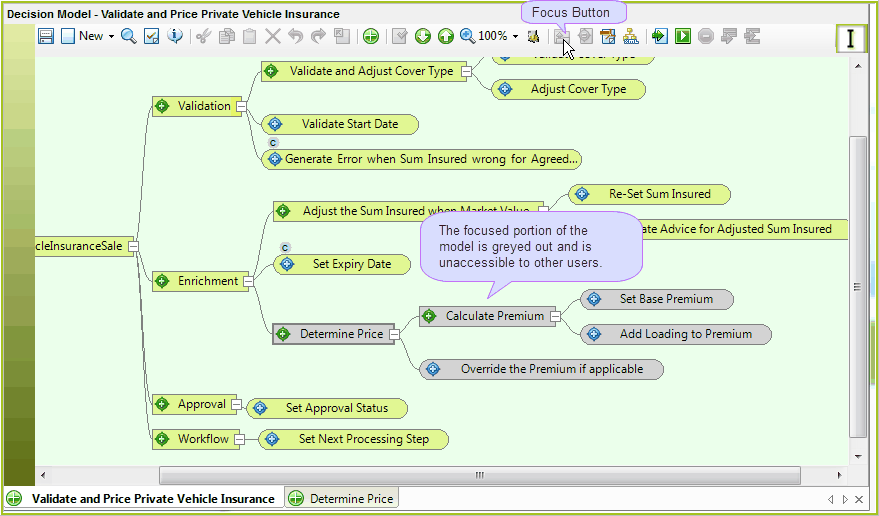
Figure 3-24(b): Greyed out decisions
4. |
Continue editing your decisions in the Focused decision model pane. |
5. |
When complete, click on the Save button and close. |
The decision group will now return to its default colour (green) in the decision model and other users will be able to edit it.
NOTE: If you close the ordinary decision model but not the Focused decision group, other users will be able to edit other decisions/groups in the decision model but not the focused decision group that you have focused in on.
 in the tool bar > Focused decision model