Decision palette menu items |
  
|
Decision palette menu items |
|
When you right-click on the decision model palette, you will be presented with the following drop-down menu items:
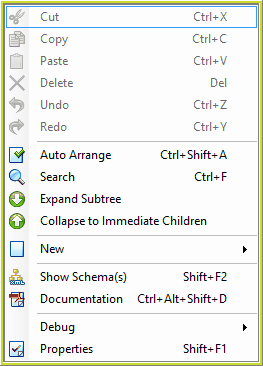
Figure 3-14(b): Decision model palette right-click menu items
Table 3-1(b) provides a list of the functionality available from the right-click menu options above.
Menu Item |
Function |
Edit: Cut Copy Paste Delete Undo Redo |
These functions are only available if you right-click on a specific decision/group. |
Auto Arrange |
Automatically arranges decisions in a neat orderly manner. (see Auto Arrange) |
Search |
Searches the decision model for the typed text. (see Search) |
Expand Sub-tree |
Displays all sub decision groups and decisions. |
Collapse to Immediate Children |
Hides all sub decision groups and decisions. alternatively you can use the shortcut key (Ctrl + '-') |
New |
Enables the User to add a new formula to the decision. |
Show Schema(s) |
Opens the schema pane (if not already open) and scrolls to the schema node that the decision/group is linked to, and highlights it in blue. |
Documentation |
Produces a PDF document that details the schemas, decisions/groups, formulas (Logical English version), and table contents that are found within the decision model. |
Debug |
Enables the User to select 'Run' to open the debugger and commence an Inline Test (See Conducting an in-line test) |
Properties |
Opens the decision model Properties dialog box. |
Table 3-1(b) functionality available from the decision model right-click menu options.