Finding Text |
  
|
Finding Text |
|
The Search function can be used within a tree view to find specific text, such as a formula name.
STEPS
1. |
Click on the Search button |
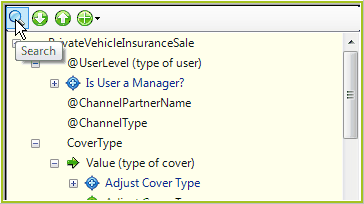
Figure 2-30(a): The Search button.
IDIOM opens the Search dialog box.
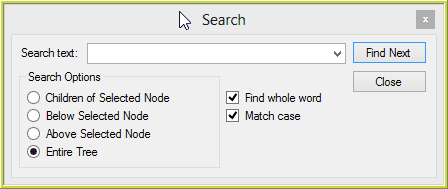
Figure 2-30(b): The Search dialog box.
2. |
Enter the desired text in the Search Text field, for example 'Adjust'. You can also use the drop-down list to select from previously entered text. |
3. |
Select or deselect any of the other relevant search options, such as `Match case'. NOTE: By default, `Find whole word', and `Match case' options are selected. It may be necessary for you to deselect these to widen your search. |
4. |
Click on `Find Next'. You can keep clicking on 'Find Next' until you find the desired text. |
If found, the text will be highlighted in the customized Schema pane. In the example below, we have searched 'adjust' and the formula name is now highlighted in dark blue in the customized Schema pane.
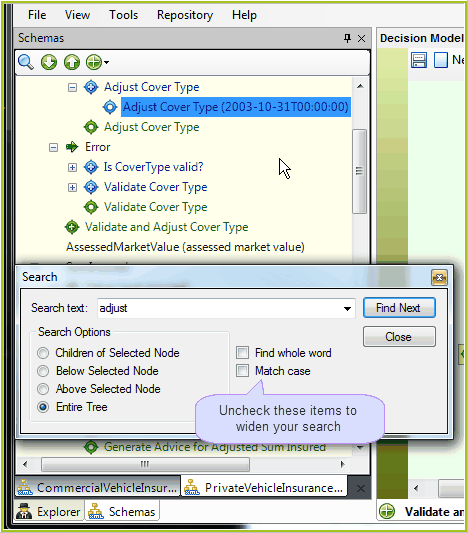
Figure 2-30(c): Once found, the text is highlighted in the customized Schema pane.
5. |
Click 'Find Next' to continue searching or 'Close' to close the dialog box. |