Exporting the Repository |
  
|
Exporting the Repository |
|
To export a repository from the Release screen:
STEPS
1. |
Log into the Vehicle Insurance repository as the System Administrator |
2. |
Open the Repository Release screen (see Running the Release Process) |
3. |
Click on the 'Export Repository' button and select either 'Unencrypted' or 'Encrypted'. |
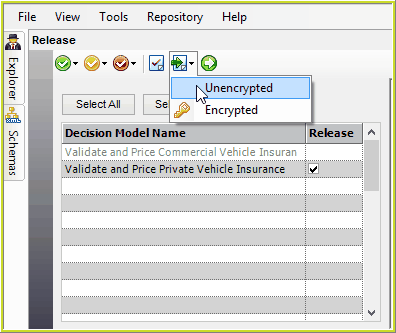
Figure 7-26(a): The Export Repository button
•Unencrypted - an unencrypted file can be opened on any text editor and viewed by everyone.
•Encrypted - an encrypted repository can only be viewed by importing it and opening it in the Decision Manager.
The following is an example of an Encrypted Export file, opened in Notepad:
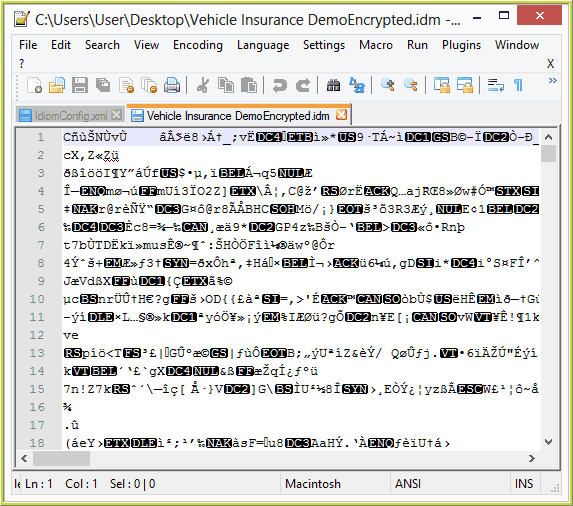
Figure 7-26(b): An encrypted Export file viewed with notepad.
A dialog box will open asking if you wish to restrict the export file so that only Users registered with the same license (as the one being used to release it), can re-import it in to IDIOM Decision Manager.
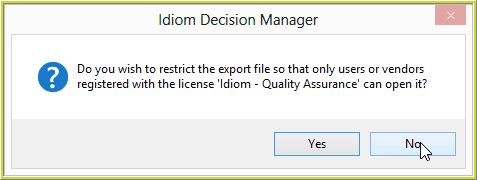
Figure 7-26(c): Option to export ownership controls with the repository.
•You should select 'No' if you wish to export repositories that other license users may wish to use.
•If you select 'Yes', only the original license owner (in this case 'Idiom - Quality Assurance') may re-import and
4. |
Your directory will then open allowing you to select where you wish to save your file. Make the appropriate selection, and click save. |
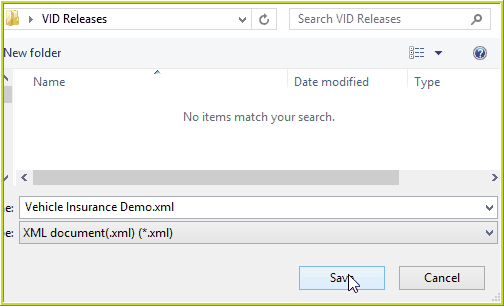
Figure 7-26(d): Saving the exported repository file to your directory
See also: (See also the Export Tab section of the Edit local release generation options and Edit production release generation options)