Edit Descriptions |
  
|
Edit Descriptions |
|
You can create a Business description of your decision that will appear in a comment box when you hold your mouse cursor over the decision. You can also maintain a Technical description for your decision.
STEPS
1. |
Right-click on a decision (e.g. Set Expiry Date) and select `Edit Description'. The Description dialog box can be resized and the bottom of the Business Description field can be moved to allow resizing between the two description fields. |
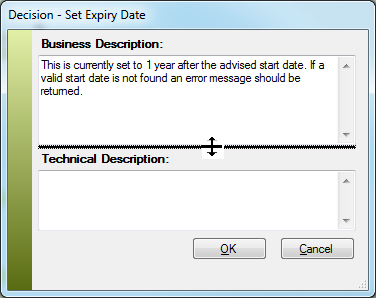
Figure 3-20(a): The Description dialog box
2. |
Type your description in the dialog box, as for example, shown in figure 3-20 above. |
3. |
Click on Ok. |
4. |
Hold your mouse cursor over the decision; your Business description will appear in the comment box next to `Description'. A small 'c' will also display above the decision to indicate that a comment is associated with it. |
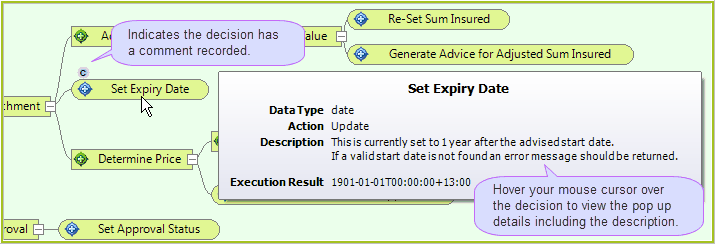
Figure 3-20(b): A decision with a description added.
5. |
Click on the Save button |