Auto Arrange |
  
|
Auto Arrange |
|
The Auto Arrange function is used to arrange decisions in an orderly manner.
Figure 3-15 is a screen shot from our Validate and Price Private Vehicle Insurance decision model. It shows a new parent decision group with a set of newly created decisions/groups (see Creating Decisions/Groups). When they are first attached to a decision group, decisions are haphazardly arranged. You can drag them in the order they are required to be executed, and then organise them neatly by clicking on 'Auto Arrange'.
STEPS
1. |
After creating a set of decisions, drag them in to the order that you want them to execute. |
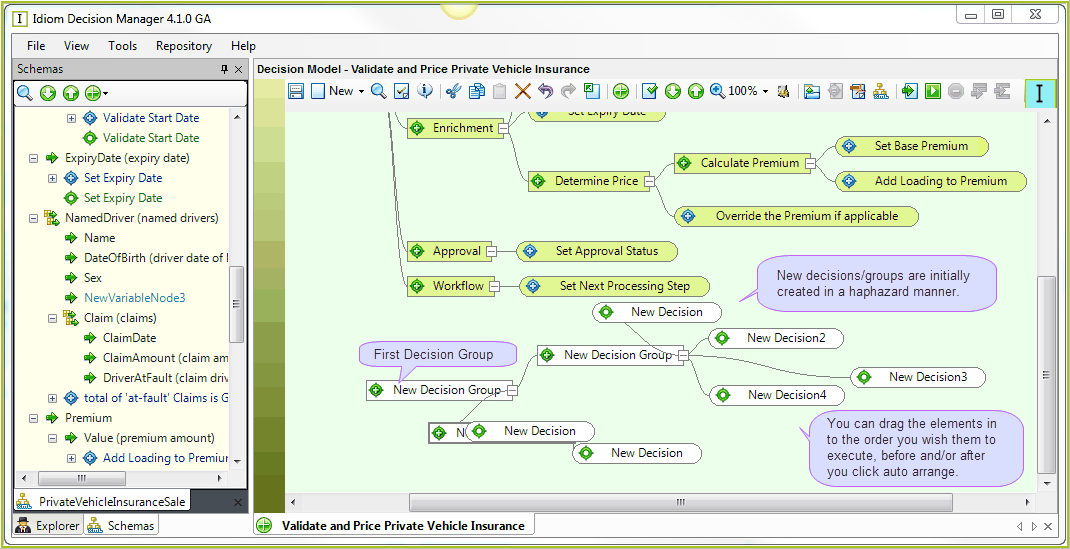
Figure 3-15(a): decisions are haphazardly arranged when first created
The decisions will then appear in an orderly arrangement:
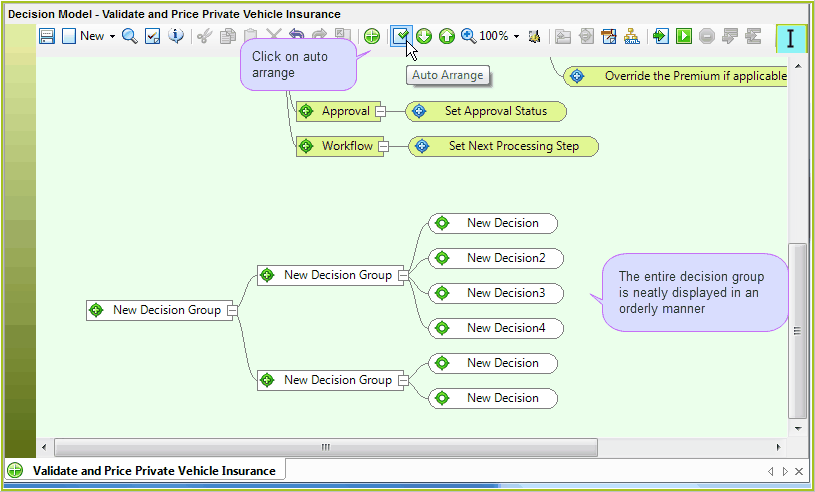
Figure 3-15(b): Auto Arrange puts the decisions in an orderly arrangement
2. |
Click on the Save button. |