D. Create Formulas Using External Context |
  
|
D. Create Formulas Using External Context |
|
Steps to create the "Invoice One: Quantity" Formula
This formula will retrieve the number of hours over which the service was performed. The information is supplied as an integer node called 'Hours' under the ‘Service' node.
The problem here is that the formula we are creating is associated with the 'Quantity' node, the parent node of which is 'Charge'. We need to move to the unrelated Service context using the ExternalContext operator to access ‘Hours’ data for the Service that is currently in focus. This is the Service that we have already decided we need to create a charge for. That is, any node under 'Charge' has a different context to any node under 'Service'. Any formulas created for the nodes under the Charge node will need to use the ExternalContext operator to access information from nodes under the Service node that is currently being used to create a Charge.
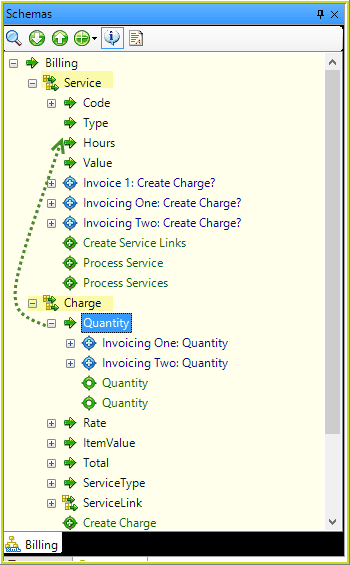
Figure 4-54: The Billing Schema
So, let’s build the Invoice 1: Quantity formula:
1. Right-click on the Quantity decision on the decision model palette and select 'New Formula'
2. Name the formula 'Invoice 1: Quantity'.
3. Click on the Ok button > The formula answer box appears in the formula palette
4. Click on the Save icon > The formula name appears under the Quantity node.
5. Now click on the ‘Service' parent node and drag it onto the empty Answer box in your formula. Note that this is the parent node (Service) of the node you wish to retrieve information from (Service/Hours)
6. Select ExternalContext from the drop-down box that appears.
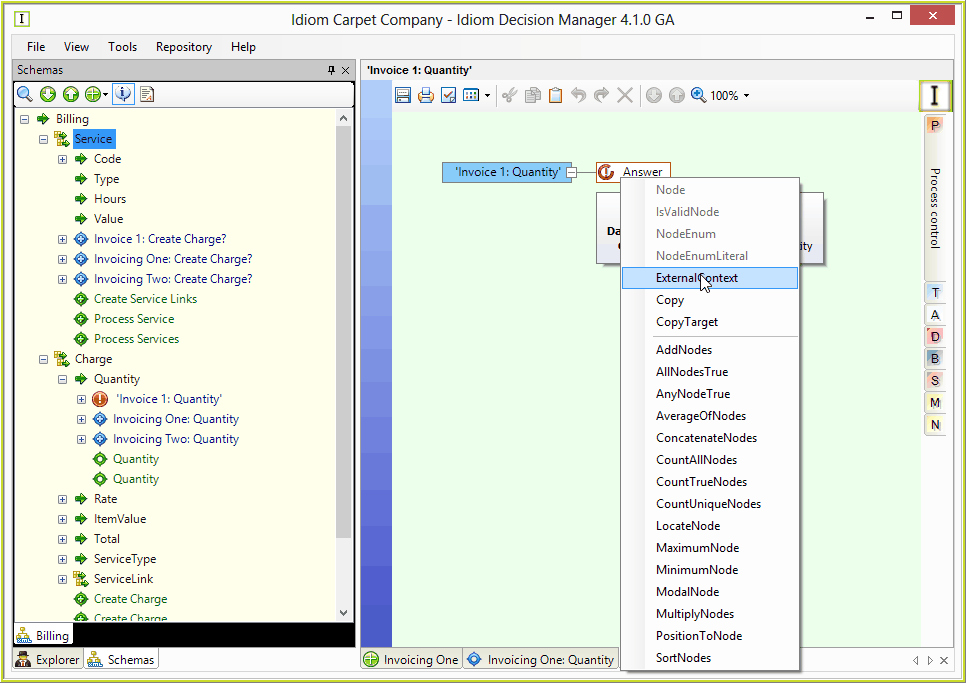
Figure 4-55: Using the External Context operator
You have now specified the Service node as the context node that IDIOM should use to access ‘Hours’.
If you did not specify this external context, IDIOM would only allow you to retrieve information from nodes reachable from the Charge node.
7. Now click on the Hours node and drag it onto the 'Operation to Perform' box. Select Node from the dialog box that appears. You are now specifying that IDIOM should retrieve information from the Hours node.
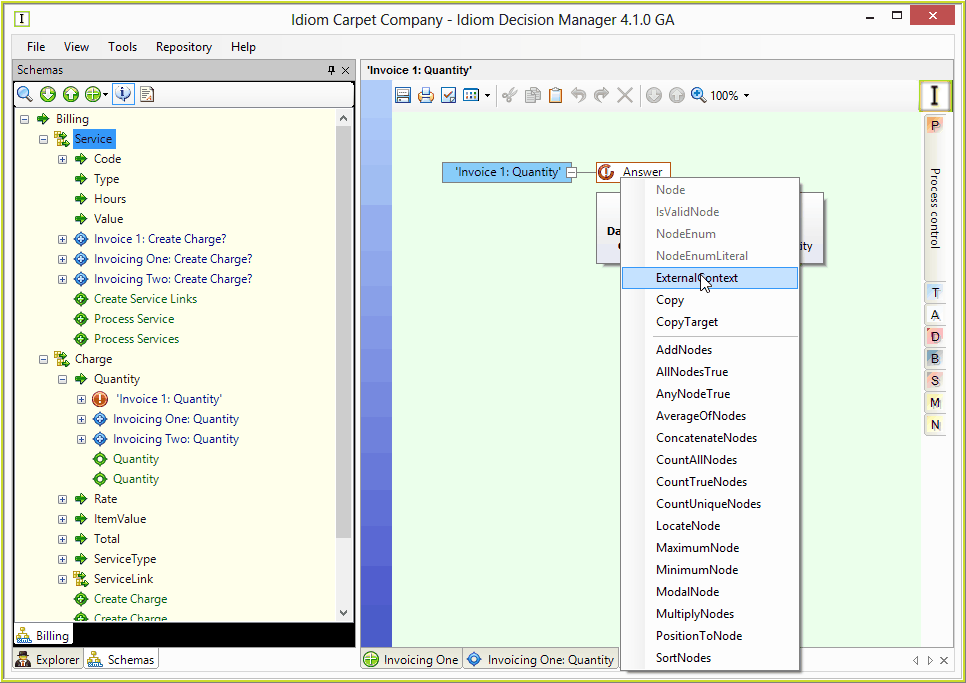 Figure 4-56: Adding the Hours node to the Operation to perform answer box
8. Save your formula
The '0' that appears at the end of the Operation to perform operator indicates that if no value is found, '0' hours will be returned. You can change this default value by double clicking on the value itself and filling in the new value in the text field that appears.
STEPS to create the Rate formula
Next, we will create the 'Invoice 1: Rate' formula:
1. First, right-click on the 'Rate' decision on the decision model palette and select 'New Formula'
2. Name the new formula 'Invoice 1: Rate'.
3. Click on the Ok button > The formula answer box appears in the formula palette
4. Click on the Save icon > The formula name appears under the Rate Node in the Billing Schema
The Rate charged for each service is recorded in the Table so we need to use the TableLookup operator to retrieve these rates.
5. Drag the Service Charging table from the Explorer onto the Answer box and select TableLookup | Rate
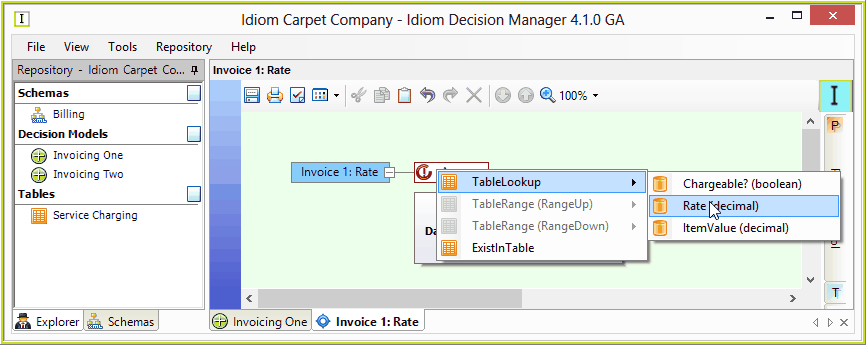 Figure 4-57: Adding the TableLookup operator to the Rate formula
We now need to retrieve the service type. But again we have a problem because our formula has been created under the 'Charge' parent node but the information we wish to retrieve is under the 'Service' parent node. We therefore need to use the ExternalContext operator again.
6. Click on the Service node in the Billing schema and drag it onto the ‘Service Type' box in the formula palette
7. Select ExternalContext from the drop-down box that appears
8. Drag the 'Type' node onto the 'Operation to Perform' box and select ‘Node' from the dialog box that appears.
Note that instead of a value '0', the default return value for Service Type is an empty text field indicated by inverted commas (''). This is because the datatype for the Service Type node is 'string'. You can double click on the value if you wish to enter an alternative description to be returned if no service type is specified.
9. To complete the formula, simply enter the value '0' in the 'Default If No Empty Rows' box.
10. Now try to create the 'ItemValue' formula – simply follow the steps outlined above but use 'ItemValue' instead of 'Rate' from the Service Charging table and the 'Value' node in the Billing schema instead of the Type node.
The ‘Total' formula calculates the Total Charge for each Service Record by multiplying Quantity x Rate x Item Value. Create the formula using the diagram shown below.
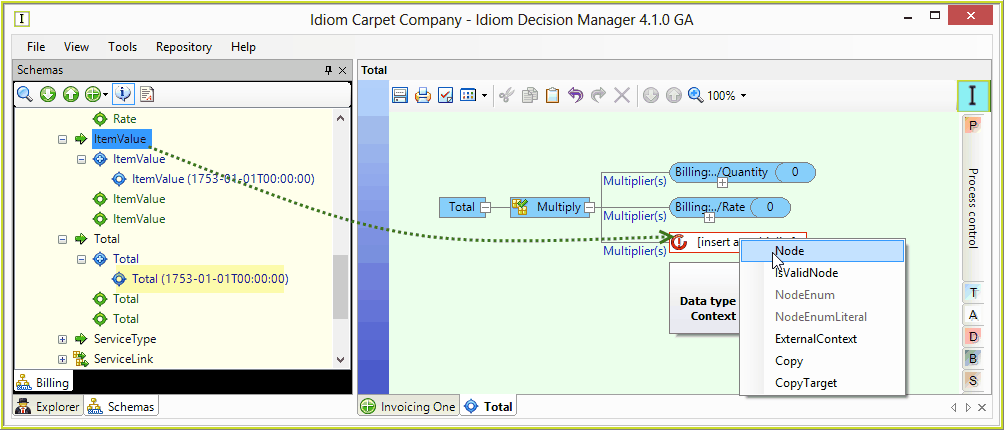
Figure 4-58: The Total formula.
The “Service Type” and “Service Link” formulas can be created by copying Figures 4-59 and 4-60, respectively.
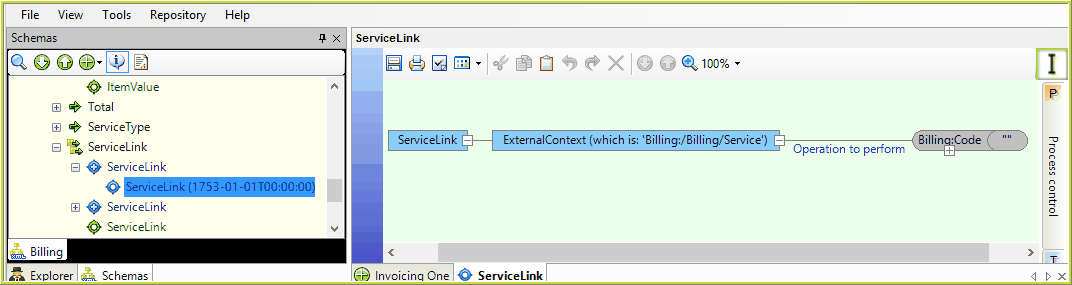 Figure 4-59: The Service Type formula.
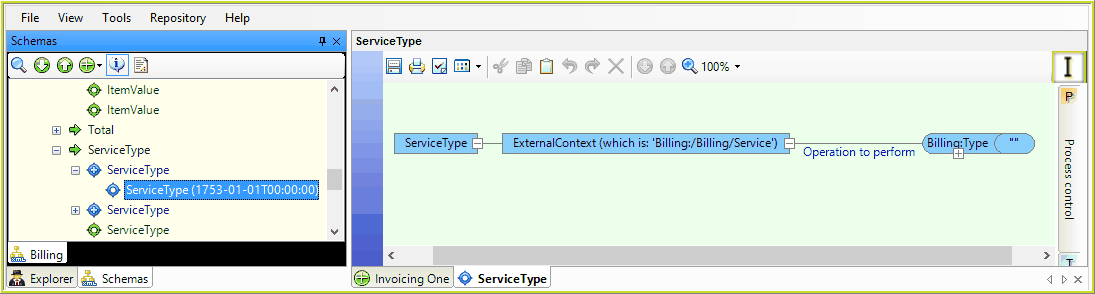
Figure 4-60: The Service Link formula.