C. Create Decisions |
  
|
C. Create Decisions |
|
First we set up a high-level decision group for Billing.
First we set up a high-level decision group for Billing.
1. |
Open the Invoicing One decision model and schema pane. |
2. |
Click on the 'Billing' node in the schema pane and drag it on to the decision model palette |
3. |
Select `New Decision Group' from the dialog box that appears. |
A new decision/decision group appears in the Workspace. It is useful to use the root node of the schema as the context node for a decision group that provides a root for the branch of the decision model.
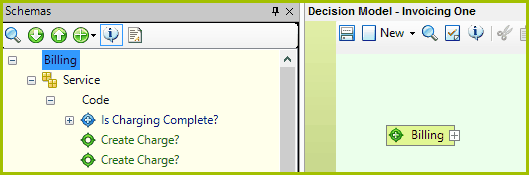
Figure 4-46(a): Creating a new decision group in the Invoicing One decision model
Now we have to create a decision group that shows we are dealing with Billing Service Charges.
4. |
Click on the 'Service' node in the schema pane and drag it on to the Billing decision group, and select `New Decision Group' from the dialog box that appears. |
The next step is to set up a decision that checks if a service charge needs to be created for the type of service provided. Some services will be provided free of charge e.g. carpet laying can be provided free of charge for an initial promotional period.
The Service types are predefined in a Table (see Figure 4-43). Service Type A incurs a charge and Service Type B does not. We will set up a formula that checks the service type later on. Right now we need to create the decision:
5. |
Click on the 'Code' node in the schema pane and drag it on to the 'Service' decision group, and select `New Decision' from the dialog box that appears. |
6. |
Double click in the rectangle that appears and rename the decision 'Create Charge?' |
7. |
Right-click on the 'Create Charge?' decision and select Datatype | Control |
Next, we need to create a decision group that will collect all the required information for service types that do incur service charges.
8. |
Click on the 'Charge' node in the schema pane and drag it on to the 'Service' decision group, and select `New Decision Group' from the dialog box that appears. |
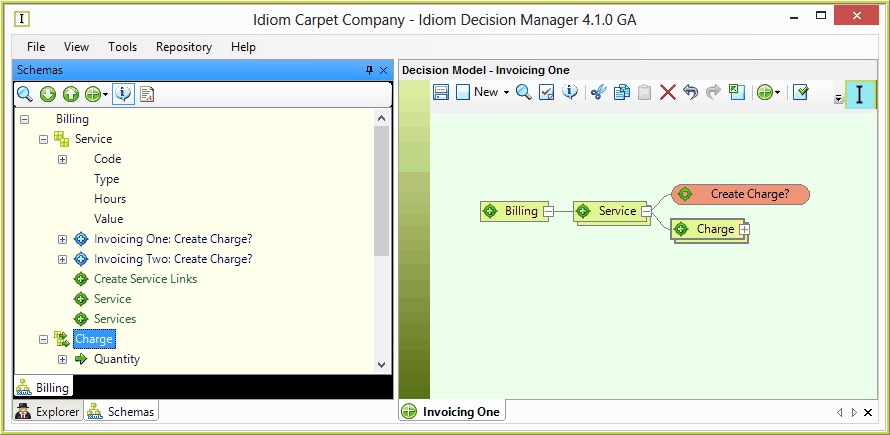
Figure 4-46(b): Newly created decision groups and decisions in the Invoicing One decision model
Now we need to specify the service charge information that will be collected:
9. |
Click on the 'Quantity' node in the schema pane and drag it on to the 'Charge' decision group, and select `New Decision' from the dialog box that appears. |
10. |
Repeat step 9 but create the following decisions: |
• 'Rate'
• 'ItemValue'
• 'Total'
• 'ServiceType'
• 'ServiceLink'
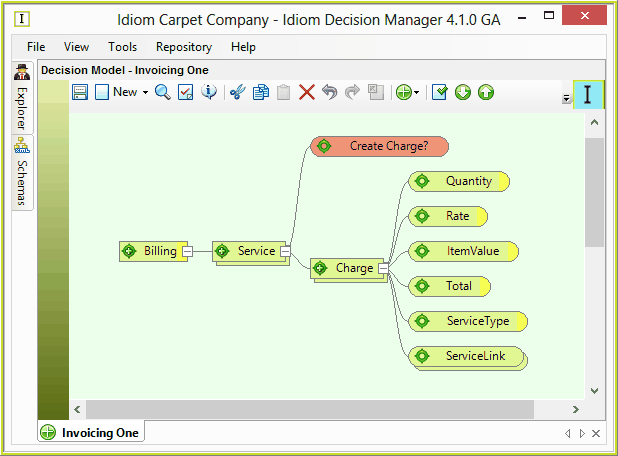
Figure 4-48: Decision groups and decisions created in the Invoicing One decision model