Controlling Pane Position |
  
|
Controlling Pane Position |
|
You can control the size and position of all of the IDIOM panes, excluding the Workspace. The size of this pane is determined by the size of the desktop window itself. Other panes, such as the Explorer and customized Schema panes, have resizing handles and a pane pin.
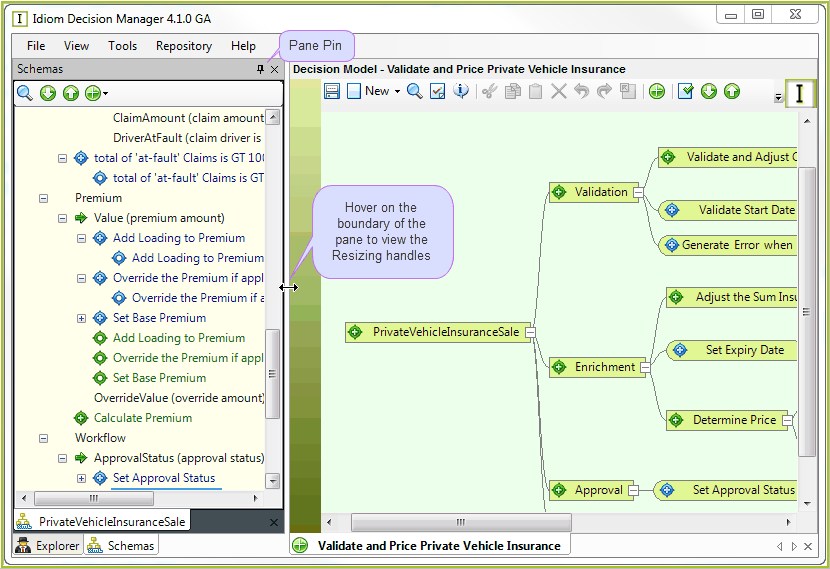
Figure 2-25 Pane Pin and resizing handles
When you open one of these panes, you will see a pane pin icon at the top right hand corner of the pane. This is used to pin, or unpin, the pane to the desktop.
For example, you can unpin the Explorer pane in order to make more room to see the palettes open in the Workspace.
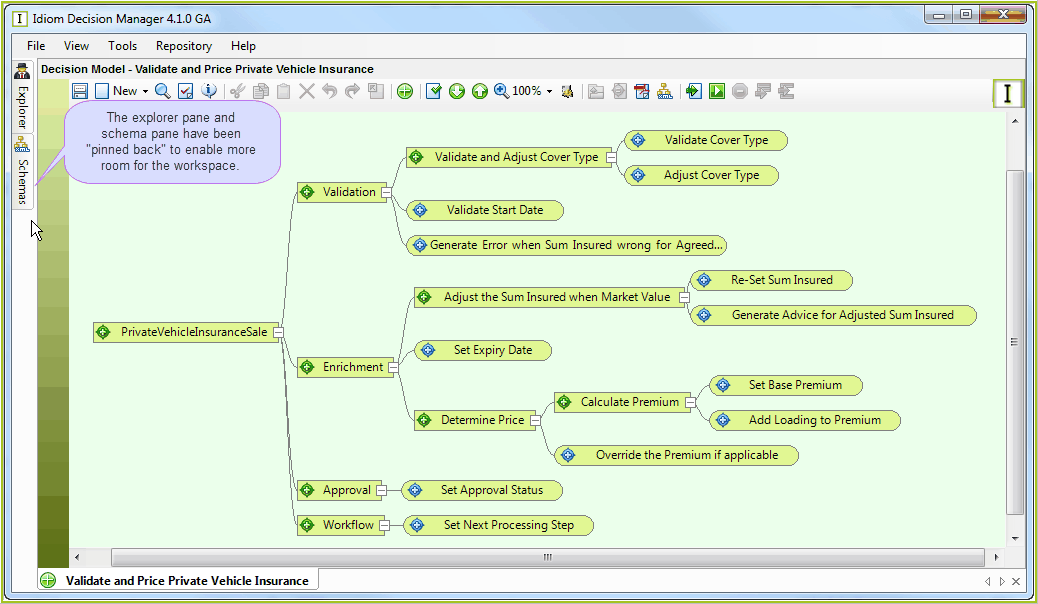
Figure 2-26: The Explorer pane pinned back
Tip |
If you undock a pane, you can re-dock it by double clicking on its title bar. If you cannot see the pane at all, you can open it by selecting View | IDIOM Explorer |
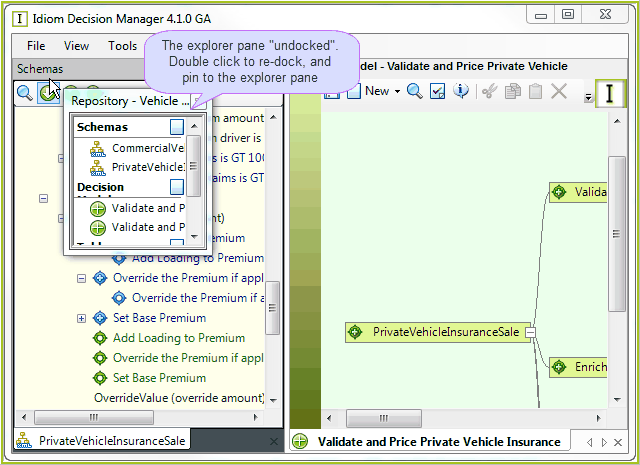
Figure 2-27: The Explorer pane undocked
The panes can be docked at the top, bottom, left or right of the model and formula Workspaces as follows:
1.Click on the pane's caption bar and hold the button down.
2.A central docking control will appear in the middle of the screen.
3.Drag the caption bar to one of the docking positions above, below, to the right or left of the black arrows.
4.The location of the screen where the pane will be docked will change colour.
5.Release the mouse button.
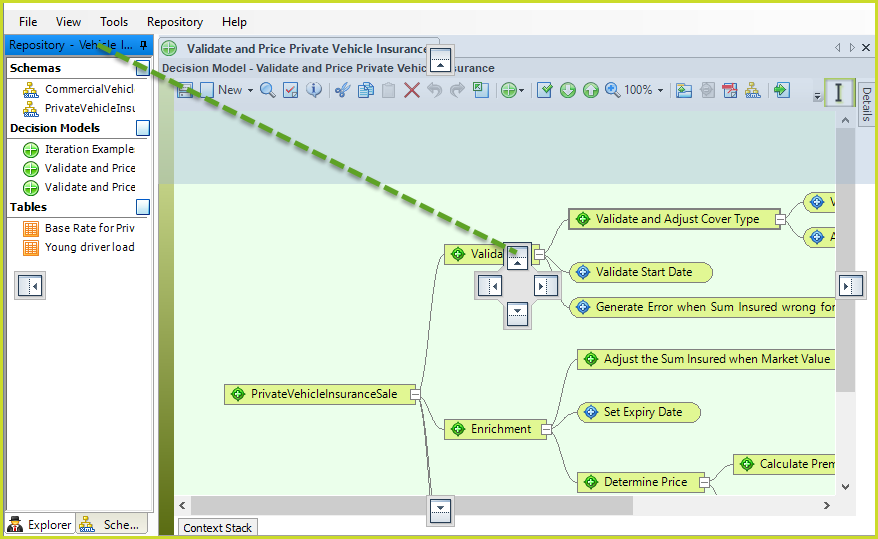
Figure 2-27a: Drag and drop panes.
Tip |
If you have two monitors then you can drag any pane to your other monitor to free up the Workspace. |