Changing Your Password |
  
|
Changing Your Password |
|
To change your password:
1. |
Log onto IDIOM using your old password. |
2. |
Click on `File' | `Change User Name/Password' > Change User Name/Password dialog box |
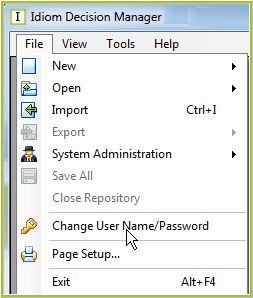
Figure 2-6: Changing your password
3. |
Enter your old password and then the new password you wish to use |
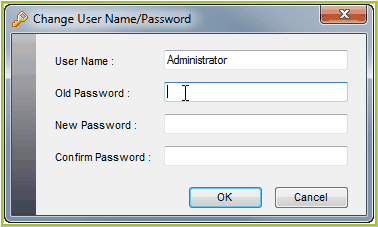
Figure 2-7: The Change User Name/Password Dialog Box
4. |
Click `Ok' (or `Cancel' if you wish to cancel the transaction). |
Your password has now been successfully changed.
NOTE: You can only change your password if you do not have any repositories open.
A System Administrator can also update any Users' password if they forget their log-in (See Resetting a Users Password)